LinkedIn has two connection limits: a hard cap of 30,000 connections per account, and a weekly limit on invitations that most people hit at about 100 connection requests a week. LinkedIn doesn't publish the weekly number, and it counts it over a rolling seven days, not a calendar week.
So if you're seeing "You've reached the weekly invitation limit," you haven't broken anything. You've used your slots, and they come back seven days after you spent them.
This guide covers every limit that affects connection requests, how the rolling window works, what to do when you hit the cap, how to clear pending invitations on desktop and mobile, and how to reach people without spending an invitation at all.
LinkedIn Connection Limits at a Glance
Only one of these numbers is fixed. The rest come from what LinkedIn users and outreach tools consistently report, because LinkedIn shows a limit message without saying where the line sits.
| Limit | Number | How firm it is |
|---|---|---|
| Total connections | 30,000 first degree connections | Fixed, same for free and paid accounts |
| Connection requests per week | About 100, some accounts report up to 200 | Not published; varies by account |
| When the weekly limit resets | Rolling 7 days from each invite you sent | Widely reported |
| Pending (unanswered) invitations | Around 700 before new invites are blocked | Reported by users |
| Personalized notes on a free account | A handful a month, reported between 3 and 10 | Varies by account |
| Connection note length | 200 characters free, 300 with Premium | Widely reported |
| Re-inviting someone after you withdraw | Wait up to 3 weeks | Reported consistently |
| Followers | No 30,000 cap | Followers don't count as connections |
The 30,000 cap, the roughly 100 a week figure, the rolling reset and the 700 pending threshold all appear in Lobstr's LinkedIn limits overview, updated in September 2026. Treat the weekly and pending figures as working estimates, not promises.
Takeaway: Plan around 100 invitations a week; if your account allows more, that's a bonus, not a target.
How Many Connection Requests Can You Send Per Week?
Plan for about 100 a week, or roughly 20 per working day. Most accounts land near that number, and some report up to 200, usually older accounts with a high acceptance rate or a paid plan.
There's no official daily limit. The cap is weekly, so 100 requests on Monday and 20 a day for five days both use the same allowance. What changes is when the slots come back.
How the rolling seven day window works
LinkedIn counts the invitations you sent in the last seven days, not since Monday. Each slot frees up exactly seven days after you used it. Send 40 on a Tuesday, and those 40 slots return the next Tuesday.
That's why spreading your requests out matters more than the total. Compare two people who both send 100 invitations a week:
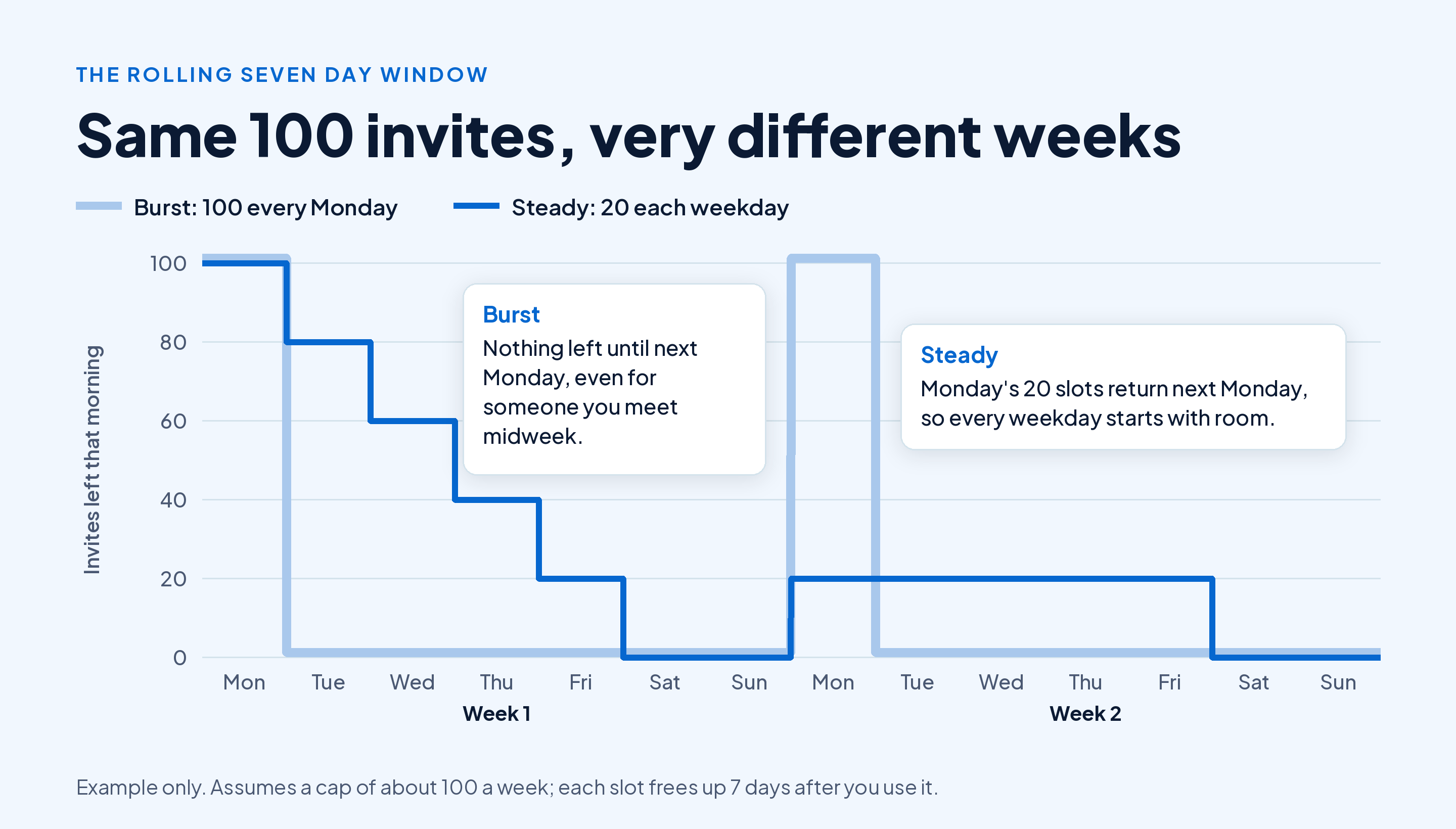
The person who sends everything on Monday has nothing left for six days. If they meet a prospect at an event on Wednesday, they can't connect until next Monday. The person who sends 20 each weekday always has slots the next working morning.
Takeaway: Send 15 to 20 requests each weekday instead of one big batch, so you always have room for someone new.
What Happens When You Hit the Weekly Invitation Limit
LinkedIn shows a message saying you've reached the weekly invitation limit, and you can't send new invitations until older ones roll out of your seven day window. Nothing else on your account changes.
While you wait, you can still:
- Accept invitations other people send you. Incoming requests don't use your allowance.
- Message your existing connections as normal.
- Follow people and comment on their posts, so they see your name before you invite them.
- Send InMail if you have a paid plan with credits.
Hitting the limit once is harmless. Hitting it every week while many of your invites go unanswered is what draws attention. Fast bursts of requests, a low acceptance rate and people marking your invites as unwanted can lead to a temporary restriction, and our guide to what to do if LinkedIn restricts your account covers how to get back in.
Takeaway: When the limit message appears, switch to following and commenting for a few days rather than hunting for a workaround.
Why Your Weekly Limit Might Be Lower
LinkedIn doesn't give every account the same allowance. Three things show up again and again when people report a lower ceiling:
- A new account. Accounts only a few weeks old tend to get a smaller allowance. Start with 5 to 10 requests a day and build up.
- A low acceptance rate. If fewer than about 30% of your invites get accepted, expect tighter limits, a threshold LeadLoft's guide to LinkedIn limits also uses.
- A long list of pending invites. Hundreds of unanswered requests tell LinkedIn that people don't know you.
The fix for all three is the same: invite fewer people who are more likely to say yes. A 2nd degree connection with mutual contacts, someone who just commented on your post, or a person you met at an event accepts far more often than a stranger from a search list. If you're not sure what the degree labels mean, here's how LinkedIn's 1st, 2nd and 3rd degree labels work.
Takeaway: Track how many of last week's invites were accepted; if it's under a third, tighten who you invite before you send more.
Pending Invitations: How to Find and Withdraw Them
Invites nobody answers stay pending, and users report that LinkedIn blocks new invites once roughly 700 are waiting. Long before that, a big pending list drags your acceptance rate down.
Withdrawing an old invite doesn't give you back a weekly slot. It cleans up your pending list, which is what keeps your account looking healthy.
Withdraw invitations on desktop
- Click My Network in the top bar.
- Click Manage (or See all, if you have invitations waiting for you) next to Invitations.
- Open the Sent tab.
- Click Withdraw next to an invite, then confirm.
Withdraw invitations in the mobile app
- Tap My Network at the bottom of the screen.
- Tap Invitations or Manage, then switch to Sent.
- Tap Withdraw next to each invite you want to cancel.
The app moves these menus around more often than the website. On iPhone you may find invitations under Notifications, then Invitations, then the option to view invitations you sent.
One catch: once you withdraw an invite, you can't invite the same person again for up to three weeks. So withdraw in bulk the invites older than three weeks, and leave recent ones alone.
Takeaway: Every Friday, withdraw anything older than three weeks, and keep your pending list well under a few hundred.
Connection Note Limits on Free and Premium Accounts
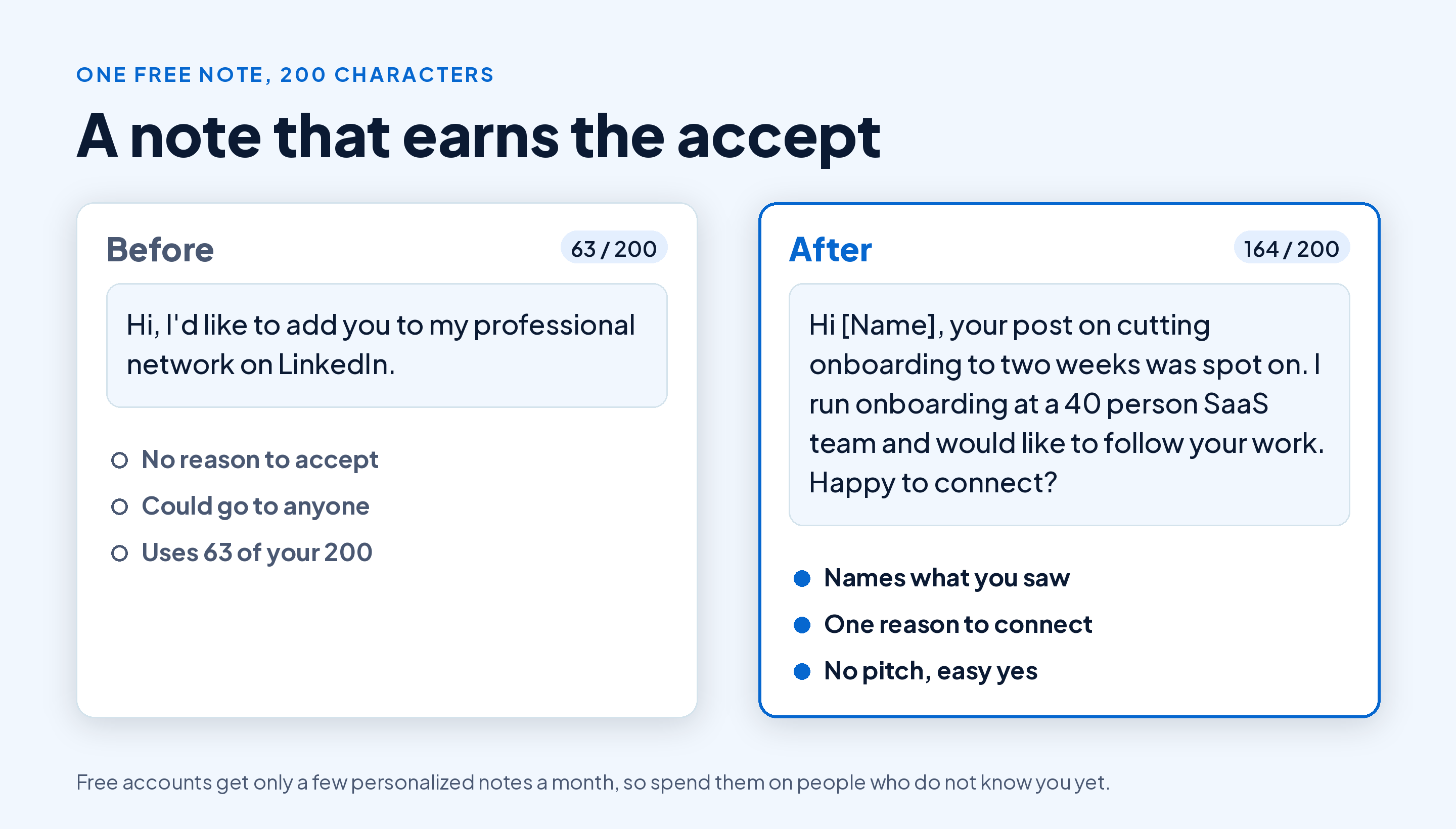
A connection note is capped at 200 characters on a free account and 300 with Premium, the same split that useArtemis lists in its LinkedIn limits help page. Free accounts also get only a handful of personalized notes each month; once they're used, you send invites without a note until the next month.
That makes each free note worth spending carefully. Save them for people who won't recognize your name, and send plain invites to people who already know you.
200 characters is enough if every word earns its place. Here's how a vague note compares with one that gets accepted:
Here's a fill-in template that fits well under 200 characters:
Hi [Name], I saw your [post / talk / comment] on [specific topic]. I work on [related thing] at [Company] and would like to follow your updates. Happy to connect?
Swap the bracketed parts for real details, and cut anything that sounds like a pitch. For more examples by situation, see our connection note examples for every kind of request.
Takeaway: Spend free notes on strangers, keep each one to a single reason for connecting, and stay under 200 characters.
The 30,000 Connection Cap
Every LinkedIn account, free or paid, can hold up to 30,000 first degree connections. Once you reach it, you can't add new connections until you remove some, and people who visit your profile can only follow you.
Followers work differently. People can keep following you past 30,000, and they see your posts in their feed without being connected. For most people near the cap, followers are the better way to keep growing, since a follow needs no approval and has no ceiling. Here's how followers differ from connections on LinkedIn in more detail.
Few people ever get close. If you're past 20,000, start removing connections you don't recognize now, so you have room for the ones that matter.
Takeaway: If you're heading for 30,000, be pickier about who you accept and let everyone else follow you instead.
How to Reach People Without Using an Invitation
The weekly limit only applies to connection requests. Several ways to start a conversation don't touch it:
InMail
Paid plans include a monthly allowance of InMail credits for messaging people you're not connected to. LinkedIn's Premium and Sales Navigator comparison lists them like this:
| Plan | InMail credits a month | Price from |
|---|---|---|
| Premium Business | 15 | $69.99 a month |
| Premium All-in-One | 30 | $89.99 a month |
| Sales Navigator | 50 | $119.99 a month |
InMail suits a handful of high value people a week, not volume. Our guide on when an InMail is worth a credit explains how credits are spent and refunded.
Follow, then comment
Following someone costs nothing and has no weekly cap. Comment on two or three of their posts over a week or two, and by the time you invite them, your name is familiar. Your acceptance rate goes up, which protects your limit for everyone else.
Ask a mutual connection
For a 2nd degree contact you really want to meet, a short intro from someone you both know beats any cold note. It also means the invite comes from them, not from your weekly allowance.
Takeaway: Use follows and comments to warm people up, and save both invitations and InMail for people who already recognize you.
A Weekly Invitation Plan That Stays Under the Limit
Here's a routine that fits inside about 100 invites a week and keeps your acceptance rate high. Copy it into your calendar:
| Day | Invitations | Other tasks |
|---|---|---|
| Monday | 20, to people who engaged with your posts last week | Reply to every comment from the weekend |
| Tuesday | 20, to 2nd degree contacts in your target list | Comment on 5 posts from people you plan to invite |
| Wednesday | 20, mix of event attendees and recent profile viewers | Publish your own post |
| Thursday | 20, to 2nd degree contacts | Message new connections from Monday and Tuesday |
| Friday | Up to 20, or none if acceptance fell | Withdraw invites older than 3 weeks; count last week's acceptance rate |
The Friday check is what keeps the plan honest. If fewer than a third of last week's invites were accepted, cut the following week to 10 a day and spend the time on comments instead.
If you run outreach every week, Draftly's browser-based Outreach add-on runs invite and follow-up sequences from your own browser, inside working hours you set, with daily limits and random gaps between actions. It pauses on LinkedIn warnings, withdraws old unanswered invites, and stops a sequence as soon as someone replies. It works with a free LinkedIn account and costs $19 a month. No tool can promise LinkedIn won't restrict an account, so keep the volumes in this guide.
For what to do once people accept, our LinkedIn lead generation playbook covers turning new connections into conversations and clients.
Takeaway: A steady 20 invites a weekday, a Friday cleanup and a weekly acceptance check will keep you under every limit in this guide.
Conclusion
LinkedIn caps you at 30,000 connections and roughly 100 invitations a week, counted over a rolling seven days. Spread requests across the week, keep pending invites low by withdrawing anything older than three weeks, and watch your acceptance rate, since that's what decides how much room LinkedIn gives you.
When the limit hits, follow and comment instead, and save free connection notes for people who don't know you yet.
People accept invites from profiles that post useful things. Start Draftly's free plan and write five LinkedIn posts a month that make your invites easier to accept, no card needed.