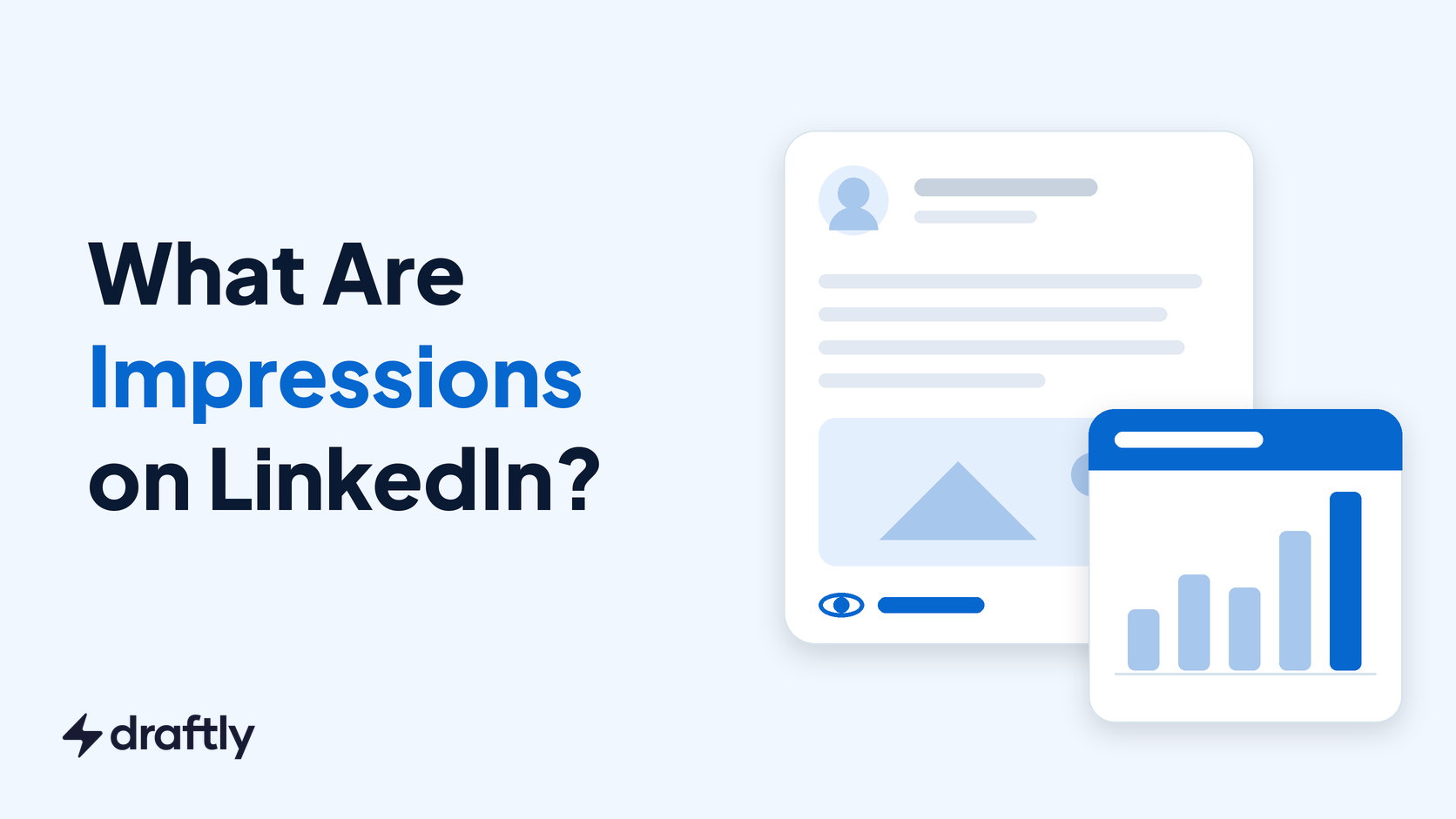
Impressions on LinkedIn are the number of times your post was displayed on someone's screen. They count every display, so if one person scrolls past your post three times, that's three impressions, and nobody has to read, click or react for it to count.
That makes impressions a measure of exposure, not attention. The number sitting next to it, members reached, tells you how many different people saw the post, and the gap between the two says a lot about how your post spread.
This guide covers what LinkedIn counts as an impression, how impressions differ from members reached and views, where to find them on desktop, mobile and Company Pages, what a good number looks like, and how to read a drop without guessing.
What Does Impressions Mean on LinkedIn?
LinkedIn defines impressions as the number of times your post was displayed on screen, and it labels the figure an estimate that may not be precise.
Three details trip people up:
- Repeat views count. The same person seeing your post on Monday and again on Wednesday adds two impressions.
- Your own views count. Your own views, engagements, saves and sends are counted in your post analytics, so checking your post ten times a day nudges the number up.
- Only you see them. Your post analytics are private, so you can't look up the impressions on anyone else's post, and they can't see yours.
So 300 impressions doesn't mean 300 people read your post. It means your post appeared on a screen 300 times.
Takeaway: Read impressions as "how often LinkedIn showed this," then look at the other numbers to see what people did with it.
How LinkedIn Counts an Impression
LinkedIn doesn't publish one counting rule for every surface, but it does for Company Pages and ads. On a Page, a view counts as an impression when the post is at least 50 percent on screen for 300 milliseconds or more, or when it's clicked.
Sponsored posts follow ad viewability rules instead: 50 percent of the ad in view for one second on desktop, and 50 percent or 300dp in view for 300 milliseconds on mobile.
In practice, 300 milliseconds is less than a third of a second. A fast scroll past the middle of your post can be enough, which is why a post can rack up thousands of impressions and a handful of reactions.
| Where the post appears | Counted as an impression when | Who sees the number |
|---|---|---|
| Your personal posts | The post is displayed on screen (LinkedIn's definition; exact threshold not published) | Only you |
| Company Page posts | At least 50% on screen for 300 ms, or clicked | Page admins |
| Sponsored posts, desktop | At least 50% in view for 1 second | Campaign Manager users |
| Sponsored posts, mobile | At least 50% or 300dp in view for 300 ms | Campaign Manager users |
| Your comments | The comment is displayed, repeats and your own views included | Only you |
Takeaway: An impression only proves your post had a chance to be seen, so never report it as "people who read this."
Impressions vs Members Reached vs Views
These three get mixed up more than any other LinkedIn numbers, and they answer different questions.
- Impressions: how many times the post was displayed, repeats included.
- Members reached: how many distinct members and Pages saw it. LinkedIn calls this an estimate that excludes repeat displays. Company Pages and Campaign Manager may label the same idea "unique impressions" or "reach."
- Views: on video, a view is a separate metric from impressions, and on your profile, "profile views" means people who opened your profile, not your post.
Divide impressions by members reached and you get the average number of times each person saw the post. Here's a worked example:
| Metric | Your post | What it tells you |
|---|---|---|
| Impressions | 2,400 | The post was displayed 2,400 times |
| Members reached | 1,600 | 1,600 different people saw it |
| Impressions per person | 1.5 | The average viewer saw it one and a half times |
| Reactions, comments and reposts | 60 | The interactions you earned |
| Engagement rate | 2.5% | 60 divided by 2,400 impressions |
A ratio close to 1 means the post kept finding new people. A ratio well above 2 usually means the same audience kept seeing it, often because comments kept pushing it back into their feeds. Neither is good or bad on its own; it tells you whether the post spread wide or stayed in one circle.
Takeaway: Track members reached next to impressions; reach tells you how many people, impressions tell you how often.
How to See Impressions on Your LinkedIn Posts
On desktop
- Open your post from the feed, or click Me, then View profile, and scroll to your posts in the Activity section.
- Below the post, click [Number] impressions in the lower left corner, or View analytics in the lower right.
- On the Post analytics page, find Impressions and Members reached under Discovery.
- Scroll down for Profile activity (profile views and followers gained from the post), Social engagement (reactions, comments, reposts, saves and sends) and, for posts with links or video, link and video performance.
In the LinkedIn mobile app
- Tap your profile photo, then View profile.
- Scroll to Activity and tap the option to see all your activity, then pick the post.
- Tap the [Number] impressions line under the post you want.
- Scroll the analytics screen for the same Discovery, Profile activity and Social engagement sections you'd see on desktop.
The app moves things around more often than the website, so if a label looks different, look for the impressions count directly under your post. That count is the doorway to the full analytics on both.
For all your posts at once
Your profile has an Analytics section near the top, visible only to you. Click [Number] post impressions there to open your combined creator analytics. Change the date range to compare one week or month with the last, which is the quickest way to spot a trend across posts.
Takeaway: Use single post analytics to judge one post, and the combined view to judge your month.
In Network vs Out of Network Impressions
In June 2026 LinkedIn started rolling out a split of each post's impressions into In network, the share from people who follow you or are connected to you, and Out of network, the share from everyone else. The split sits in the Discovery section under impressions and is reaching accounts gradually.
It's worth checking on every post, because it tells you why impressions went up or down:
- High out of network share: the post traveled. Comments and reposts carried it into feeds of people who don't know you, which is how you grow followers.
- Low out of network share: the post stayed with your existing audience. Fine for a post aimed at clients, but it won't grow your reach.
Compare the out of network share across your last ten posts, not between you and someone else. Your network size, niche and posting history shape what's normal for you.
Takeaway: When a post does well, check whether the extra impressions came from inside or outside your network before you try to repeat it.
Impressions on Company Pages, Ads and Comments
Company Pages: admins see impressions, members reached, clicks and engagement for every post under the Page's Analytics tab, then Content. Full post analytics live on desktop, while the mobile app shows content analytics for the last 30 days.
Ads: paid impressions show up in Campaign Manager with their own reach and frequency figures, and they follow the stricter one second rule on desktop. If you advertise beyond the LinkedIn feed, ads served on partner apps and sites also count; our guide to whether to switch on LinkedIn Audience Network explains where those extra impressions come from.
Comments: LinkedIn now shows an impression count on the comments you leave. Only you can see comment impressions, the count isn't unique, and your own views are included.
Comment impressions are handy if you comment as part of your growth plan. A thoughtful comment on a big creator's post can collect more impressions than your own post that day. Draftly's Smart Commenting suggestions draft two or three comment options in your voice under any LinkedIn comment box, and you always press Post yourself.
Takeaway: Compare like with like: Page impressions against Page impressions, paid against paid, and never paid against organic.
How Long LinkedIn Keeps Your Impression Data
LinkedIn keeps members reached data for 400 days and demographic breakdowns, such as viewers' job titles, companies and locations, for 180 days. After that, the detail behind an older post is gone.
That matters if you report results to a client or a manager, or want to compare this year with last. Export or note your top posts' numbers each quarter so you have them when the breakdowns expire.
LinkedIn also only shows demographic breakdowns once enough distinct people have seen the post, and that threshold is now based on members reached rather than impressions. On small posts, an empty demographics section is normal.
Takeaway: Save a quarterly snapshot of your best posts before the 180 day demographic window closes.
What Is a Good Number of Impressions on LinkedIn?
There's no official benchmark, but large datasets give you a starting point. AuthoredUp's study of 704,259 personal profile posts and 189,909 Company Page posts from July 2025 to June 2026, limited to original posts with more than 100 impressions, found:
| Account type | Median impressions per post | Top 5% of accounts, median per post |
|---|---|---|
| Personal profiles | 1,006 | 11,805 |
| Company Pages | 659 | 4,746 |
The same dataset puts the median engagement rate at 2.50% for personal profiles and 2.59% for Company Pages, and it shows engagement rate falling as accounts grow past roughly 50,000 followers:
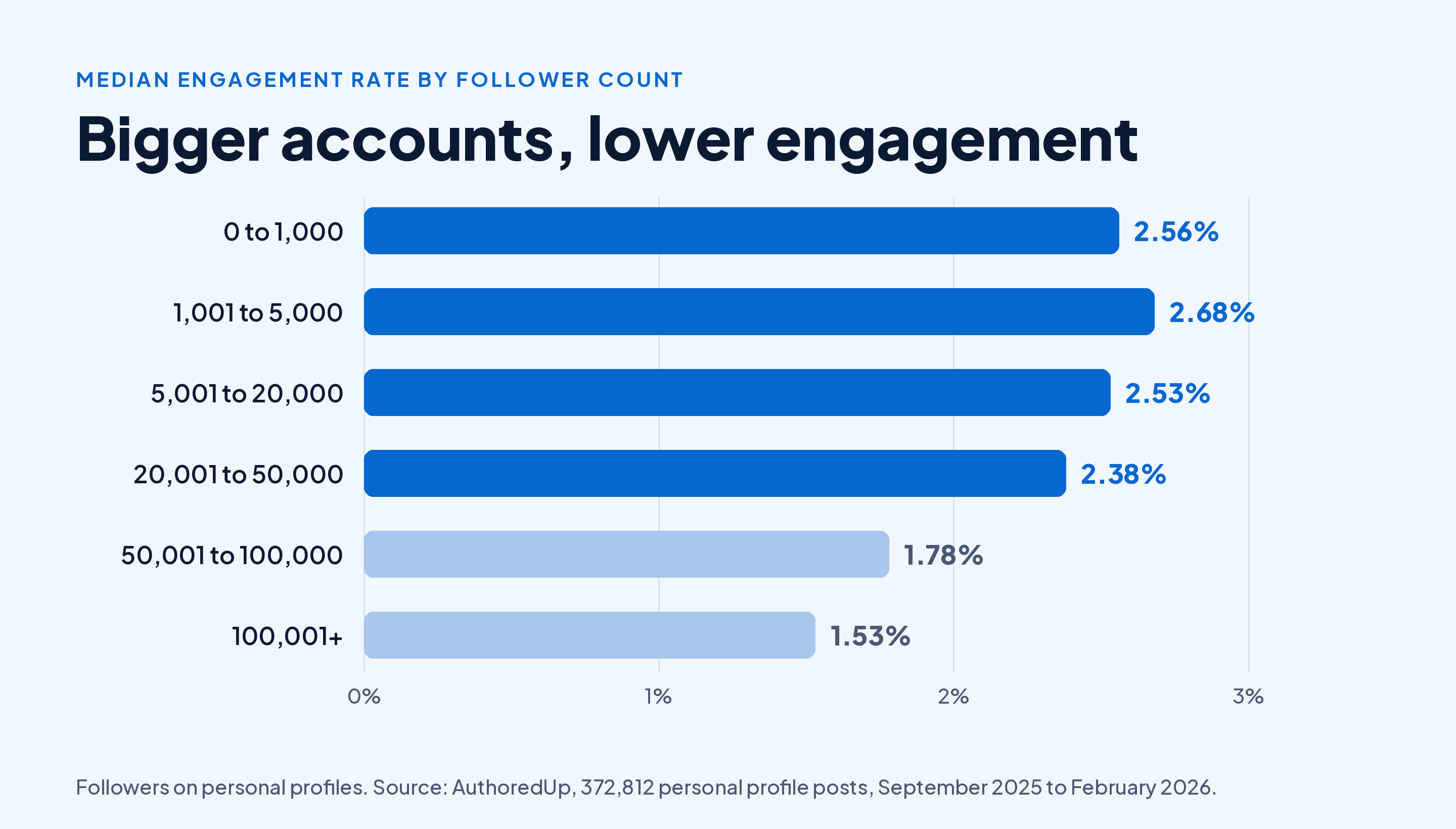
Big accounts earn more impressions, but each impression is worth a little less, because more of their audience is passive followers. So a smaller account with 600 impressions and a 3% engagement rate can be doing better work than a large one with 6,000 impressions and 1%.
The benchmark that counts most is your own. Take your last 10 posts, find the middle value for impressions, and judge each new post against that number. If you're new and your posts sit in the low hundreds, that's normal for a small network; our guide to getting more impressions on every post covers what moves that number.
Takeaway: Benchmark against your own 10 post median, and judge a post by engagement rate as well as impressions.
How to Calculate Your LinkedIn Engagement Rate From Impressions
LinkedIn doesn't show an engagement rate on personal posts, so you work it out:
Engagement rate = (reactions + comments + reposts) ÷ impressions × 100
A post with 45 reactions, 12 comments and 3 reposts on 2,000 impressions has an engagement rate of 60 ÷ 2,000 × 100, or 3%. Some people add clicks, saves and sends to the top line; that's fine as long as you use the same formula every time.
Our guide to calculating and improving your engagement rate goes deeper on which interactions to include and how comments compare with reactions.
Takeaway: Pick one engagement rate formula, write it down, and use it for every post you compare.
Why Your LinkedIn Impressions Went Down
A drop in impressions has a handful of causes, and your analytics can tell most of them apart in a minute. Start by checking whether the drop is real, then look at engagement rate and the network split:
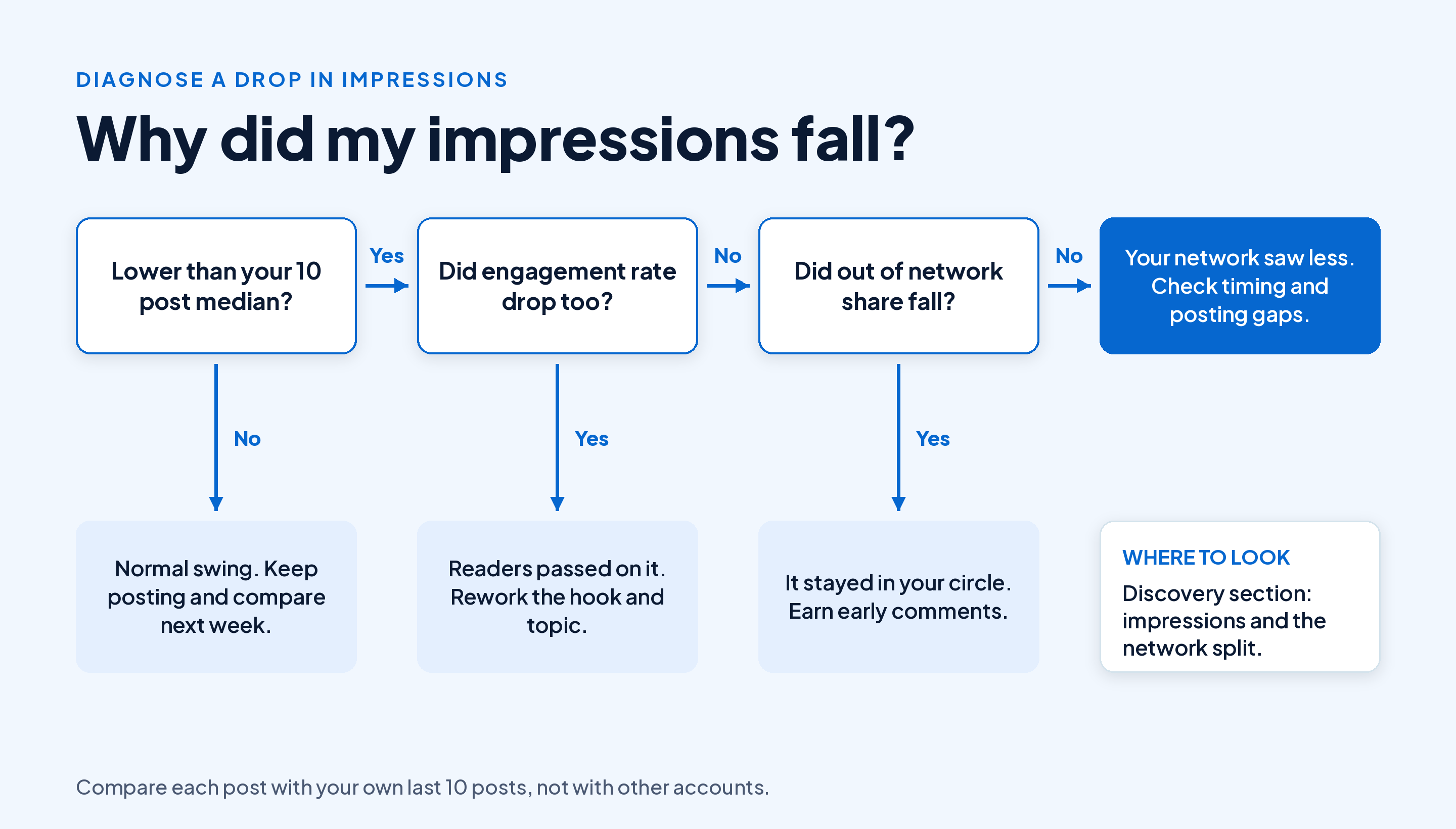
The order matters. If engagement rate held steady, people who saw the post liked it as much as usual, so the problem is distribution, not the writing. If engagement rate fell too, fix the post before you blame the algorithm.
Timing is the easiest distribution issue to fix. Posts get their first test with your own network, so publishing when your audience is offline wastes that window. Our free tool for finding your best LinkedIn posting times suggests times by industry and time zone, with no signup.
If the drop lasts weeks rather than days, read our breakdown of what keeps LinkedIn reach flat for months. And for how the feed ranks posts in the first place, our guide to how LinkedIn's feed ranking works covers the signals behind every impression.
Takeaway: Diagnose with engagement rate and the network split before you change your content or your schedule.
Do Impressions Matter?
Yes, but as a starting point. Impressions tell you whether LinkedIn gave your post a chance. What happened next tells you whether the post did its job.
Pick the metric that matches your goal and read impressions alongside it:
- Building an audience: followers gained from the post and the out of network share.
- Getting clients or a job: profile views from the post and messages that mention it.
- Driving traffic: link clicks, divided by impressions for a click rate.
For a wider look at every number on the analytics screen, see our guide to reading each metric in your post analytics.
Takeaway: Decide what a post should achieve before you publish, and judge its impressions by that outcome.
Conclusion
An impression is one display of your post on a screen, repeats and your own views included, while members reached counts the distinct people who saw it. Divide one by the other to see whether a post spread wide or circled the same audience, and use the in network and out of network split to see where the extra impressions came from.
Judge each post against your own 10 post median, calculate engagement rate the same way every time, and save your best posts' data before the 180 day demographic window closes.
More impressions start with posting consistently. Start Draftly's free plan and write five LinkedIn posts a month, no card needed.