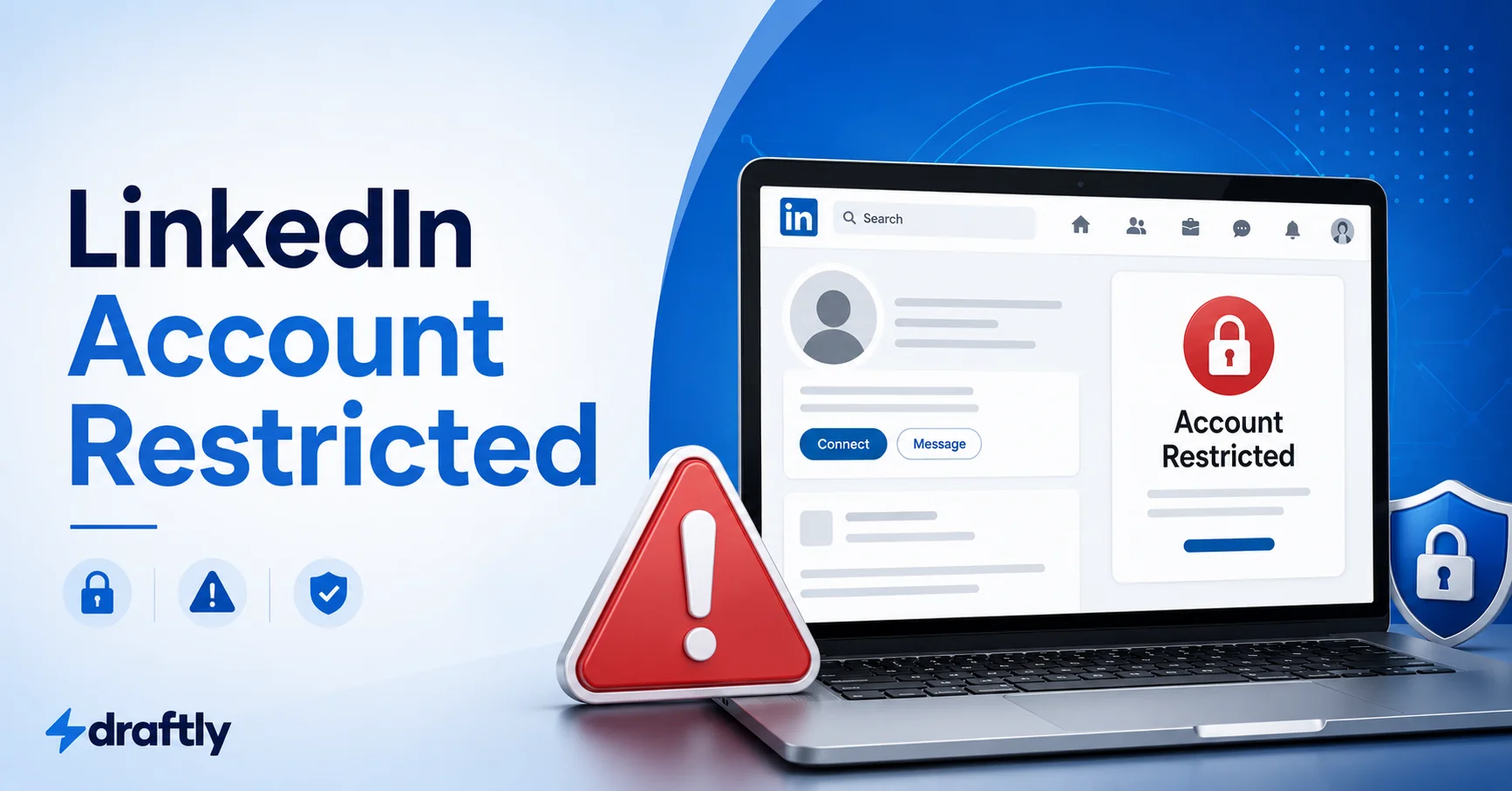
If you’re staring at a restriction banner with no context and assuming the worst, that reaction makes sense, but it’s usually not where this ends up. Here’s what’s actually going on and what to do about it.
You log in expecting your feed and instead get a banner telling you your account has been restricted. No warning, usually no clear reason, just a wall between you and an account you might use for actual work. It’s unsettling, and the first instinct for most people is to assume the worst: banned, gone, starting over from zero.
Almost none of that is true. Most restrictions are temporary, most are triggered by something specific and fixable, and LinkedIn’s own systems are built to flag behavior first and ask questions second. It’s really just one more piece of keeping a LinkedIn account in good standing overall, the same category of maintenance as tidying up your profile or checking your privacy settings. Here’s what’s actually going on when your account gets restricted, why it happens more often than people realize, and what to do depending on which kind of restriction you’re looking at.
What “Restricted” Actually Means (and Why It’s Not the Same as Banned)
LinkedIn uses a few different terms that people tend to lump together, and the differences matter. A restriction limits what you can do on your account, sending messages, connecting, posting, sometimes logging in at all, without necessarily deleting anything. A suspension or ban is more severe and usually final. “Restricted” almost always sits on the lighter end of that scale, even when the banner language sounds alarming.
Within restrictions, LinkedIn’s own account restrictions policy breaks things down into two real categories.
Temporary restrictions are LinkedIn’s way of pausing an account it thinks might be behaving oddly, automated activity, an unusual login, a spike in connection requests, until it can confirm you’re a real person doing normal things. These typically resolve on their own after a set period, or as soon as you complete a verification step.
Permanent restrictions are what happens after repeated violations, a serious policy breach, or an identity verification that fails outright. These are much less common than the panic around this topic would suggest, and they usually come with a far more explicit explanation than a vague banner.
If you’re not sure which one you’re dealing with, the banner itself is the first clue. A message that gives you a countdown, a “come back later” note, or asks you to verify your identity is almost always temporary. A message that says your access has been permanently removed, with no timer and no verification prompt, is the harder version, and it’s worth reading closely before assuming the worst.
Why This Actually Happens
The vague “you violated our terms” language LinkedIn shows you is doing a lot of work to avoid tipping off people trying to game the system. But the real triggers are pretty consistent, and most of them are behavioral rather than one big mistake.
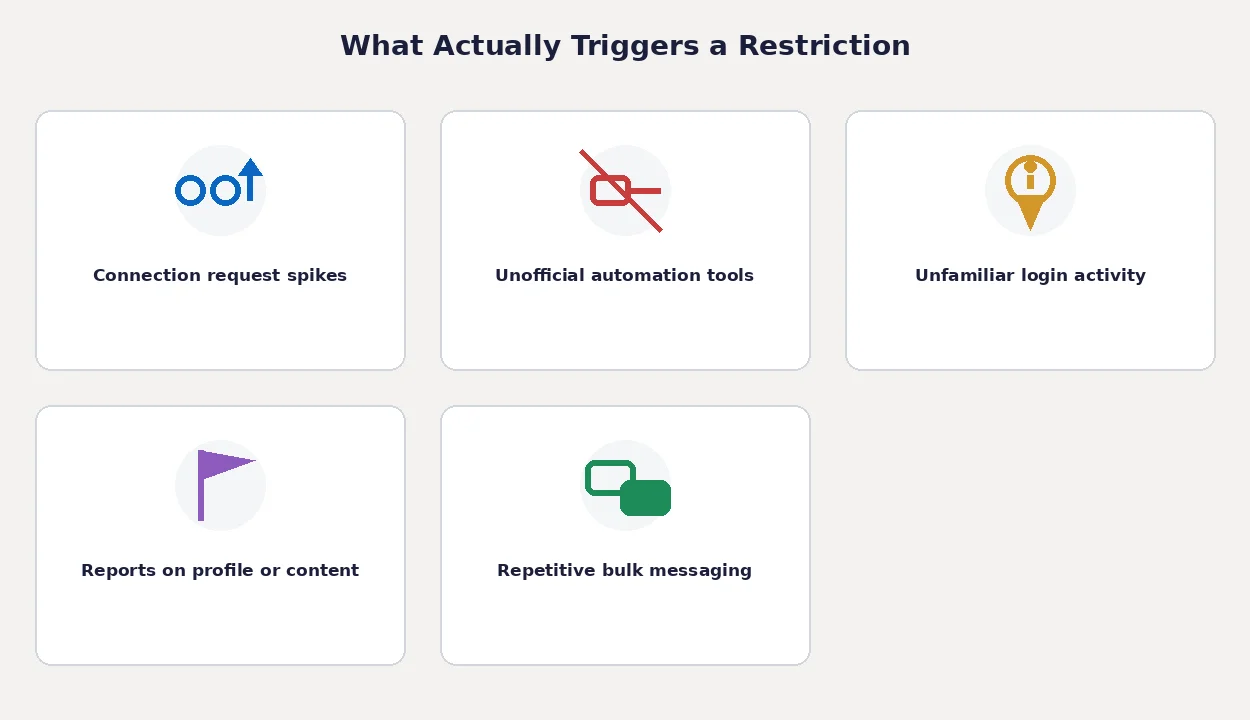
Connection request patterns. Sending a large batch of requests in a short window, especially with the same templated note, is one of the most common triggers. LinkedIn is also watching your acceptance rate: if a lot of people are ignoring or declining you, or clicking “I don’t know this person,” that’s read as a spam signal even if your intentions were fine. This is a big part of why personalizing connection requests and pacing them out matters more than most people think, it’s not just about getting better replies, it’s about staying under the radar of the system that flags volume.
Automation and unofficial extensions. LinkedIn’s user agreement explicitly bans third-party tools that auto-connect, scrape profile data, or mimic human clicks on your behalf. Browser extensions that promise to “automate your outreach” are the most common source of this, and plenty of people install one without realizing how aggressively it’s operating in the background. This is different from tools that publish content through LinkedIn’s official API on a schedule you set yourself; the system treats those two categories very differently, because one is acting through the front door and the other is quietly working around it.
Login activity that looks off. A new device, a new country, a VPN, or logging in right after a password reset can all read as suspicious, especially in combination. This one is often pure bad timing rather than anything you did wrong.
Profile or content that gets reported. Other members can report a profile, a post, or a message, and enough reports (or one serious one) can trigger a review. Misleading job titles, an inconsistent name, or a profile photo that looks lifted from a stock library can also raise flags on their own, even without a report, which is part of why it’s worth keeping the basics of your profile complete and consistent rather than half-filled out or copied from somewhere else.
Messaging behavior. Sending the same message to a large number of people in a short span, particularly cold outreach with an obvious sales pitch, can look identical to spam from LinkedIn’s side, whether it came from a real person typing quickly or a script.
None of these require malicious intent. Plenty of restricted accounts belong to people who were just moving fast, testing a new tool, or logging in from an airport lounge on a work trip.
Temporary or Permanent? How to Tell Which One You’re Dealing With
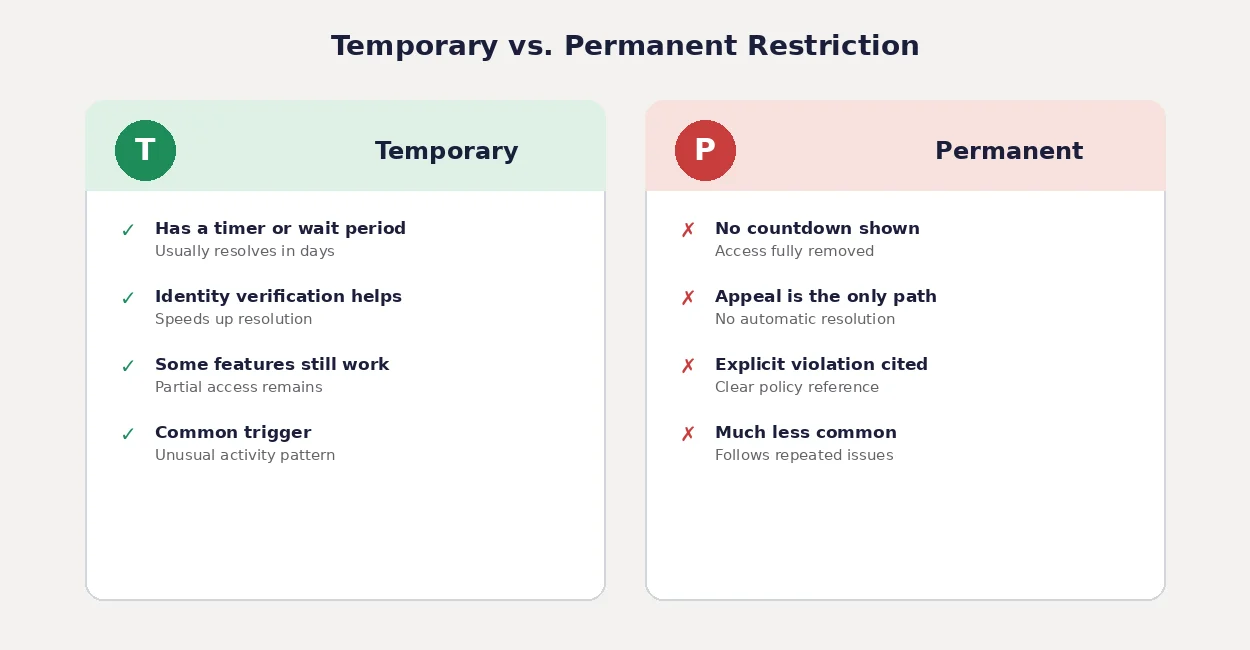
The clearest signals are right in front of you if you read past the headline of the notice. A timer, a request to verify your identity, or partial access to your account all point toward temporary. No countdown, an explicit reference to a specific violation, or a message that reads as final rather than conditional points toward permanent, and that version is considerably rarer.
What to Do the Moment You See It
Before anything else, read the exact wording on the banner. It usually tells you more than it seems to at first glance, whether there’s a timer, whether it’s asking for verification, or whether it’s pointing you toward a support form.
Check your email next. LinkedIn frequently sends a companion message explaining the restriction in more detail than the in-app banner, and sometimes that email is the only place a verification link or appeal option actually shows up.
If the account is only partially restricted, some features still work while others don’t, resist the urge to immediately try workarounds like logging in from a different browser or device to “test” it. That kind of activity is exactly what a temporary restriction is designed to catch, and it can extend the timer rather than shorten it.
If LinkedIn Asks You to Verify Your Identity
This is one of the most common resolutions, and it’s worth not reading too much into it. LinkedIn increasingly asks members to verify their identity with a government-issued ID or a quick selfie check, not because you did something wrong, but because it’s the fastest way for the system to confirm you’re a real, single person behind the account. Once that’s done, most temporary restrictions lift within a short window.
It’s reasonable to be cautious about uploading an ID to any platform. LinkedIn processes this through an established identity verification partner rather than storing the raw image indefinitely, but if you’re uncomfortable with it, that’s a legitimate call to make. The tradeoff is that skipping verification usually means the restriction stays in place until it resolves some other way, which can take considerably longer.
If the Restriction Feels Wrong
Sometimes the trigger really was a false positive, an unusually good week of legitimate networking that looked like a spike, a work trip that looked like a compromised login. LinkedIn has an appeal path for exactly this, usually surfaced through the same banner or through the help center directly.
When you file it, be specific rather than emotional. Explain what you were actually doing (attending a conference and connecting with people you met, for instance), and skip the part where you argue about whether the algorithm is fair. Reviewers are working through a queue, not a debate, and a clear, calm explanation moves faster than a long one.
Response times vary and LinkedIn doesn’t publish a guaranteed turnaround, so it’s worth checking back rather than assuming silence means rejection.
What Makes It Worse
A few instincts that feel productive in the moment tend to backfire:
Creating a new account to get around a restriction on your current one is one of the fastest ways to end up with two disabled accounts instead of one. LinkedIn links accounts by device and behavioral signals, not just login credentials, so a fresh signup doesn’t actually look fresh to the system.
Paying for one of the “unlock your LinkedIn account” services that show up on freelance marketplaces or in YouTube comments is a bad trade in both directions, it rarely works, and handing your credentials to a third party creates a much bigger problem than the restriction itself.
Repeatedly submitting the same appeal or support ticket doesn’t speed anything up. It usually just resets you further back in the queue.
Keeping It From Happening Again
Once you’re back in, the fix isn’t to stop using LinkedIn actively, it’s to make your activity look like what it actually is: a real person, doing things at a human pace. Spacing out connection requests and writing an actual sentence instead of a template goes further than people expect. So does building a posting rhythm you can sustain instead of disappearing for weeks and then publishing five things in a day, sudden bursts of activity after a quiet stretch are one of the patterns that reads as odd to LinkedIn’s systems, even when it’s completely innocent.
If you’re using any tool that touches your account, it’s worth knowing the difference between one that schedules or drafts content through LinkedIn’s own publishing permissions and one that’s logging in as you to click around the site. The first is what LinkedIn expects; the second is what gets flagged.
The Short Version
A restriction is a pause, not a verdict. Most of them are temporary, most are triggered by ordinary things like fast connection activity or an unfamiliar login, and most resolve with a short wait or a quick identity check rather than a drawn-out fight. Read the exact message you got, verify if asked, appeal calmly if it’s wrong, and skip anything that promises to “unlock” your account for a fee. The account almost always comes back; the trick is not making it worse while you wait.