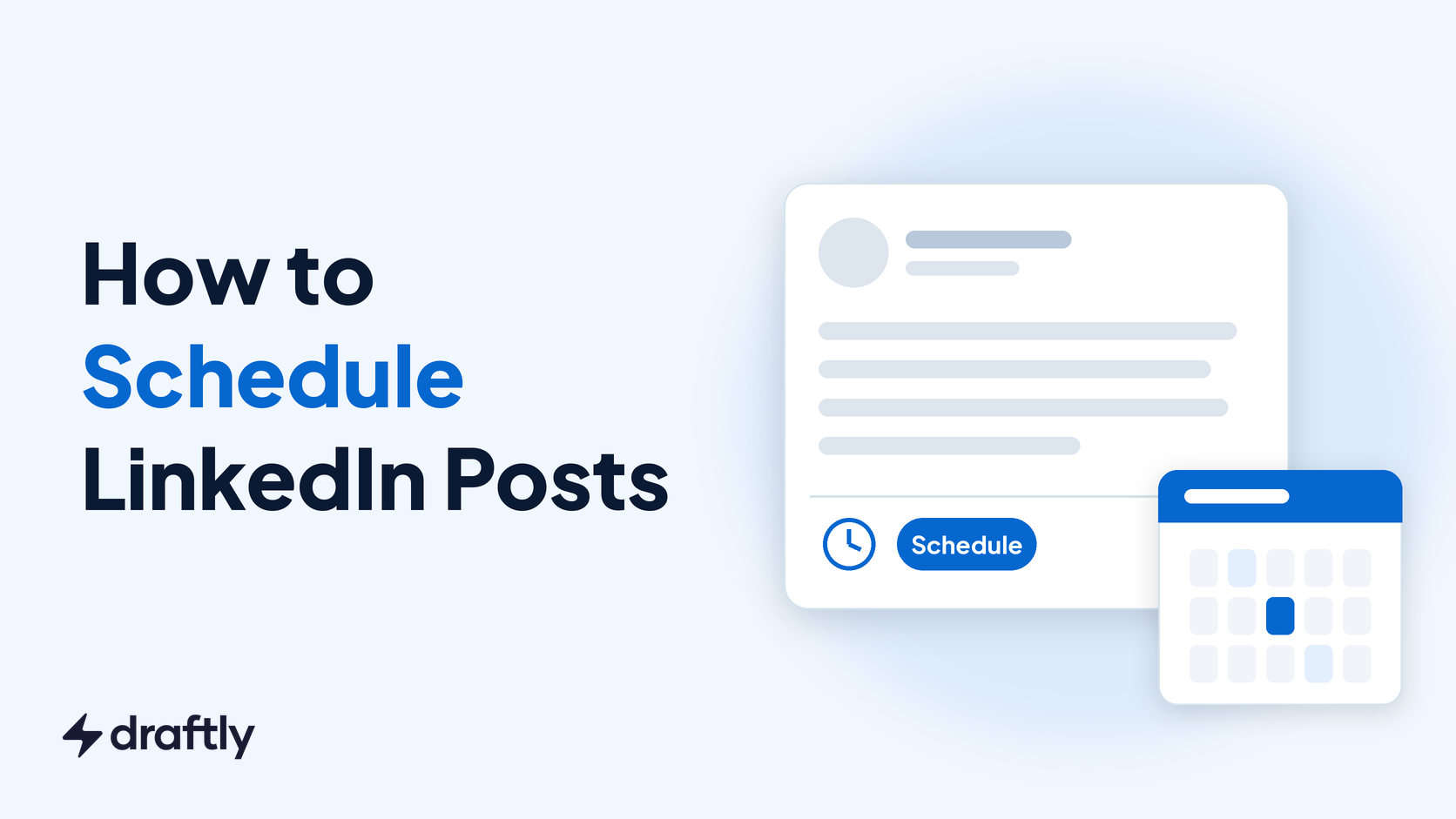
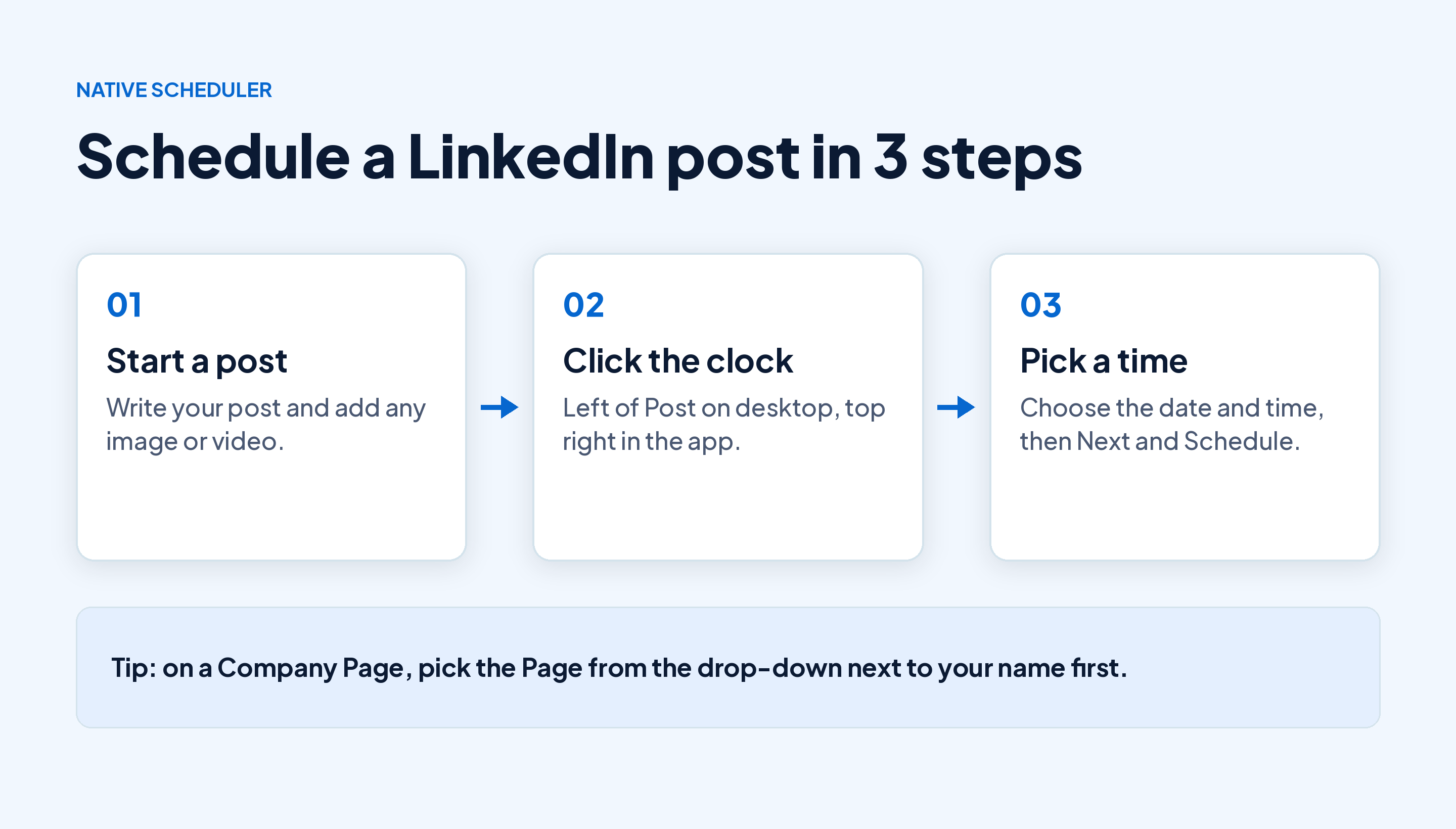
You can schedule LinkedIn posts without any extra tool: click Start a post, write your post, click the clock icon next to Post, pick a date and time, then click Next and Schedule. LinkedIn's built-in scheduler accepts a time anywhere from 10 minutes to three months ahead (Buffer, as of August 2026).
That covers most people. Where it gets fiddly is everything around it: scheduling for a Company Page, finding a post once it's queued, the post types the clock icon won't accept, and planning more than one post at a time.
This guide walks through the steps on desktop, the mobile app and Company Pages, then shows what the native scheduler can't do, when a scheduling tool makes sense, and how to fix the most common scheduling problems.
Can You Schedule Posts on LinkedIn?
Yes. LinkedIn has a native scheduler built into the post composer on desktop and in the mobile app, and it works for personal profiles and Company Pages. You don't need Premium to use it.
Two independent guides from this year agree on how far ahead it goes: up to three months (Buffer, as of August 2026; Planable, as of June 2026). Buffer also gives the minimum: at least 10 minutes from now.
What you can schedule natively:
| Post type | Schedule natively? | Notes |
|---|---|---|
| Text post | Yes | Profile and Company Page |
| Single image or GIF | Yes | Profile and Company Page |
| Video | Yes | Upload it in the composer first |
| PDF document (carousel) | Usually | Guides differ; if the clock icon shows after the upload, you can schedule it |
| Link post | Usually | Same check: look for the clock icon |
| Events, jobs, services | No | These have their own flows |
| Posts in LinkedIn Groups | No | Publish these live |
The table follows Buffer's August 2026 guide and Planable's June 2026 guide. Both list text, image and video posts as schedulable and leave out events, jobs, services and groups. Buffer includes PDF carousels and link previews; Planable doesn't mention them, so treat the clock icon as the final word.
Takeaway: Text, image and video posts schedule fine; for anything else, look for the clock icon before you write.
How to Schedule a LinkedIn Post on Desktop
- Go to your LinkedIn home feed and click Start a post.
- Write your post and add any image, video or PDF.
- Click the clock icon to the left of the Post button.
- In the Schedule post window, choose a date and a time.
- Click Next to go back to your post and check it one last time.
- Click Schedule.
The post is now queued. It won't show on your profile or in anyone's feed until the time you picked.
One check worth adding before step 3: read the post on a phone-sized screen. LinkedIn shortens longer posts behind a "see more" link, so the hook has to land before the cut. Our free LinkedIn post preview tool shows the opening lines your audience sees before that cut.
Takeaway: Schedule from the same composer you post from; the only new click is the clock.
How to Schedule a LinkedIn Post on the Mobile App
The app flow mirrors desktop, with the clock icon in a different spot:
- Open the LinkedIn app and tap Post in the bottom navigation bar.
- Write your post and attach any media.
- Tap the clock icon in the upper right corner of the composer.
- Pick a date and time, then tap Next.
- Tap Schedule.
If you don't see the clock icon, update the app from the App Store or Google Play first. Older app versions may not show it.
Takeaway: On your phone, look top right for the clock, not next to the Post button.
How to Schedule Posts on a LinkedIn Company Page
You need the right Page role first. LinkedIn's help page on scheduled posts for LinkedIn Pages says a super admin or content admin of a Page can schedule a post or a newsletter article.
Then:
- Click Start a post, either from your home feed or from your Page's admin view.
- Click the drop-down arrow next to your name at the top of the composer and select the Page.
- Write the post, click the clock icon, pick a date and time, and click Next.
- Click Schedule.
Each Page keeps its own queue, separate from your personal one. That's the reason most "my scheduled post disappeared" moments happen: the post is sitting in the Page's queue while you're checking your own.
Buffer's guide also reports that polls, reshares and multi-photo posts can't be scheduled on Company Pages (Buffer, as of August 2026). If you want a Page poll, publish it live; our walkthrough on creating a LinkedIn poll covers the options.
Takeaway: Check the name at the top of the composer before you click Schedule.
How to See, Edit, Reschedule or Delete Scheduled Posts
Scheduled posts don't have their own tab. They live behind the same clock icon:
- Click Start a post.
- Click the clock icon.
- Click View all scheduled posts.
- Click the three dots next to the post you want to change.
- Choose Modify schedule to change the date or time, Edit post to change the post, or Delete post to remove it from the queue.
A warning on editing. Buffer lists Edit post as an option, while Planable's June 2026 guide reports that you can change the date or delete a scheduled post but not swap its image, video or text. If the edit you need won't save, copy the text, delete the scheduled post and schedule a fresh one.
For screenshots of each screen and what to check when a post seems to be missing, see our guide to finding, editing or cancelling a scheduled post.
Takeaway: Reschedule with Modify schedule; for bigger changes, delete and schedule again.
What LinkedIn's Built-in Scheduler Can't Do
The native scheduler is built for one post at a time. That's fine for a weekly post. It gets slow once you post three or more times a week.
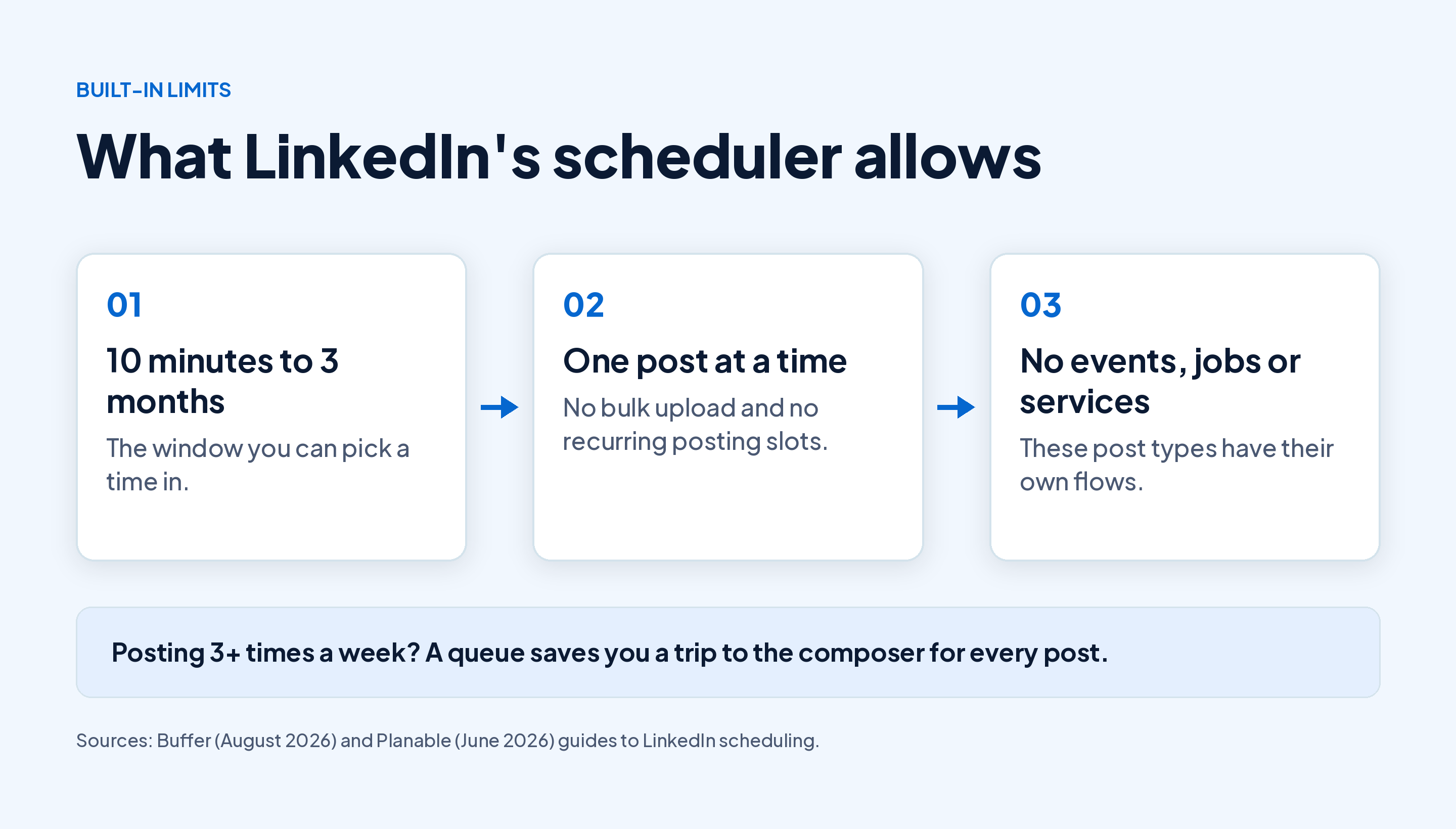
Here's how it compares with a dedicated scheduling tool:
| Need | LinkedIn's scheduler | A scheduling tool |
|---|---|---|
| Schedule a single post | Yes | Yes |
| How far ahead | Up to 3 months | Depends on the tool |
| Schedule a week in one sitting | One post at a time | Usually through a queue or bulk upload |
| Calendar view of everything queued | No, a list behind the clock icon | Usually yes |
| Recurring posting slots | No | Usually yes |
| Write and schedule in one place | Yes, but no drafting help | Some tools include AI writing |
The native column follows Planable and Buffer, both of which describe it as one post at a time with no bulk or recurring scheduling.
Takeaway: Stay native if you post once a week; consider a tool once you're batching a week or more.
When to Use a LinkedIn Scheduling Tool Instead
A tool earns its place when you write in batches. If you post three times a week, writing Tuesday's, Wednesday's and Thursday's posts in one sitting and dropping them into a queue saves you three trips into the composer.
That's what we built Draftly's Smart Scheduler for. You set your posting days and times once, add posts to the queue, and each one joins the end of the queue and goes out in the next open slot. You can also pick an exact date and time for a single post, drag posts to new dates on one calendar, or pause the queue for a week off. It handles text posts, images, documents and carousels, and you can schedule weeks or months ahead.
Whatever tool you pick, check one thing: does it publish your posts, or does it also automate likes, comments or invitations? In March 2026, LinkedIn said it's working to curb comment automation, engagement pods and third party tools that create inauthentic engagement (LinkedIn, as of March 2026). Scheduling your own posts isn't that. Auto-commenting on other people's posts is.
Takeaway: Use a tool to queue your own posts, and keep comments and replies human.
What Time Should You Schedule LinkedIn Posts?
Schedule for when your own audience is online, not for a generic "best time" chart. A post aimed at US finance leaders and one aimed at freelance designers in Europe won't peak at the same hour.
Two ways to find your slots:
- Check your own data. Open the analytics on your last 10 to 15 posts, find the five with the most impressions, and note the day and hour each one went out.
- Start from a benchmark, then test. Our breakdown of the best times to post on LinkedIn by day gives you a starting point, and the free best time to post checker suggests slots by industry and time zone.
Then schedule only for times you'll be near your phone. Early comments are the start of the conversation on your post, and a scheduler can't reply to them for you.
Takeaway: Pick two or three fixed slots a week and keep the first hour after each one free.
A Weekly LinkedIn Scheduling Routine You Can Copy
Here's a 45-minute routine for three posts a week. Adjust the days to your own slots.
- Friday, 10 minutes: pick three topics. One lesson from your week, one opinion on your industry, one practical how-to.
- Friday, 25 minutes: write all three. Hook in the first line, one idea per post, a question or next step at the end.
- Friday, 5 minutes: preview. Check each post on a phone-sized screen and fix any hook that gets cut off.
- Friday, 5 minutes: schedule. Tuesday, Wednesday and Thursday at the slots you picked, for example 8:30 a.m. in your audience's time zone.
- Each posting day, 15 minutes: reply. Block the first 15 minutes after each post goes live to answer comments.
A simple version of the plan looks like this:
| Day | Post type | Example topic | Scheduled for |
|---|---|---|---|
| Tuesday | Lesson | [One mistake we fixed in onboarding this week] | 8:30 a.m. |
| Wednesday | Opinion | [Why your industry gets X wrong] | 8:30 a.m. |
| Thursday | How-to | [Three steps to do Y in under an hour] | 12:00 p.m. |
If you'd rather plan a full month at a time, start by mapping your month in a simple content calendar and schedule from it each Friday.
Takeaway: Write in one batch, schedule in one batch, and reply live.
LinkedIn Scheduling Problems and How to Fix Them
"I can't find the clock icon." On mobile, update the app and look top right in the composer. On desktop, the clock sits to the left of the Post button. If you're creating an event or a job post, there's no clock because those can't be scheduled, and on a Company Page Buffer reports the same for polls.
"My scheduled post isn't in the list." Check three things: whether the time has already passed (it may have published), whether you're viewing as the right account (your profile or a Page), and whether a refresh brings it back.
"I need it to go out more than three months from now." The native scheduler stops at three months. Save it as a draft or in a scheduling tool, then schedule it once the date is inside the window.
"I want a live stream on a set date." That isn't a scheduled post. Live streams now run through LinkedIn Events, so follow the steps for going live on LinkedIn through an Event instead.
"The post went out with a typo." Edit it after it's live from the three dots on the published post. Next time, proofread before you click the clock: LinkedIn swapped its "Enhance your post" rewrite tool for a Post Proofreader in the composer this year (SocialPilot, as of September 2026).
Scheduling is one piece of a bigger posting habit. For the writing, formats and planning around it, see our full guide to planning and writing LinkedIn content.
Takeaway: Most scheduling problems come down to the wrong account, the wrong post type or the three-month limit.
Conclusion
To schedule a LinkedIn post, open the composer, click the clock icon, pick a time between 10 minutes and three months out, then click Next and Schedule. On a Company Page, switch to the Page in the composer first and make sure you're a super admin or content admin.
If you post once a week, that's all you need. If you post three or more times a week, write your posts in one sitting, schedule them for the slots your audience is online, and keep the first hour after each one free for replies.
Want to write and queue a week of posts in one sitting? Start Draftly's free plan and schedule five posts a month, no card needed.