Until this summer, going live on LinkedIn could be a spur-of-the-moment thing. You opened a tool, hit a button, and you were broadcasting. That ended on June 22, 2026. Every LinkedIn Live stream now has to be attached to a scheduled LinkedIn Event, even if you schedule it just a few minutes before you start.
Most of the articles ranking for this topic haven't caught up yet. Some still tell you to switch on Creator Mode first, which LinkedIn retired back in 2024. So if you tried following an older tutorial and got stuck, that's probably why.
This guide walks you through how LinkedIn Live works right now: who qualifies, which tools to use, the exact setup steps, and a minute-by-minute run-of-show you can copy for your first stream.
What LinkedIn Live Is Now (and What Changed in 2026)
LinkedIn Live is the platform's live video broadcasting feature. You stream to your profile or Company Page in real time, viewers watch in their feed or on the event page, and they can react and comment while you're on air.
The big 2026 change is structural. Every broadcast now lives inside a LinkedIn Event. That sounds like extra admin, but it works in your favour:
- Your stream gets a permanent home. The event page collects RSVPs before you go live and holds the recording after you finish, so the stream doesn't just scroll away and vanish.
- People can sign up in advance. Attendees get reminders, which is the single biggest thing that separates a stream with viewers from one without.
- You can still go live on short notice. Scheduling an event a few minutes out is a supported pattern, so an "impromptu" stream is still possible. It just takes one extra step.
It also helps to know the three formats people tend to mix up:
| Format | What it is | Best for |
|---|---|---|
| LinkedIn Live | Video broadcast attached to a LinkedIn Event | Interviews, launches, panels, workshops |
| Audio Event | Audio-only room, no camera | Casual discussions, AMAs, quick Q&As |
| External event link | A LinkedIn Event that sends people to Zoom, Teams, or another platform | Webinars that need registration forms or breakout rooms |
Takeaway: stop thinking of LinkedIn Live as a spontaneous button. Treat every stream as a small scheduled event, because that's now how LinkedIn treats it.
Who Can Go Live on LinkedIn
LinkedIn doesn't open live broadcasting to every account. To host, your profile or Page needs to meet all of these:
- More than 150 followers and/or connections. This applies to both member profiles and Company Pages.
- An account that's at least 30 days old.
- Recent original content. LinkedIn wants to see that you already post, not that you created an account just to stream.
- A clean record under LinkedIn's Professional Community Policies, meaning no recent restrictions or violations.
- Location outside mainland China, where LinkedIn Live isn't currently available.
Notice what's missing from that list: Creator Mode. LinkedIn folded those features into every profile when it retired the toggle, so if an older article tells you to turn it on first, you can skip that step. If you want the backstory on where those tools went, the breakdown of what happened to LinkedIn Creator Mode covers it.
If you don't qualify yet
The 150 threshold is the one that stops most people. The fix isn't a workaround; it's posting consistently for a few weeks and connecting with people you actually work alongside. A month of regular posts usually gets a real professional well past 150.
Some third-party tools also run an access check when you first connect your LinkedIn account. StreamYard notes that if that check fails, you may have to wait around 30 days before trying again, so it's worth confirming you meet every criterion before you connect anything.
Takeaway: check your follower count, account age, and recent posting activity before you plan a stream. It's far less frustrating than hitting a wall on stream day.
Pick How You'll Broadcast
You have two routes to go live on LinkedIn.
Route 1: Broadcast directly from LinkedIn. Once your event is scheduled, you can go live from the LinkedIn mobile app or the desktop Go Live experience using your device's camera. This is the lowest-effort option and works fine for a solo talk to camera.
Route 2: Use a third-party broadcasting tool. This is what most hosts choose once they want guests, on-screen branding, slides, or a lower-third with their name. The tool sends your stream to LinkedIn using a stream key (RTMP) or a direct account connection.
Here's how the common options compare:
| Tool | Why people pick it | Worth knowing |
|---|---|---|
| StreamYard | Runs in the browser, easy to invite guests with a link | Popular choice for interviews and panels |
| Restream | Streams to LinkedIn and other platforms at once | LinkedIn doesn't allow streaming to more than one LinkedIn channel at the same time |
| Riverside | Records each guest locally in high quality | Useful if you plan to cut the recording into clips later |
| OBS Studio | Free and open source, very flexible | Steeper learning curve; you'll paste in a stream key manually |
| Switcher Studio | Built around multi-camera setups from phones and tablets | Good for in-person events or product demos |
The technical specs LinkedIn expects
If you're using OBS or any tool where you set your own encoder settings, stay inside these limits from LinkedIn's live video documentation:
| Setting | LinkedIn's limit |
|---|---|
| Max stream length | 4 hours |
| Aspect ratio | 16:9 |
| Resolution | 720p recommended, 1080p maximum |
| Frame rate | 30 fps maximum |
| Keyframe interval | Every 2 seconds |
| Video bitrate | 6 Mbps maximum |
| Audio | AAC, 128 kbps, 48 kHz |
| Video codec | H.264 |
| Protocol | RTMP or RTMPS (RTMPS preferred) |
One detail catches people out: if a live event is registered through the API and no video arrives within an hour, it can be discarded. In practice, that means don't create the stream connection hours ahead and walk away. Connect it close to your start time.
For your internet connection, aim for a stable wired or strong Wi-Fi link with upload speed well above your stream bitrate. Many hosts use 10 Mbps upload as a safe baseline.
Takeaway: start with LinkedIn's native option if you're streaming solo. Move to a tool like StreamYard or OBS when you need guests, slides, or branding.
How to Go Live on LinkedIn, Step by Step
Here's the full process from blank calendar to live stream.
- Create a LinkedIn Event. From your profile or your Company Page, start a new event and choose LinkedIn Live as the event format. If you're using a third-party tool, you can often create the event from inside that tool instead, and it will appear on LinkedIn automatically.
- Write the event details like a landing page. Your title should say exactly what someone will walk away with ("How We Cut Onboarding Time in Half: Live Q&A with Our Ops Lead" beats "Monthly Live Session"). Use the description to list three things attendees will learn, who's speaking, and how long it runs.
- Add a cover image. Use a clean 16:9 graphic with the title, the date, and speaker faces. Faces get more RSVPs than logos.
- Pick your date and time. Weekday mornings and lunchtimes in your audience's main time zone tend to work well for professional audiences, but look at when your own posts get the most engagement and start there.
- Connect your broadcast tool. Link your LinkedIn account inside StreamYard, Restream, or Riverside, or copy the stream URL and key into OBS. Select the event you just created as the destination.
- Invite and promote. Share the event, invite relevant connections, and line up promotion posts (more on that below).
- Run a full rehearsal. Do a private test with the same camera, mic, lighting, and internet connection you'll use on the day. Test screen sharing and guest audio if you have them.
- Go live. Start broadcasting a few minutes before the official start so there's no dead air when the first viewers arrive.
- End the stream properly. Close it from your broadcast tool so LinkedIn processes the recording on the event page.
Takeaway: the event page is your stream's landing page. Spend as much time on its title and description as you do on your slides.
The Run-of-Show You Can Copy
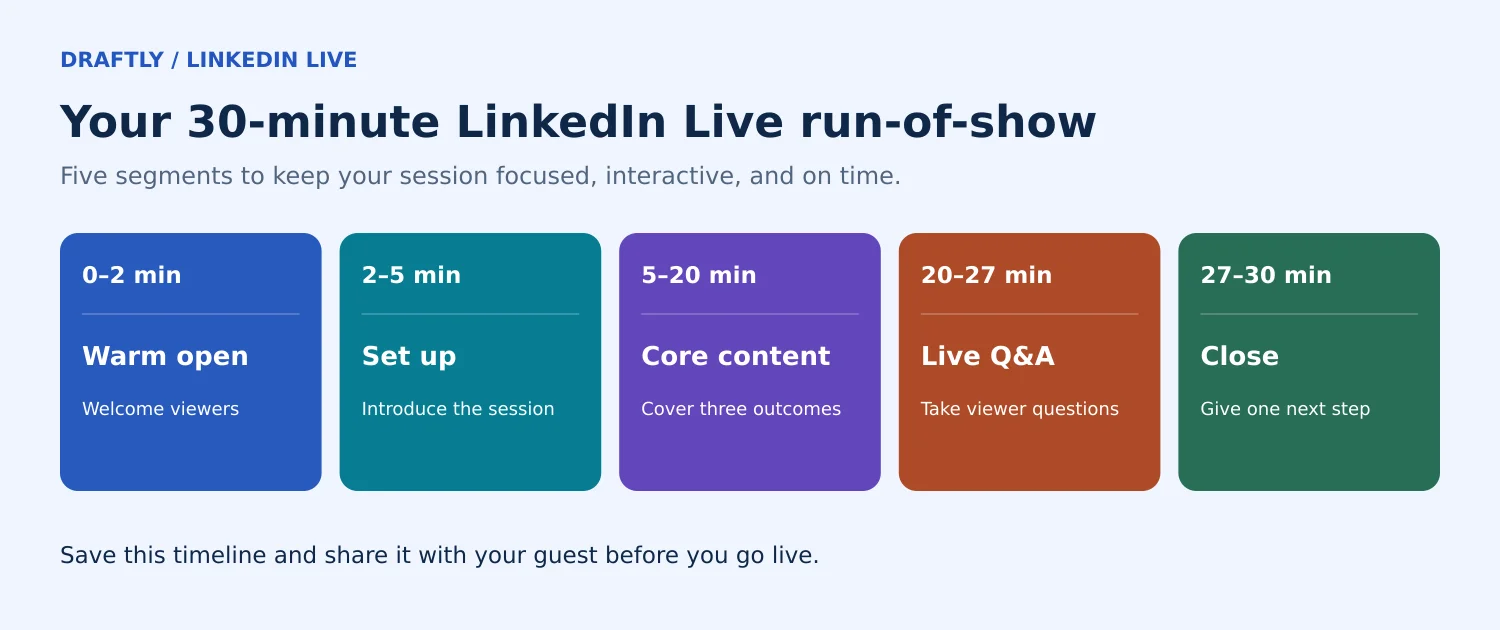
A run-of-show is a timed script for the stream. It stops you from rambling, keeps guests on track, and makes a 30-minute stream feel planned instead of improvised. Here's a template for a 30-minute interview or expert session. Adjust the times to fit your format.
0:00 to 2:00: Warm open Don't start with the main content. Early viewers are still trickling in.
"Hey everyone, we're live. Give us a minute while people join. Drop a comment and tell me where you're watching from, and what you're hoping to get out of today."
2:00 to 5:00: Set up the session Say who you are, who your guest is, and what people will leave with.
"Today I'm talking with [Guest], who [one-line credential]. By the end of this, you'll know [outcome 1], [outcome 2], and [outcome 3]. If you have questions, drop them in the comments anytime and we'll save the last ten minutes for them."
5:00 to 20:00: Core content Break this into three chunks of about five minutes each, one per outcome you promised. Between chunks, read out one comment by name. It keeps people engaged and signals that you're watching the chat.
"Great question from Priya in the comments: [question]. [Guest], what's your take?"
20:00 to 27:00: Live Q&A Take questions from the comments. If they're quiet, have two backup questions ready so there's never an awkward silence.
"While more questions come in, one thing I always get asked is [backup question]."
27:00 to 30:00: Close and next step Recap the three outcomes in one sentence each, then give one clear next step.
"Quick recap: [point 1], [point 2], [point 3]. The recording will stay on the event page, so share it with anyone who missed it. And if you want more on this, follow [Guest] and join us for the next session on [date]."
Two things make this template work. First, you told viewers upfront what they'd get, so they stick around to get it. Second, comments are woven through the whole stream, not saved for the end, which keeps the feed active while people are watching.
Takeaway: paste this into a doc, fill in the brackets, and share it with your guest a day before. It'll make both of you calmer on air.
Getting People to Actually Show Up
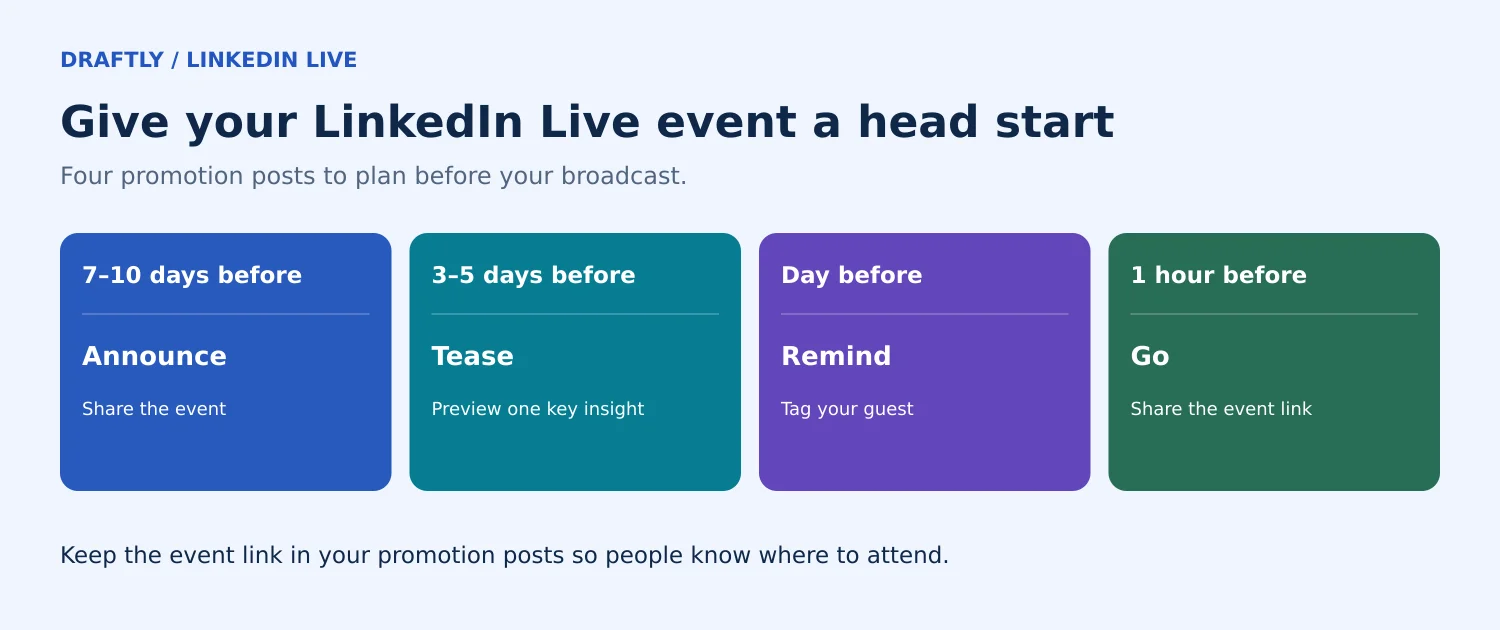
The most common LinkedIn Live problem isn't technical. It's streaming to a nearly empty room. A simple promotion timeline fixes most of that:
- 7 to 10 days before: create the event and publish your first announcement post. Put the stream on your LinkedIn content calendar so the promo posts don't get squeezed out by everything else you're publishing that week.
- 3 to 5 days before: post a teaser. Share one surprising insight your guest will expand on, and link to the event.
- The day before: post a reminder. If you have a guest, tag them in the post so their network sees it too. Ask them to share it themselves.
- 1 hour before: a short "going live soon" post with the event link.
If you already publish a LinkedIn newsletter, mention the stream in the edition before it goes live. Subscribers are some of your most engaged readers, and a newsletter lands in their inbox instead of competing in the feed.
For bigger streams, LinkedIn also offers Event Ads, which it says drive around 31% more viewership on average. That's worth testing for launches or company events where attendance matters.
Takeaway: a week of steady promotion beats a single "we're live!" post every time.
What to Do After You End the Stream
The stream ending is where most hosts stop. It's actually where a lot of the value is.
Keep the recording working. The recording stays on your event page, so anyone who RSVP'd and missed it can still watch. Share the link in a follow-up post the same day while interest is high.
Cut it into clips. In August 2026, LinkedIn rolled out Recommended Clips & Chapters to all users. It uses AI to flag standout moments in your event recording, like key announcements, insights, and memorable quotes, and adds chapters so viewers can jump around the full video. You'll find the clips composer in your event management tools, where you can pick a suggested moment and adjust its length.
Those clips work well as standalone posts, and this is where live video earns its place in a wider LinkedIn content strategy: one broadcast can feed your regular posting for days. If you're editing clips yourself instead, the steps for posting a video on LinkedIn apply the same way to a cut-down highlight as they do to any other upload.
Check how it performed. Look at RSVPs, live viewers, and recording views, and note which moments got the most comments. That tells you what to do more of next time.
Takeaway: plan two or three clip posts from every stream. One broadcast can fuel a week of content.
Common LinkedIn Live Problems and How to Fix Them
"I don't see the LinkedIn Live option when creating an event." Your account probably doesn't meet the access criteria yet. Check the 150 follower threshold, account age, and recent posting activity.
"My tool connected but the stream isn't showing up." Make sure you selected the right event as the destination. If you connected hours early, the event may have timed out, so reconnect closer to start time.
"The video looks pixelated or keeps buffering." Drop to 720p, keep your bitrate under 6 Mbps, and switch to a wired connection if you can.
"I wanted to go live right now and couldn't." Since June 2026, you need an event first. Create one scheduled a few minutes out, and you can go live almost immediately.
"I tried to stream to my profile and my Company Page at once." LinkedIn doesn't allow simultaneous streaming to more than one LinkedIn channel. Pick one, and reshare the stream from the other.
Conclusion
Going live on LinkedIn in 2026 comes down to three things: qualify first, schedule every stream as an event, and walk in with a run-of-show instead of a vague plan. Do those, and your streams will feel planned and professional, and they'll keep earning views long after you go off air through the recording and clips.
Treat live video as a regular part of your content, not a one-off experiment. If planning the announcement, teaser, reminder, and follow-up posts around every stream feels like a lot to keep track of, Draftly lets you write and schedule all of them in one place, so the promotion runs on autopilot while you focus on the stream itself.