LinkedIn doesn't have one delete button. It has three, and they do very different things: hibernate, close, and permanently delete. Pick the wrong one and you either erase ten years of recommendations you actually wanted to keep, or you close the account thinking it's gone for good and find out later you had a two-week window to change your mind the whole time.
If you've decided you're done, this walks you through exactly how to close your LinkedIn account on desktop and mobile, what actually happens to your data afterward, and the one window you have to undo it if you change course.
Hibernate, Close, or Delete: Know Which One You Actually Want
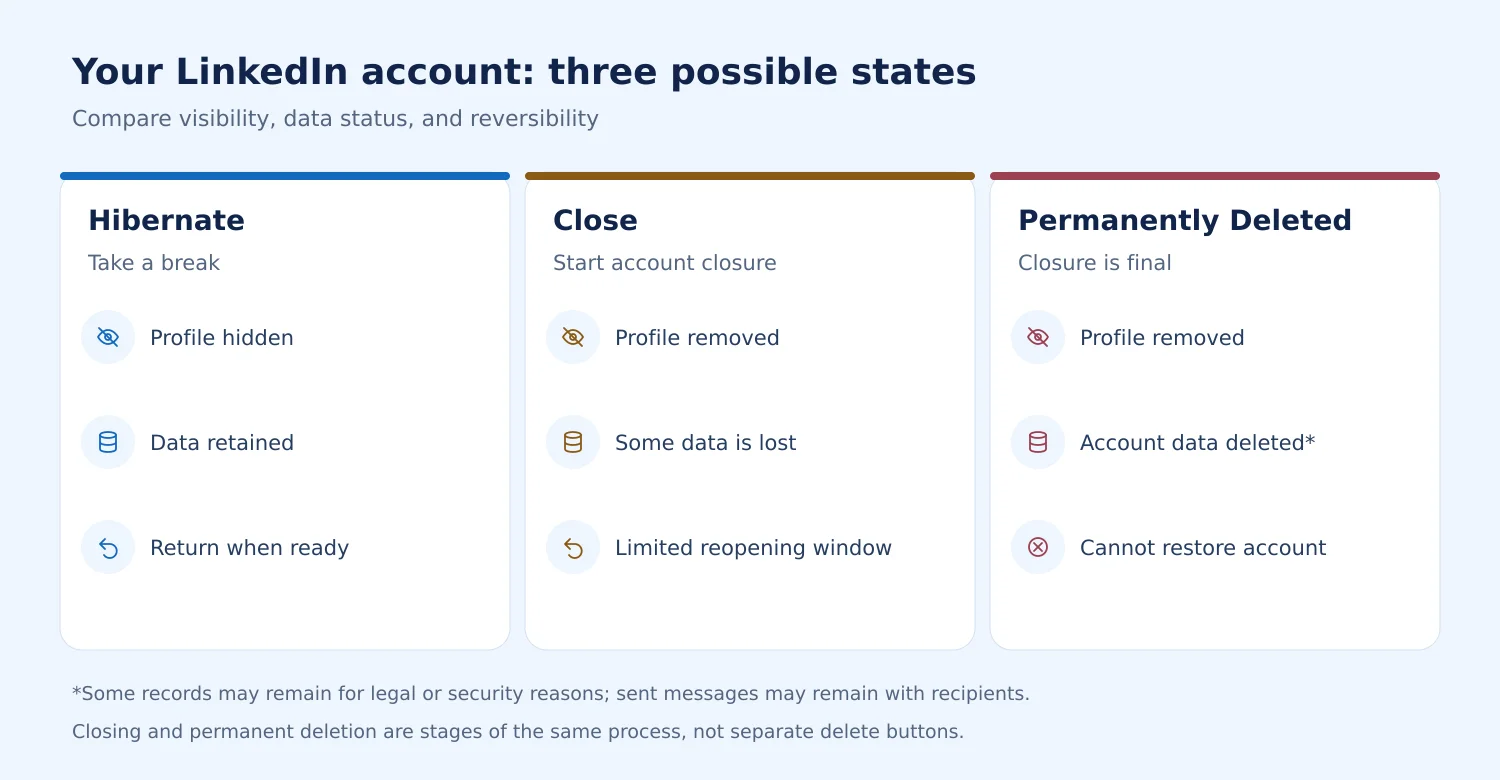
LinkedIn used to have a single "deactivate" option. Now there are effectively three tiers, and the difference between them matters more than the steps to get there.
Hibernate hides your profile from search results and your network's feed while keeping every connection, message, and endorsement fully intact. There's no deadline. You can stay hibernated for a month or three years and pick up exactly where you left off.
Close (and permanently delete) is the real goodbye. Your connections, messages, endorsements, recommendations, and posts are removed, and your profile is pulled from LinkedIn's live systems, generally within 24 hours. But it isn't instant or irreversible on day one, more on that below.
Most people land on this page after their profile stopped feeling worth the upkeep, which is sometimes a sign to revisit the basics of a strong profile before writing the whole thing off. Other times the account isn't something you're choosing to leave at all, it's been restricted or limited by LinkedIn itself, which is a different problem with a different fix entirely.
Takeaway: If there's any chance you'll want this profile again, hibernating gets you the break without the risk. Closing is for when you're actually sure.
What Actually Happens to Your Data When You Close Your Account
This is the part most people skip past, and it's the part worth reading before you click anything.
Within 24 hours, your profile is pulled from LinkedIn's active systems. Nobody can find or view it anymore, including you, unless you reactivate.
Within about 30 days, your closed account information, de-identified activity logs, and backup copies are deleted from LinkedIn's servers.
Permanently gone once the window closes: your connections, endorsements, recommendations, group memberships, and the posts you published.
What sticks around anyway: messages you sent stay visible in the other person's inbox even after your account is gone, usually showing as sent by "LinkedIn Member" instead of your name. LinkedIn also keeps de-personalized data indefinitely where it's required for legal, security, or fraud-prevention purposes.
Takeaway: Deletion removes your presence, not every trace of you. If a specific message or interaction matters, don't count on account closure to erase it.
Before You Close Your Account: A Quick Checklist
A few minutes of prep now saves you from losing things you'll actually miss.
- Download your data archive. Go to Settings & Privacy > Data privacy > Get a copy of your data, and request the full export. It takes a few minutes to generate.
- Export your connections list separately, since the general data archive isn't always the easiest format to search through later.
- Cancel any active Premium subscription first. LinkedIn will prompt you to do this before it lets you finish closing the account, since closing alone doesn't stop the billing.
- Screenshot or copy recommendations you want to keep. They don't come back, even if you reactivate within the grace period.
- Disconnect third-party apps that use your LinkedIn login, so you're not locked out of tools that depend on it.
- Give a heads-up to contacts who only have you on LinkedIn, if there's anyone you'd genuinely lose touch with otherwise.
If what's actually bothering you is a profile that stopped representing you well rather than LinkedIn itself, it's worth updating it once before you decide the account isn't worth keeping.
Takeaway: Everything on this list is unrecoverable once the 14-day window closes. None of it is unrecoverable before then.
How to Delete Your LinkedIn Account on Desktop
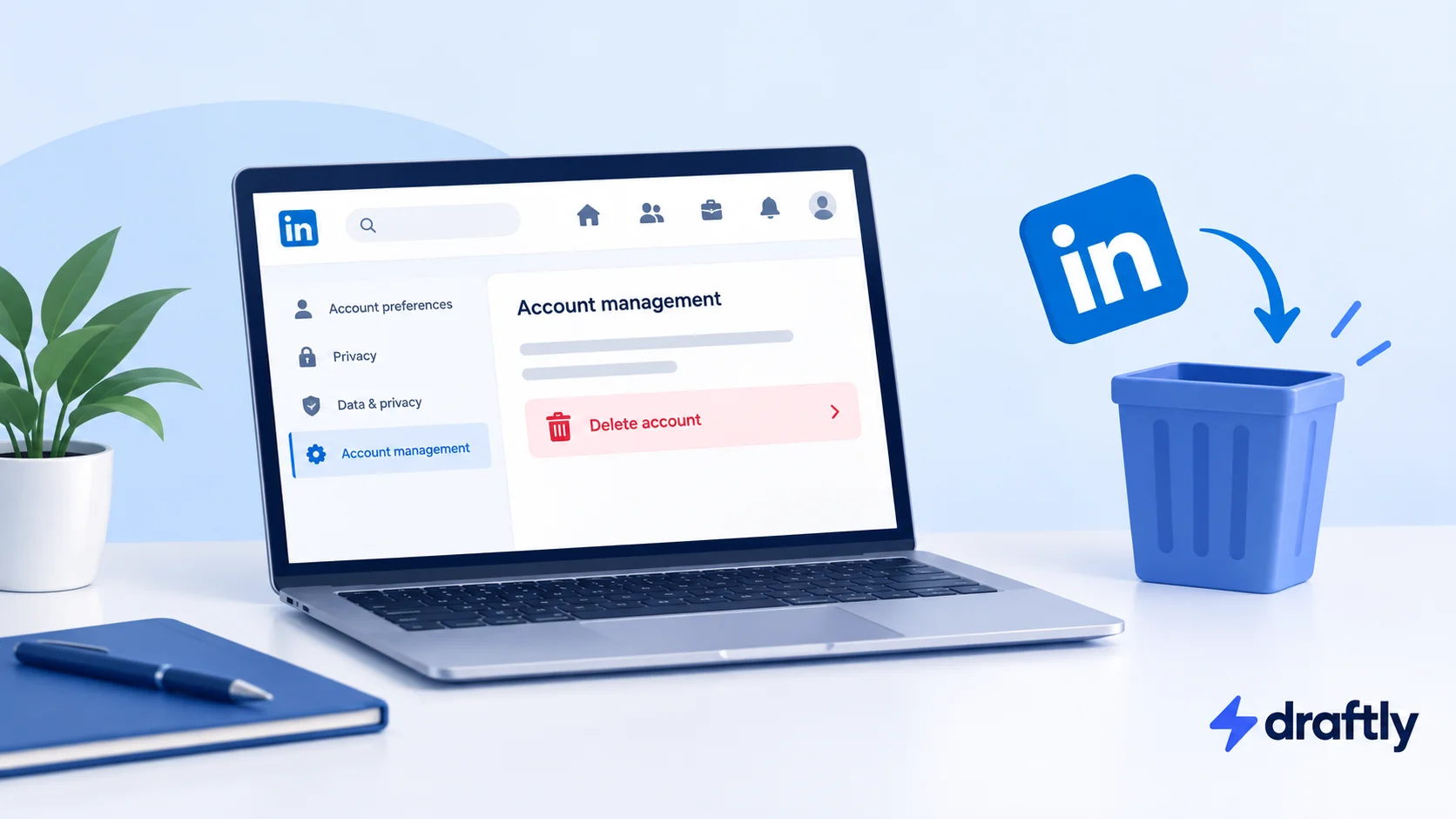
- Click your profile photo in the top-right corner and select Settings & Privacy.
- Open Account preferences from the left-hand menu.
- Scroll to Account management and click Change next to Close account.
- Read what you'll lose on the confirmation screen, then click Continue.
- Choose a reason from the dropdown, enter your password, and click Close account.
Your profile disappears from search and feeds almost immediately. Nothing is erased for good yet, that's what the grace period below is for.
Takeaway: The desktop flow is five clicks. The password confirmation on step five is your last chance to back out before the clock starts.
How to Delete Your LinkedIn Account on Mobile (iPhone and Android)
- Tap your profile photo, then tap Settings.
- Tap Account preferences.
- Under Account management, tap Close account.
- Tap Continue on the warning screen.
- Select your reason, enter your password, and tap Done.
The flow mirrors desktop almost step for step. If you don't see the option where it's supposed to be, check that your app is fully updated before assuming something's broken.
Takeaway: Mobile and desktop end at the same place. Use whichever one you already have open.
The 14-Day Grace Period: How to Get Your Account Back
If you change your mind, log back in with the same email and password within 14 days of closing, and LinkedIn will offer you a Reactivate option.
Only some of what you had comes back automatically. Connections restore. Endorsements, recommendations, group memberships, and the people or companies you followed do not, even if you reactivate on day two. After the 14 days pass, the account and everything left in it are gone for good, and stray copies like Google's cache or someone's saved screenshot are the only trace left.
Takeaway: Reactivating gets you back online, but it doesn't fully undo the closure. Treat the 14 days as a safety net, not a free trial run.
Not Sure Deletion Is the Right Call? Here's What Else Might Solve It
A lot of people arrive at "delete my account" because of a specific irritation, not because they're actually done with LinkedIn.
If the real issue is who can see what you're doing, adjusting your private mode settings solves that without giving up a single connection. If it's the Open to Work badge that won't go away or keeps drawing unwanted attention, removing it is a two-minute fix, not a reason to close the whole account. And if it's simply burnout from feeling obligated to post, hibernating gets you the same silence as closing, minus the countdown.
Takeaway: Closure is the right call when you're sure. For everything short of that, there's usually a smaller fix.
Conclusion
Deleting your LinkedIn account is permanent after 14 days, so the decision matters more than the clicks: download your data, cancel Premium first, and make sure hibernating, or just going quiet for a while, wouldn't get you the same peace of mind without giving up years of connections.
If the real reason you're walking away is that keeping the account active started to feel like a chore rather than something you're actually done with, Draftly's free plan can take the posting workload off your plate before you decide to pull the plug entirely.