Text posts get read. Videos get watched, and on a feed built for scrolling, that's a meaningfully different kind of attention. If you've been putting off posting video because it feels technical, here's the good news: LinkedIn makes it almost as simple as uploading a photo.
This guide covers exactly how to post a video on LinkedIn from desktop and mobile, what to do before you upload, the mistakes that quietly kill views, and how to tell whether a video post actually worked.
Why Post a Video on LinkedIn
Video stands out in a feed that's still mostly text and static images. It's also one of the fastest ways to show, not just tell. A product demo, a behind-the-scenes moment, a quick take on industry news, or a client testimonial all land harder on video than in a paragraph.
For anyone building a personal or company brand, video is a low-lift way to add variety to your LinkedIn content creation mix without reinventing your whole strategy. You're changing the format, not the message.
Types of Video You Can Post on LinkedIn
Not every video needs a full production. A few formats consistently work well for professional audiences:
- Talking-head clips. You, on camera, sharing a quick take, a lesson learned, or a reaction to industry news.
- Screen recordings. Walking through a tool, a workflow, or a slide, narrated as you go. Great for tutorials and product explainers.
- Behind-the-scenes footage. A glimpse of how something gets made, whether that's your team, your process, or an event.
- Short customer or client clips. A quick testimonial or case-study snippet carries more weight on video than as a quote in a caption.
- Event or conference highlights. A short recap of a talk or panel gives people a reason to engage even if they weren't there.
Pick the format that matches what you're actually trying to communicate. A tutorial works better as a screen recording than a talking-head clip, and a testimonial works better on camera than as text.
How to Post a Video on LinkedIn on Desktop
Posting from a computer takes under a minute:
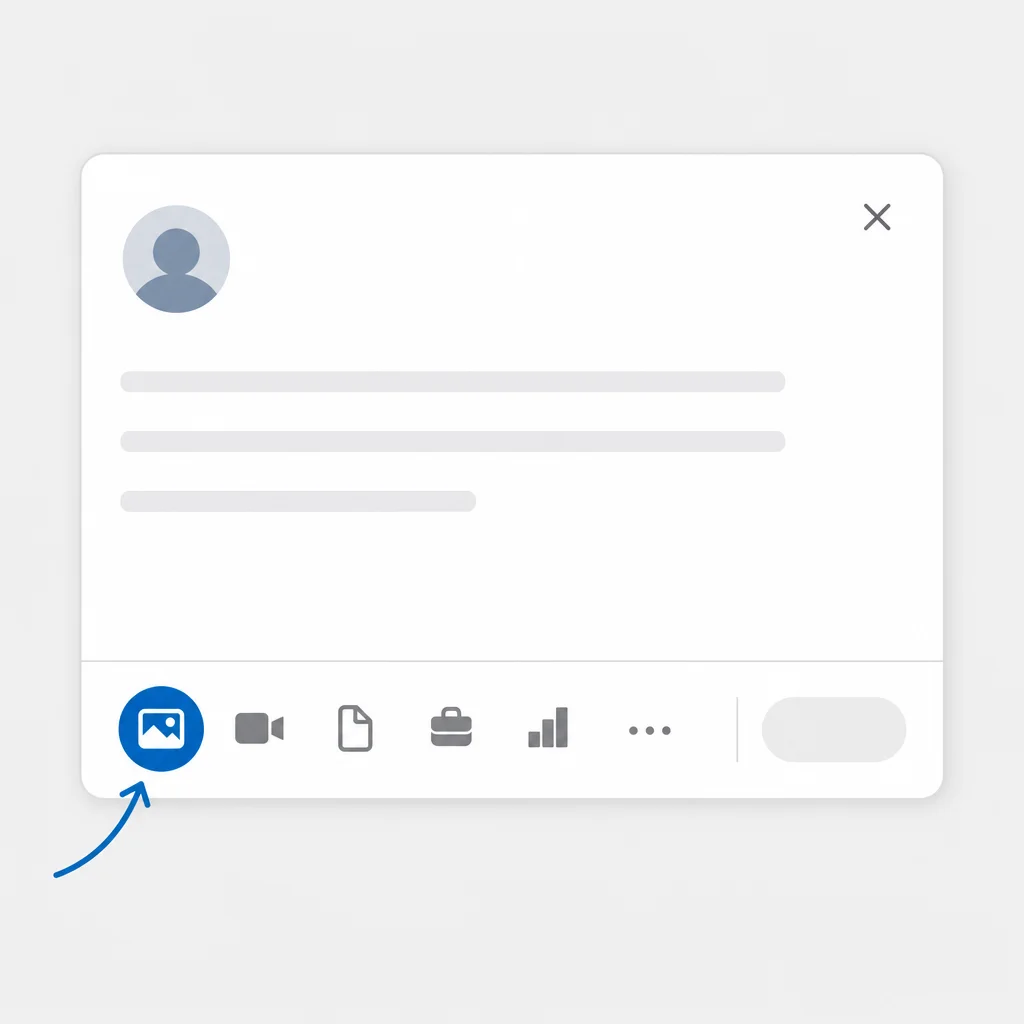
- Go to your LinkedIn homepage and click Start a post at the top of your feed.
- Click the media icon that looks like a small photo and video thumbnail.
- Select your video file from your computer and let it upload. You'll see a progress bar while LinkedIn processes it.
- Write your caption while the video finishes uploading. Keep the first line strong, since that's all that shows before someone clicks "see more."
- Preview the post before you publish, so you can catch anything that looks off: a stray frame as the thumbnail, awkward cropping, or a caption that got cut short.
- Click Post.
No third-party uploader and no separate video hosting account needed.
How to Post a Video on LinkedIn on Mobile
The mobile app follows the same logic, just with a slightly different layout:
- Open the LinkedIn app and tap Start a post at the top of the Home tab.
- Tap the media icon, then choose Video from the options.
- Select a video from your camera roll, or record one on the spot right inside the app.
- Trim the clip if needed using LinkedIn's built-in editor, so you're not posting several seconds of dead air at the start.
- Add your caption, then tap Post.
Practical takeaway: whichever device you use, the caption is doing more work than people expect. It's what shows up in someone's feed before the video even loads.
Getting Your Video Ready Before You Upload
A few habits make the finished post look far more polished:
- Trim the fat. Cut dead air from the start and end before you upload. LinkedIn's mobile editor can do basic trims, or use whatever tool you already edit in.
- Check your framing. Vertical or square video tends to fill more of the screen on mobile, where most of your audience is scrolling.
- Add captions. A large share of viewers scroll with sound off, so burned-in or platform captions are often the difference between someone watching or skipping.
- Choose your thumbnail with intent. The first frame is what people see before they decide to tap. A clear, well-lit frame with your face or the key visual outperforms a blurry transition frame.
- Confirm the file plays cleanly. Watch it back once before uploading. A shaky export or wrong aspect ratio is much easier to fix before it's live than after.
For the exact current file size and duration limits, check LinkedIn's own help center, since platform limits get adjusted from time to time.
Writing a Caption That Earns the Watch
Because native LinkedIn videos autoplay muted in the feed, your caption is what convinces someone to actually tap and turn the sound on. Treat it the same way you'd treat writing any LinkedIn post that needs to stop a scroll: lead with the outcome or the tension, not a generic setup.
A simple structure that works for most video posts:
"I almost didn't post this. Here's what happened when [context for the video]."
Then let the clip do the rest of the work.
Before you publish, it's worth taking a moment to preview exactly how your post will appear in the feed, since video thumbnails and caption line breaks don't always render the way you'd expect.
Common Mistakes That Hurt Video Performance
Most video posts that underperform run into one of the same few problems:
- A weak first frame. If the opening moment is a blurry transition, a dark room, or dead air, people scroll past before the content even starts.
- No captions. Skipping captions cuts you off from anyone watching with the sound down, which is a meaningful share of the feed.
- A caption that just describes the video. "Check out this video about X" gives someone no reason to stop. Lead with the point, the tension, or the payoff instead.
- Posting and disappearing. Replying to early comments in the first hour helps a post reach more people, and skipping that step leaves engagement on the table.
- Wrong aspect ratio. A video cropped awkwardly or letterboxed with black bars looks unfinished next to native, well-framed content.
Fixing even one or two of these is often enough to turn a quiet post into one that actually gets watched.
Repurposing and Managing Your Video Content
Once a video is up, it doesn't have to be a one-and-done post. If you or a teammate want to reference, clip, or reuse a video that's already live, yours or someone else's, it's worth knowing how to download LinkedIn videos the right way for offline viewing or internal training.
And if you're not sure what to film next, scanning trending topics on LinkedIn is a fast way to find an angle worth turning into a video instead of another text post.
Checking How Your Video Post Is Performing
After a video has been live for a day or two, it's worth a quick check rather than assuming it worked. Open the post and look at the engagement it generated: reactions, comments, reposts, and any view count LinkedIn shows for that post. If a video is getting views but few comments, the hook is working but the caption or closing line probably isn't prompting a response. If it's getting almost no views at all, the problem is more likely the first frame, the caption's opening line, or the time it was posted.
Treat each video post as a small experiment. Note what worked, whether that's the format, the topic, or the caption structure, and carry it into the next one.
Conclusion
Posting a video on LinkedIn takes the same handful of steps whether you're on desktop or mobile. What actually decides whether it gets watched is the first frame, the caption, and whether you gave people a reason to stop scrolling. Get those right and video becomes one of the easiest ways to stand out in a feed full of text.
If you'd rather not juggle filming, captioning, and scheduling separately, that's exactly what Draftly is built to help with. Plan your video posts alongside the rest of your content calendar and schedule them for whenever your audience is most active.