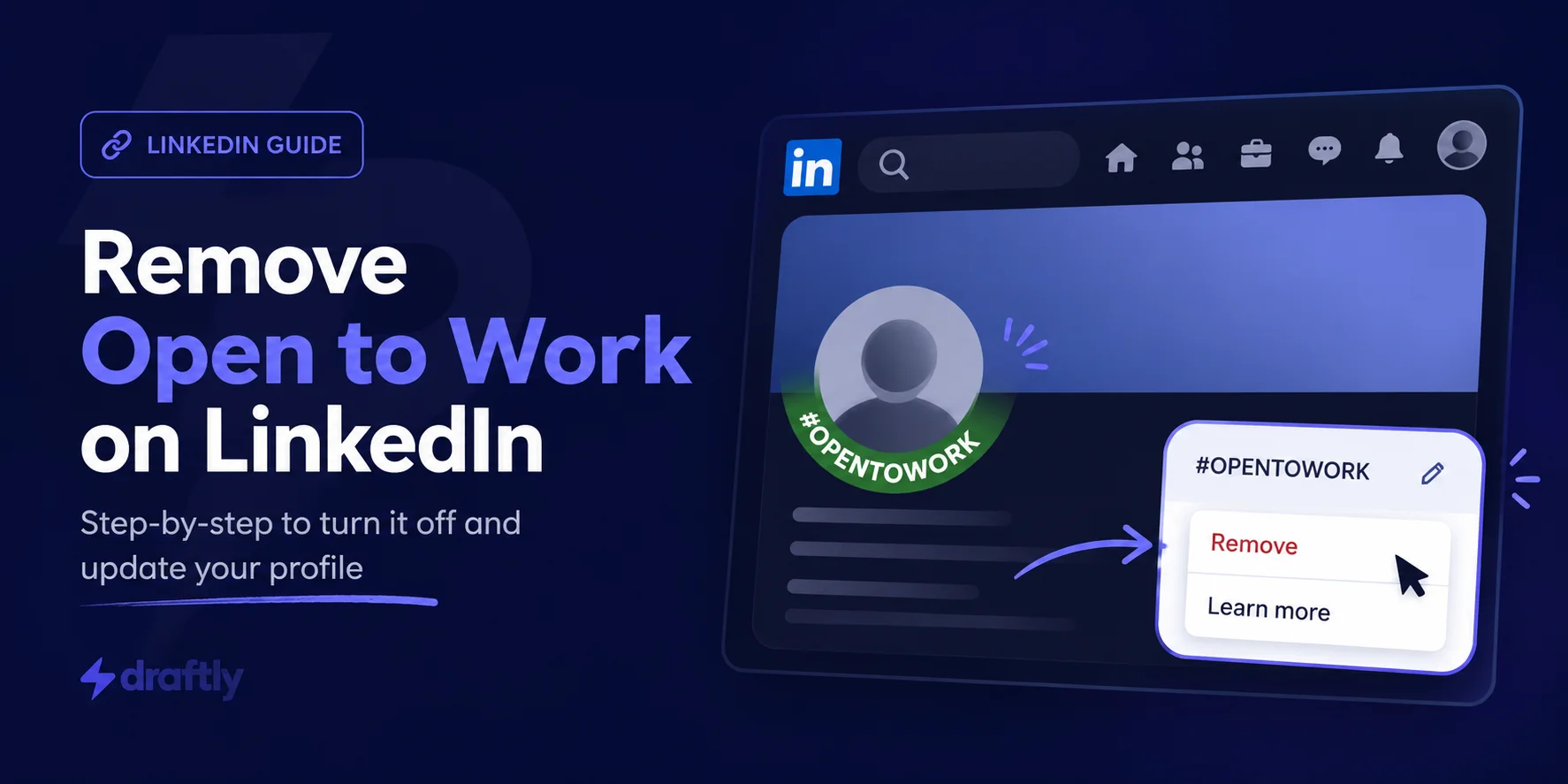
You landed the role, your search is done, or you've decided to stop broadcasting your availability. Now that green "Open to Work" badge on your LinkedIn profile needs to go.
It takes less than a minute to remove. But there are actually two ways to do it, and most guides only mention one: deleting the feature entirely or hiding the green frame while staying visible to recruiters. Which one makes sense depends on where you are in your job search.
Below are the steps for desktop, iPhone, and Android, plus a quick framework at the end to help you figure out which option fits your situation.
How to Remove Open to Work on LinkedIn (Desktop)
Here's the fastest way to do it from a desktop browser:
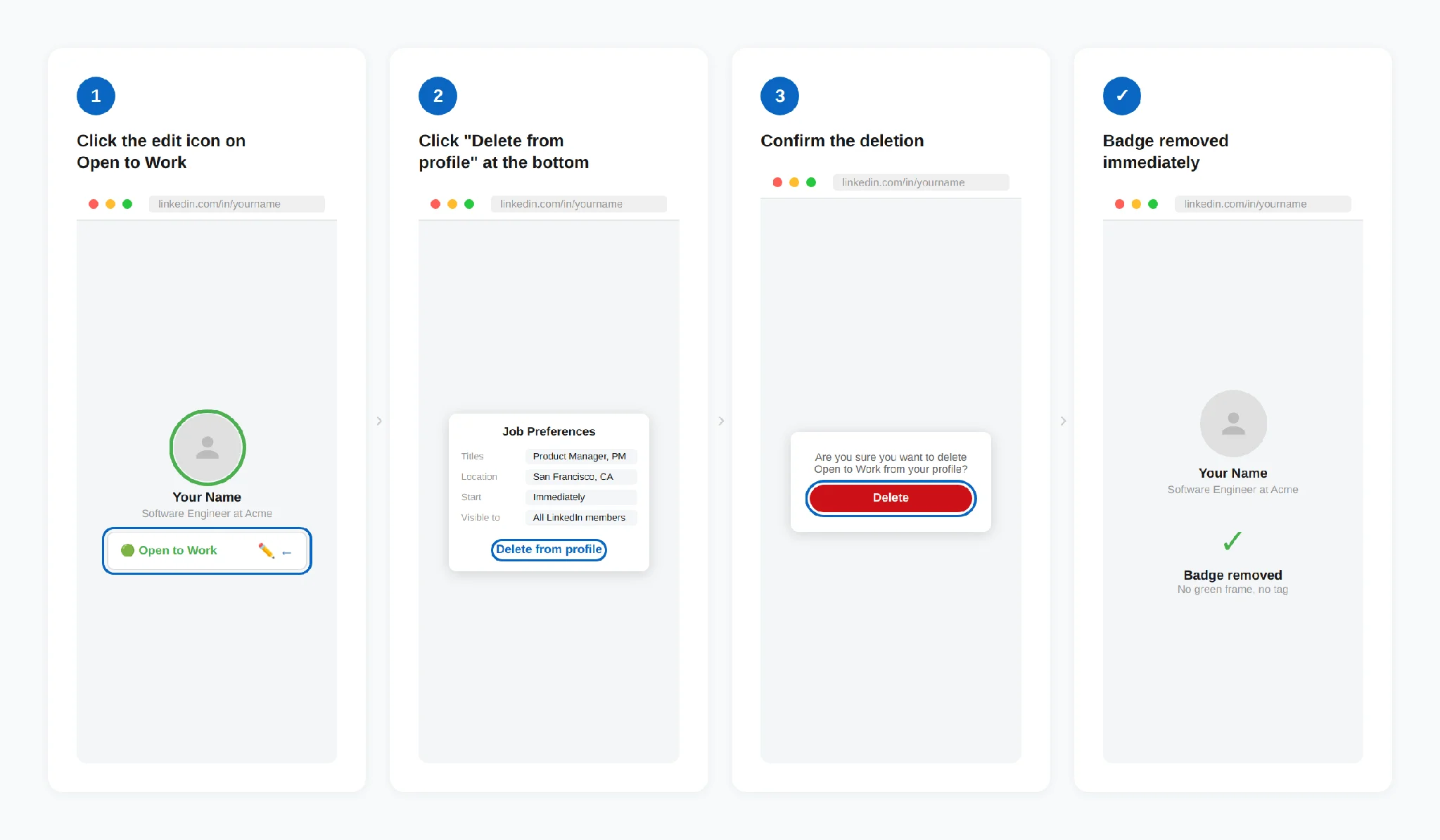
1. Log in to LinkedIn and click the Me icon at the top of your homepage. Select View Profile.
2. Scroll down to the Open to Work section below your profile photo and headline. Click the pencil (edit) icon on this section.
3. A pop-up will appear showing your current job preferences: titles, locations, start date, and visibility.
4. Scroll to the bottom of the pop-up. Click the blue Delete from profile text.
5. LinkedIn asks you to confirm. Click Delete again.
The green photo frame disappears immediately. Your profile no longer shows the "Open to Work" tag, and recruiters will no longer see your job preferences through this feature.
How to Remove Open to Work on LinkedIn Mobile (iPhone & Android)
The steps are nearly the same on iPhone and Android, aside from a few small layout differences between the two apps:
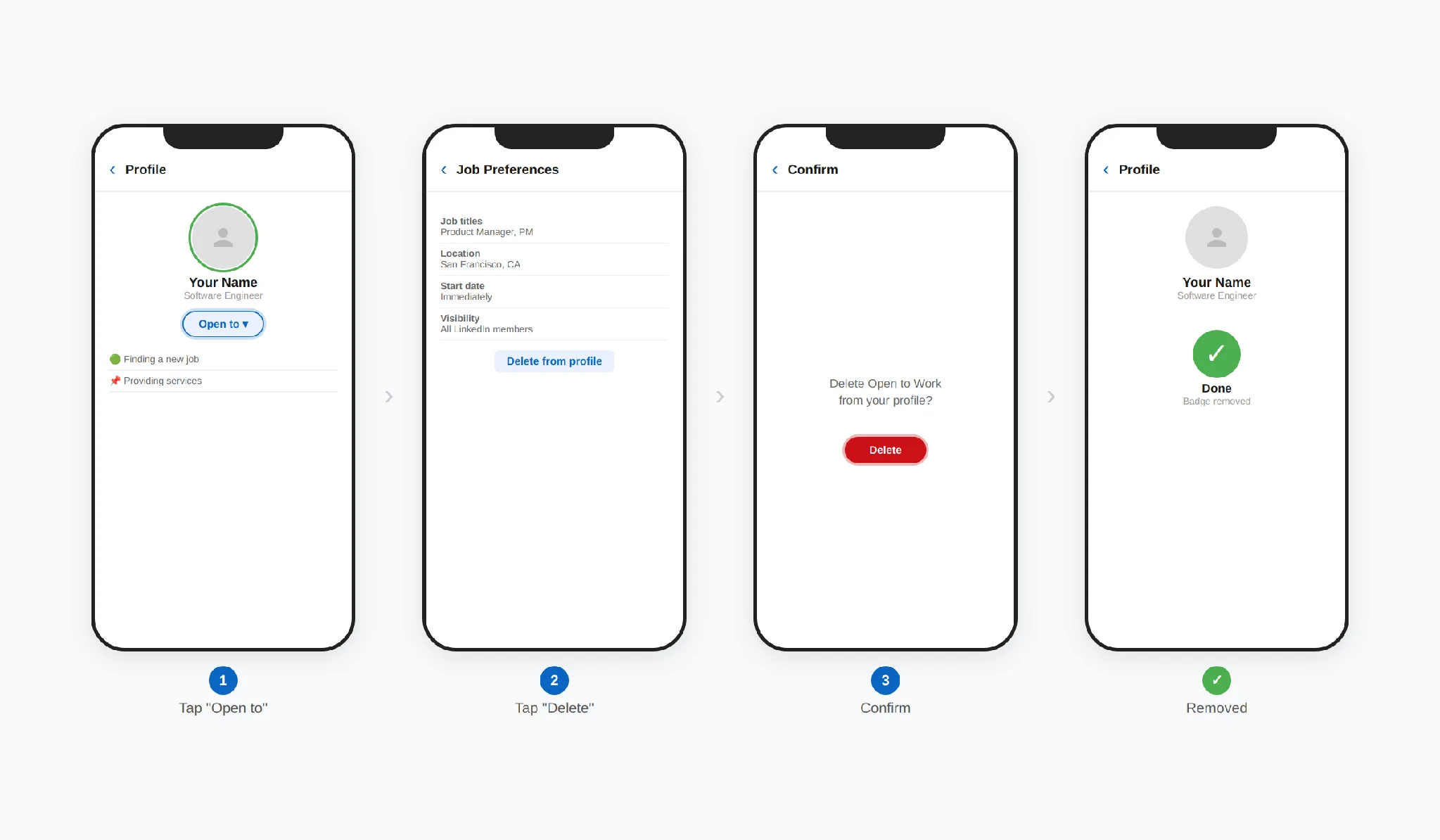
1. Open the LinkedIn app and tap your profile picture in the top-left corner. Tap View Profile.
2. Near the top of your profile, tap the Open to button in your introduction card.
3. Tap Finding a new job (or tap the pencil icon if your preferences are already showing).
4. Scroll down and tap Delete from profile.
5. Confirm by tapping Delete.
If you don't see the "Open to" button, scroll to the very top of your profile. LinkedIn occasionally moves interface elements around between app updates, and on older Android devices you may need to update the app from the Google Play Store first.
How to Hide the Green Frame Without Deleting Open to Work
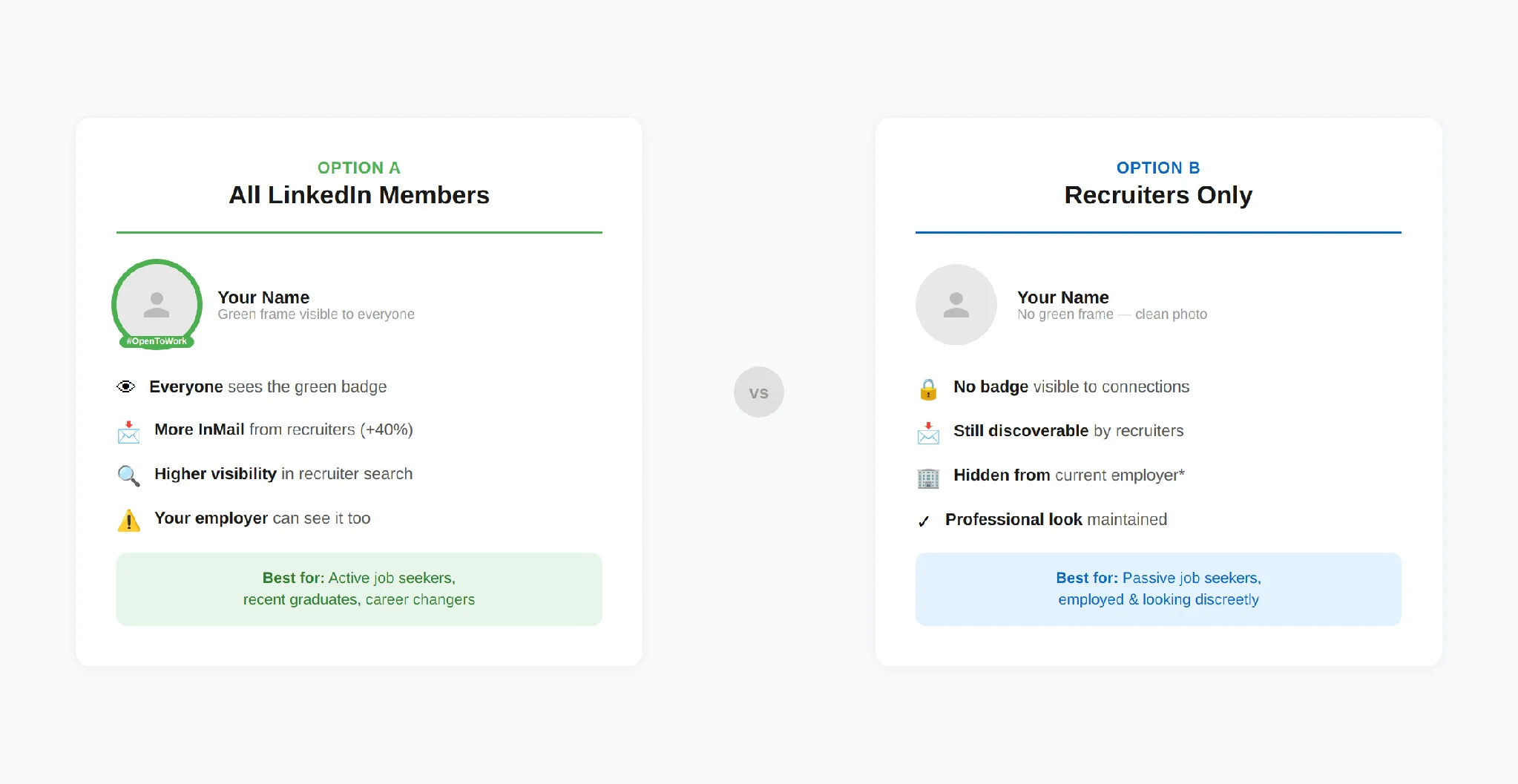
You don't have to go all-or-nothing. If you've accepted an offer but haven't started yet, or you're passively open to opportunities, you can remove the visible green frame while keeping your job preferences visible to recruiters only.
1. Go to your profile and click the pencil icon on the Open to Work section (same first steps as above).
2. Scroll down to the Visibility section.
3. Switch from All LinkedIn members to Recruiters only.
4. Click Save.
This removes the green frame that your entire network can see, but keeps your job preferences in LinkedIn's recruiter search filters. Worth considering if you want to stay privately discoverable without advertising your job search.
Should You Remove Open to Work? A Decision Framework
Whatever you choose sends a signal to recruiters, hiring managers, and your current employer. Here's how to think it through.
Remove it completely when:
You've started a new job. Remove it on day one, and while you're at it, update your profile with the new position.
Your search is genuinely over. No benefit to keeping the feature active if you're not considering other roles.
You're getting irrelevant outreach. If the badge is attracting recruiters in fields you're not interested in, it's doing more harm than good.
Switch to "Recruiters only" when:
You're passively open. Happy in your role but would consider the right opportunity.
You're employed and looking discreetly. LinkedIn tries to hide your activity from your current employer's recruiters, though this isn't guaranteed.
You're between roles but networking strategically. The green frame can carry stigma in certain industries. Hiding it while keeping recruiter visibility gives you the best of both worlds.
Keep it fully visible when:
You want maximum exposure. The green frame significantly increases profile views and recruiter InMail.
You're a recent graduate. No stigma for new grads. The badge signals enthusiasm and availability.
You're in a high-demand field. If recruiters are competing for talent, the badge helps you stand out.
What Happens After You Remove Open to Work
Your preferences are deleted, not saved. If you later want to turn it back on, you'll need to re-enter your job titles, locations, work types, and start date from scratch.
The green frame disappears immediately. Your profile photo goes back to normal the moment you confirm. No delay.
You may see fewer profile views. LinkedIn reports that profiles with the Open to Work badge receive up to 40% more InMail messages from recruiters.
It doesn't affect anything else. Removing Open to Work doesn't change your headline, about section, or any other profile element.
Troubleshooting: Can't Find the Option?
Update your LinkedIn app. Older versions may not display the Open to Work section correctly.
Check if it's already removed. If you don't see an Open to Work section, it may have been deleted previously.
Try the desktop version. If the mobile app is giving you trouble, log in through linkedin.com on a browser.
Remove the photo frame separately. In some cases, the green frame persists after deletion. Go to your profile photo, click Edit, select Frames, and choose Original.
Optimize Your Profile After Removing the Badge
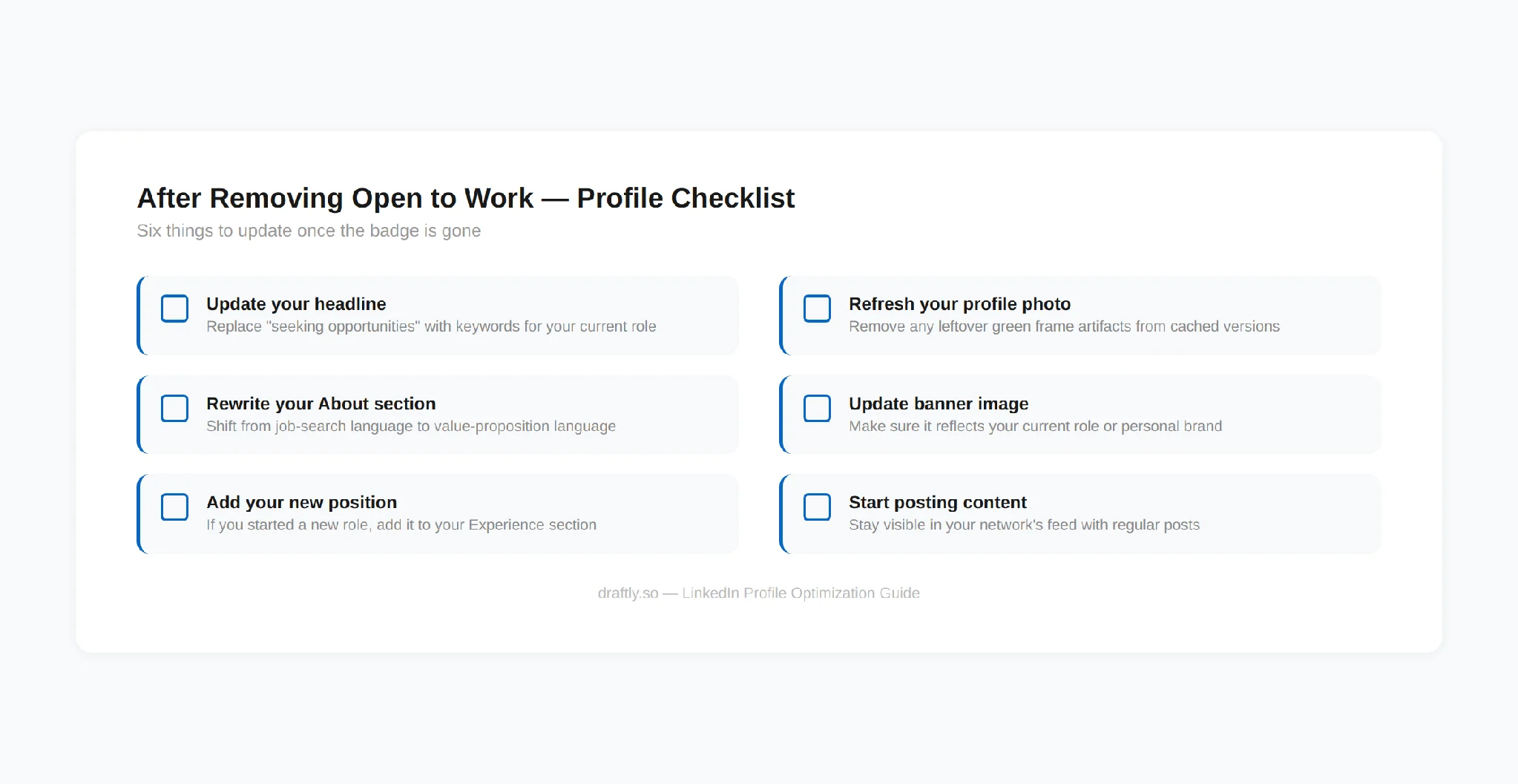
Refresh your headline so it matches your current role and works in a couple of relevant keywords. The headline generator can help you test a few versions.
Update your profile photo and banner. The LinkedIn banner size guide and image size guide list the exact dimensions, so nothing gets cropped oddly.
Rewrite your summary if it still reads like a job pitch. Here's how to write a LinkedIn summary that doesn't.
Start posting content to stay visible. The content creation guide and post ideas are good places to start.
Conclusion
Removing the badge is only step one. If your headline still says "seeking new opportunities" or your summary reads like a cover letter, those are sending the same signal the green frame did, just more quietly. Updating your headline, about section, and content strategy is what actually makes the difference once the badge is gone.