Want a post that gets replies without you begging for comments? Create a LinkedIn poll.
It's the lowest-effort, highest-response format on the platform. People don't need to write a paragraph or think of something clever to say. They just tap an option, and just like that, they've engaged with your content. For creators trying to build a content strategy that actually gets seen, polls are one of the easiest wins available.
But most people either don't know polls exist as a native format, or they use them wrong: vague questions, boring options, zero follow-up. This guide walks you through exactly how to create a LinkedIn poll on desktop and mobile, plus how to write one that people actually want to answer.
What Is a LinkedIn Poll?
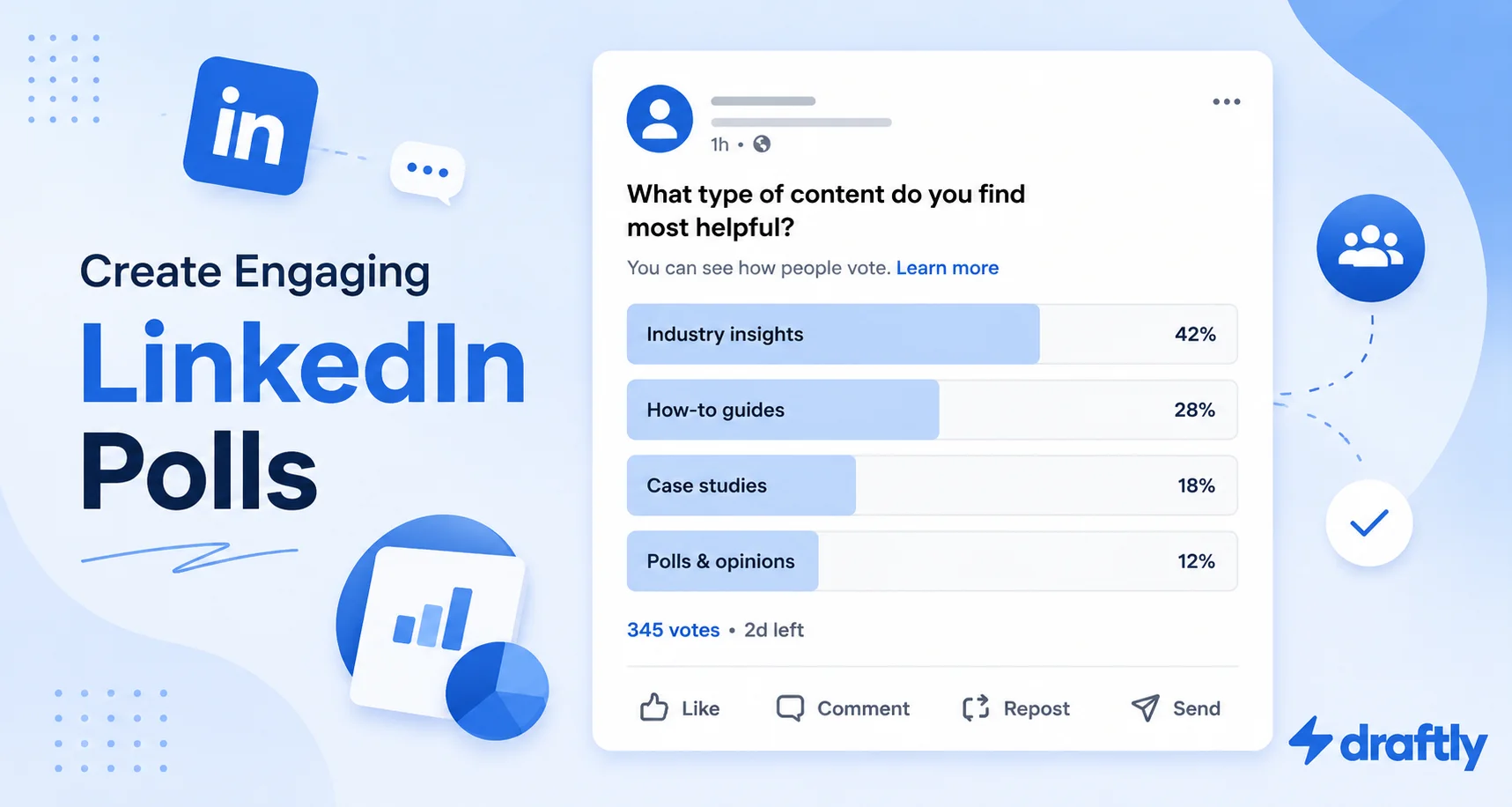
A LinkedIn poll is a native post format that lets you ask your network a question with up to four multiple-choice answers. People vote by tapping an option, and everyone can see live results as votes come in.
Polls run for a duration you choose, from one day to two weeks, and LinkedIn shows the final percentage breakdown once voting ends. Anyone in your network (or beyond, if your post spreads) can vote once and see how others responded.
Quick overview:
- Answer options: 2 to 4 choices, single-select only (LinkedIn doesn't support multiple-choice polls)
- Character limits: 140 characters for the question, 30 characters per answer option
- Duration: 1 day, 3 days, 1 week, or 2 weeks
- Media: Poll posts can't include an image or video alongside them, it's text and poll options only
- Visibility of results: Anyone who can see the post sees the live percentage breakdown once they've voted
Can You See Who Voted on a LinkedIn Poll?
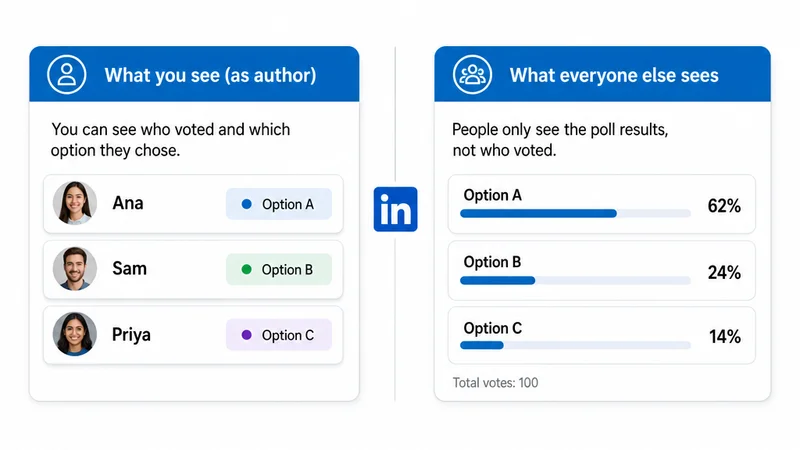
Here's a common misconception worth clearing up before you create one: LinkedIn polls are not anonymous to you as the creator.
- If you're the poll author, you can see exactly who voted and which option each person picked, along with the running vote count.
- If you're just a voter (not the author), you only ever see the aggregate percentage breakdown, never who picked what.
- If a Page created the poll, every admin of that Page can see individual votes, the same way the author can.
- If the poll was posted in a LinkedIn Group, only the person who created the poll can see who voted, not every group admin.
You (as the author) will also get notified when someone votes, starting with the first vote and continuing for each one after, unless you turn that off under your notification settings. And yes, you're allowed to vote in your own poll if you want to kick off the count.
One more thing worth knowing: voters can change or remove their vote any time before the poll closes, so the numbers you see mid-poll aren't locked in until it ends.
How to Create a LinkedIn Poll on Desktop
Creating a poll on desktop takes less than a minute. Here's how:
- Go to your LinkedIn homepage and click "Start a post" at the top of your feed.
- Click the three-dot "More" icon in the post creation box, then select Create a poll.
- Type your question in the field provided.
- Add your answer options, LinkedIn requires at least 2 and allows up to 4.
- Set the poll duration using the dropdown (1 day, 3 days, 1 week, or 2 weeks).
- Add context above the poll if you want. This is where you explain why you're asking or add a bit of personality before the vote.
- Click Post.
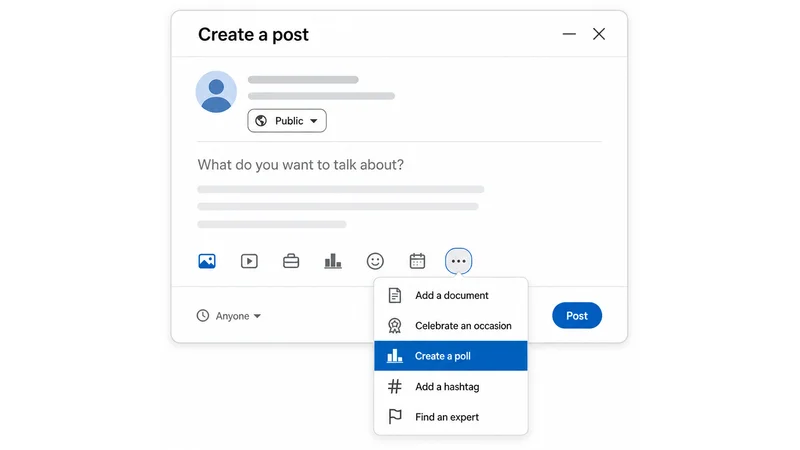
That's it. Your poll goes live in your feed like a normal post, just with tappable answer buttons instead of a comment box.
How to Create a LinkedIn Poll on Mobile
The mobile flow mirrors desktop closely:
- Open the LinkedIn app and tap the Post button.
- Tap the three-dot icon in the post composer.
- Select Poll from the menu.
- Enter your question and answer choices (2 to 4 options).
- Choose how long the poll should run.
- Write a short intro above the poll if you want extra context.
- Tap Post in the top corner.
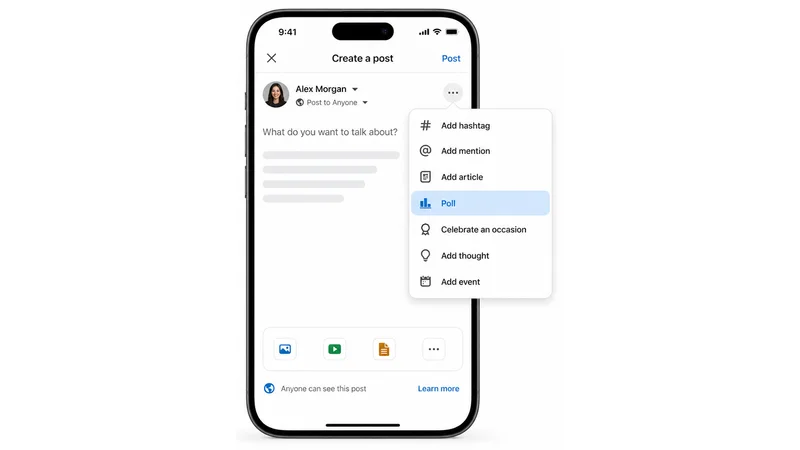
Once it's live, you (and your network) can watch votes and percentages update in real time.
How to Write a LinkedIn Poll That Actually Gets Votes
Creating the poll is the easy part. Getting people to care enough to tap is where most polls fall flat. A few things separate a poll that gets 5 votes from one that gets 500.
Keep the question short and specific. A poll question isn't the place for nuance. "How do you feel about the future of remote work?" is too broad to answer with four boxes. "Would you take a pay cut for a fully remote role?" gives people something concrete to react to.
Make every option genuinely tempting. If one answer is the obvious "correct" one, nobody bothers voting; they just assume everyone else picked it too. Good poll options create real tension between choices, so people feel like their vote actually says something about them.
Tie it to a debate your audience already has an opinion on. The best-performing polls tap into something people are already arguing about in your industry, whether that's a tool preference, a controversial take, or a "which is worse" scenario. If you're short on ideas, browsing trending topics on LinkedIn is a fast way to find a debate worth polling on.
Add a caption that earns a comment, not just a click. The poll itself only asks for a tap. Your caption above it should invite people to explain their vote in the comments. That's where the real engagement, and the real conversation, happens. If captions aren't your strong suit, the same hook-and-CTA structure from how to write a LinkedIn post applies just as well here.
Example script:
"Hot take: most 'thought leadership' posts on LinkedIn are just recycled advice with a personal story bolted on.
Agree or disagree?
🔘 Agree, most of it is filler 🔘 Disagree, the personal framing is what makes it useful 🔘 Depends entirely on the person posting 🔘 I don't read thought leadership posts
Drop your reasoning below. I want to hear the disagreements more than the agreements."
Notice the caption does two things: it states a position clearly, and it explicitly asks for comments, not just votes.
LinkedIn Poll Best Practices
A few extra habits that consistently improve poll performance:
- Post when your audience is actually online. A poll with a 2-day window loses most of its momentum if it launches when nobody's scrolling. Check the best time to post on LinkedIn before you schedule one.
- Don't overuse polls. One or two a month keeps them feeling like an event. Post a poll every day and your network starts scrolling past them.
- Follow up with a results post. Once the poll closes, a short post breaking down what the results revealed (and why) often outperforms the original poll itself. It shows you were actually listening.
- Avoid yes/no questions when you can. Two-option polls are the easiest to set up but usually the least interesting to vote on. Three or four options give people more room to feel like their answer is specific to them.
- Write the question before you write the intro. Nail the core question first; the surrounding caption should support it, not distract from it.
If you're not sure how to phrase the question itself, running it through a LinkedIn post generator tool first can help you land on wording that's sharp and specific rather than vague.
Wrapping Up
A LinkedIn poll is one of the fastest ways to turn passive scrollers into active participants. The setup takes under a minute, but the results depend entirely on how sharp your question and options are. Write for real tension, not obvious answers, and always give people a reason to explain their vote in the comments. It's just one piece of a bigger LinkedIn content creation strategy, so keep it in rotation alongside your other formats rather than leaning on it alone.
If you want help getting the question, the caption, and the timing right without second-guessing every word, Draftly can help you draft and schedule LinkedIn content, polls included, so you're consistently putting out posts your network actually wants to engage with.