You scheduled a post last Tuesday, moved on with your week, and now you have no idea if it actually went out. Did it publish? Is it still sitting in a queue somewhere? Did you accidentally schedule it for 3 a.m. instead of 3 p.m.?
If you've gone looking for a “Scheduled Posts” tab on LinkedIn and come up empty, you're not missing anything obvious. LinkedIn doesn't give scheduled content its own section in the main menu, so it's genuinely easy to lose track of what you've queued up. Here's exactly where it's hiding, how to check it on desktop, mobile, and a Company Page, and what to do once you've found a post you need to edit or pull back.
Where LinkedIn Actually Hides Your Scheduled Posts
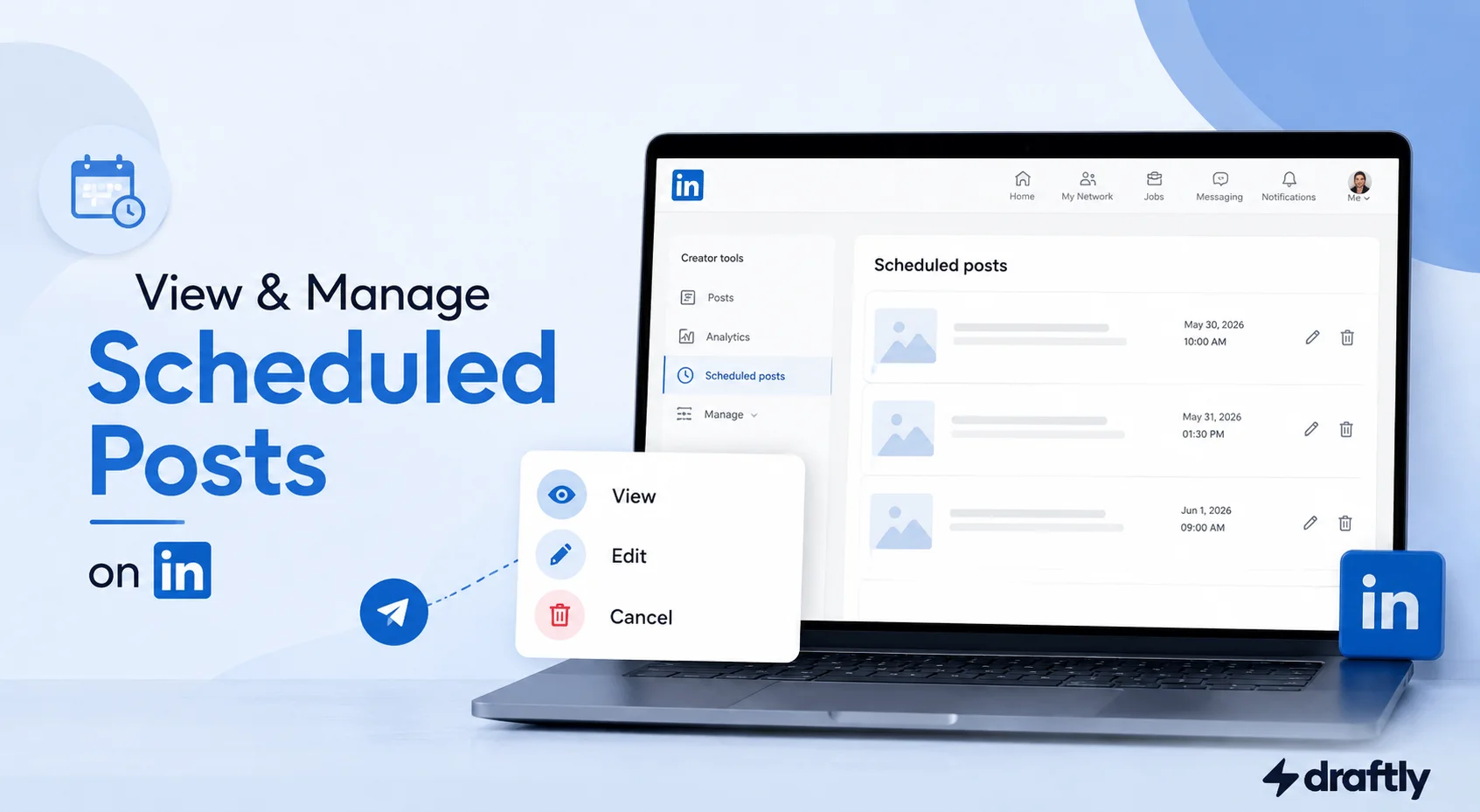
The short answer: your scheduled posts live inside the post composer itself, not in your profile, your notifications, or your activity feed. Open a new post, look for the small clock icon near the bottom of the box, and click it. Instead of only letting you pick a new date and time, that same icon opens the full list of everything you already have lined up.
It's an easy thing to miss because nothing on your homepage points to it. Once you know it's tucked inside the composer, though, checking on a post takes seconds. If you haven't queued anything yet, start with how to schedule a post on LinkedIn step by step.
How to See Scheduled Posts on LinkedIn (Desktop)
- Go to your LinkedIn homepage and click Start a post.
- In the box that opens, look for the clock icon near the bottom right, next to the formatting and media options.
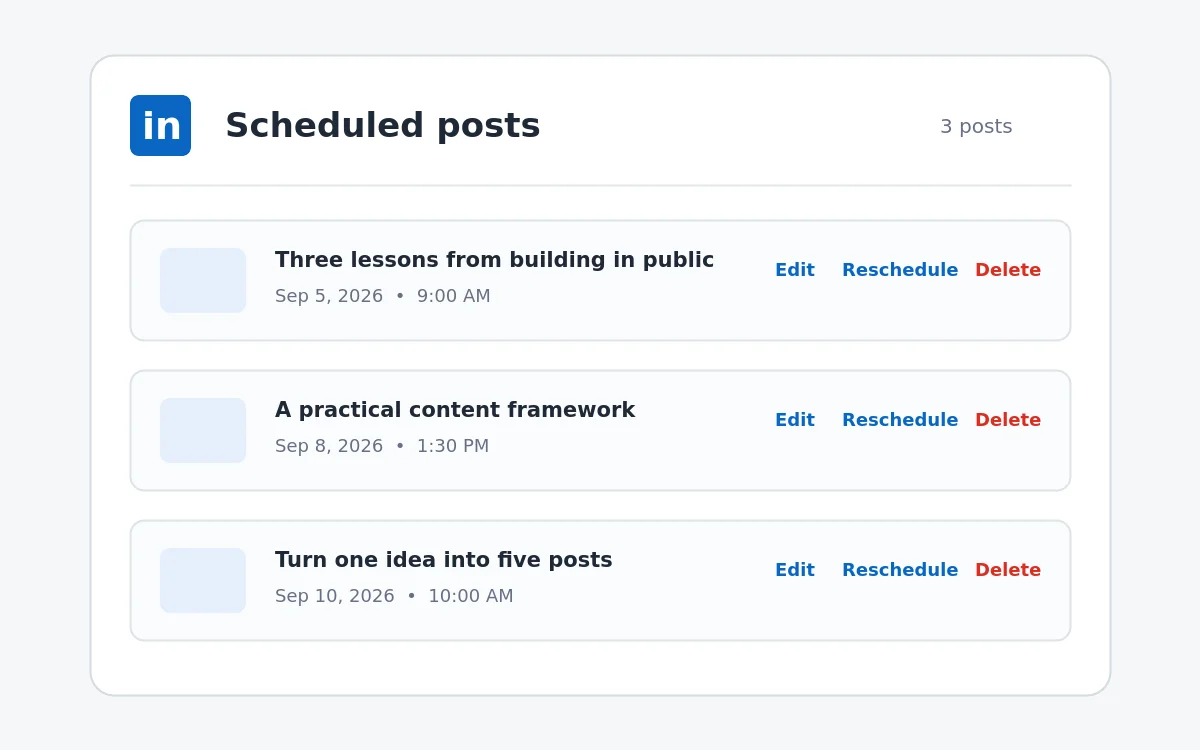
- Click it. Instead of a blank calendar, you'll land on your list of scheduled posts, in the order they're set to go out.
- From that list, click into any post to preview exactly what it says and when it's due to publish.
Takeaway: you don't need to dig through settings or your profile. The clock icon in the composer is the one place this lives.
Once you're checking this list regularly, it's worth mapping your whole week out on an actual LinkedIn content calendar instead of relying on memory for what's already queued and what still needs writing.
How to See Scheduled Posts on LinkedIn (Mobile App)
The mobile flow mirrors the desktop one closely enough that it shouldn't trip you up:
- Open the LinkedIn app and tap the post icon to start a new post.
- Tap the clock icon in the same spot you'd use to schedule a new post.
- You'll land on the same scheduled posts list, just in the app's mobile layout.
One thing worth knowing: scheduling features sometimes roll out to mobile a little later than desktop, so if the clock icon isn't there yet on your app, check for an app update before assuming something's broken.
How to See Scheduled Posts on a LinkedIn Company Page
If you're posting as a Company Page rather than from your own profile, the queue works the same way, but it's scoped to that Page specifically. Make sure you're actually posting and viewing as the Page, not as yourself, before you go looking. It's a common mix-up: an admin checks their personal composer, finds nothing scheduled, and assumes the post disappeared, when really it was queued under the Page's own account the whole time.
Takeaway: if you manage more than one Page, or a Page and a personal profile, always double-check which one you're currently posting as before you start troubleshooting a “missing” post.
One more distinction worth knowing about while we're here: this whole flow is for regular posts, not full LinkedIn articles. Publishing an article on LinkedIn uses a separate publishing flow entirely, so don't be surprised if you can't find an article draft sitting in this same scheduled list.
How to Edit a Scheduled LinkedIn Post
Found the post you were looking for? From that same scheduled posts list, click into it and you'll get the option to edit the text, the attached media, or the scheduled time before it goes live. Once you save your changes, the post stays in the queue for its, possibly new, publish time. Nothing posts early just because you opened it to make a change.
How to Cancel (Delete) a Scheduled LinkedIn Post
If you've changed your mind entirely, open the post from your scheduled list and choose the option to delete it. This removes it from the queue completely. It won't publish, and there's no draft left behind unless you'd separately saved one. If you're only half-sure you want to scrap it, it's worth copying the text somewhere first, since deleting is final.
How to Reschedule Instead of Canceling
A lot of the time, the fix isn't deleting a post, it's just moving it. From the same edit screen, you can change the date and time without touching a word of the actual content. This is the better move if the post is still good and the timing's just off, maybe you scheduled it for a holiday, or right on top of something else you already have going out that day.
If you're moving it because the original slot just wasn't a good one, it's worth pairing this with a look at when your audience is actually most active on LinkedIn before you lock in a new time, rather than guessing again.
Why You Might Not See a Post You Scheduled
If a post you're sure you scheduled isn't showing up, a few things are worth ruling out before you assume LinkedIn lost it:
- It may have already published. Check your recent activity. If the scheduled time has passed, it's likely live already, an ordinary post now rather than something still queued, and reposting or reworking it later is a separate move from anything in the scheduled list.
- You might be checking the wrong account. As mentioned above, a Page and a personal profile each keep their own separate queue.
- The post may have failed a review. LinkedIn occasionally holds scheduled posts for a content check before they go out. If that happens, you'll usually get a notification rather than the post silently vanishing.
- A browser refresh genuinely helps. If the list looks empty right after scheduling something, give the page a reload before assuming it didn't save.
Takeaway: a “missing” scheduled post is almost always sitting somewhere explainable, not actually gone.
One Step Back: Where Scheduling Fits Into Your Bigger Routine
Checking the clock icon works fine for a single post, but scheduling on its own is really only one piece of a much bigger approach to creating consistent LinkedIn content. If you're posting several times a week, it's worth treating the queue as part of that larger routine rather than a one-off task you handle post by post.
Conclusion
Your scheduled posts on LinkedIn aren't lost. They're just tucked inside the composer's clock icon instead of somewhere more obvious, and now you know exactly where to click on desktop, mobile, or a Company Page. Once you're checking that queue regularly, editing a post, rescheduling it, or pulling it entirely takes a few clicks rather than any guesswork.
If keeping that queue organized across a full week or month of posts is the part that's actually hard, Draftly's free plan gives you one place to see everything you have lined up, instead of clicking into LinkedIn's composer every time you want a status check.