Most people put off blocking someone on LinkedIn for one reason: they're worried the other person will get a notification. They won't. LinkedIn doesn't send a message, an alert, or an email when you block someone.
The awkward part is everything around the block. You usually have to open their profile first, which can show up in their "Who viewed your profile" list. Some of your content stays visible in shared spaces. And if they go looking for you, they'll eventually work out that something's changed.
This guide covers how to block someone on desktop and mobile without leaving a trace, what the other person actually sees afterward, and when unfollowing or removing them is the smarter move.
Will They Know If You Block Them on LinkedIn?
Not directly. LinkedIn does not notify the person you block. There's no "you've been blocked" message, and nothing changes in their notifications tab.
There's one exception worth knowing. If you and the other person share a LinkedIn Recruiter account (common inside hiring teams), LinkedIn may tell them, because blocking affects what they can see in that shared seat.
Where people usually get caught is the step before the block. To block someone, you normally visit their profile. If your profile viewing is set to public, your name and headline can appear in their list of recent viewers, especially if they have Premium. Knowing how LinkedIn tracks who viewed your profile makes it clear why this matters: a visit from you, then silence, is a pretty strong hint.
Takeaway: the block itself is silent. The profile visit is what can give you away, so deal with that first.
Step 1: Switch to Private Mode Before You Visit Their Profile
This is the step most guides skip, and it's the one that actually makes the block invisible.
- Click Me (your profile photo) and select Settings & Privacy.
- Go to Visibility, then Profile viewing options.
- Choose Private mode, so you show up as an anonymous LinkedIn member.
Now, when you open their profile, they'll only see "Someone on LinkedIn" in their viewer list, if they see anything at all. If you've never used this setting, our guide to LinkedIn's private browsing mode walks through the trade-offs, including the fact that it hides your viewer list too while it's on.
Takeaway: turn private mode on, block, then switch it back afterward if you like seeing who's viewing your profile.
How to Block Someone on LinkedIn (Desktop)
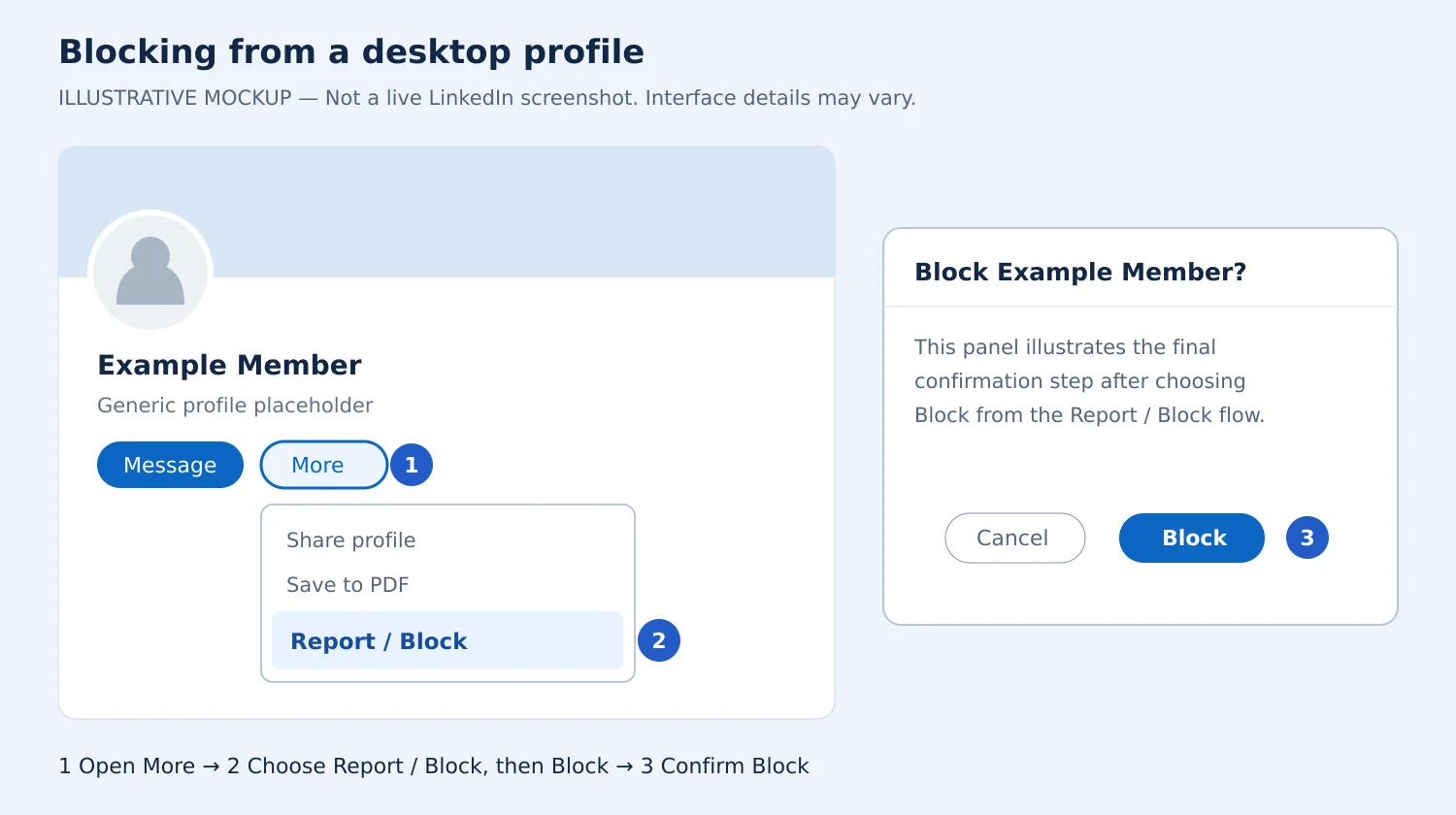
Once private mode is on:
- Go to the person's profile.
- Click the More button under their name and headline.
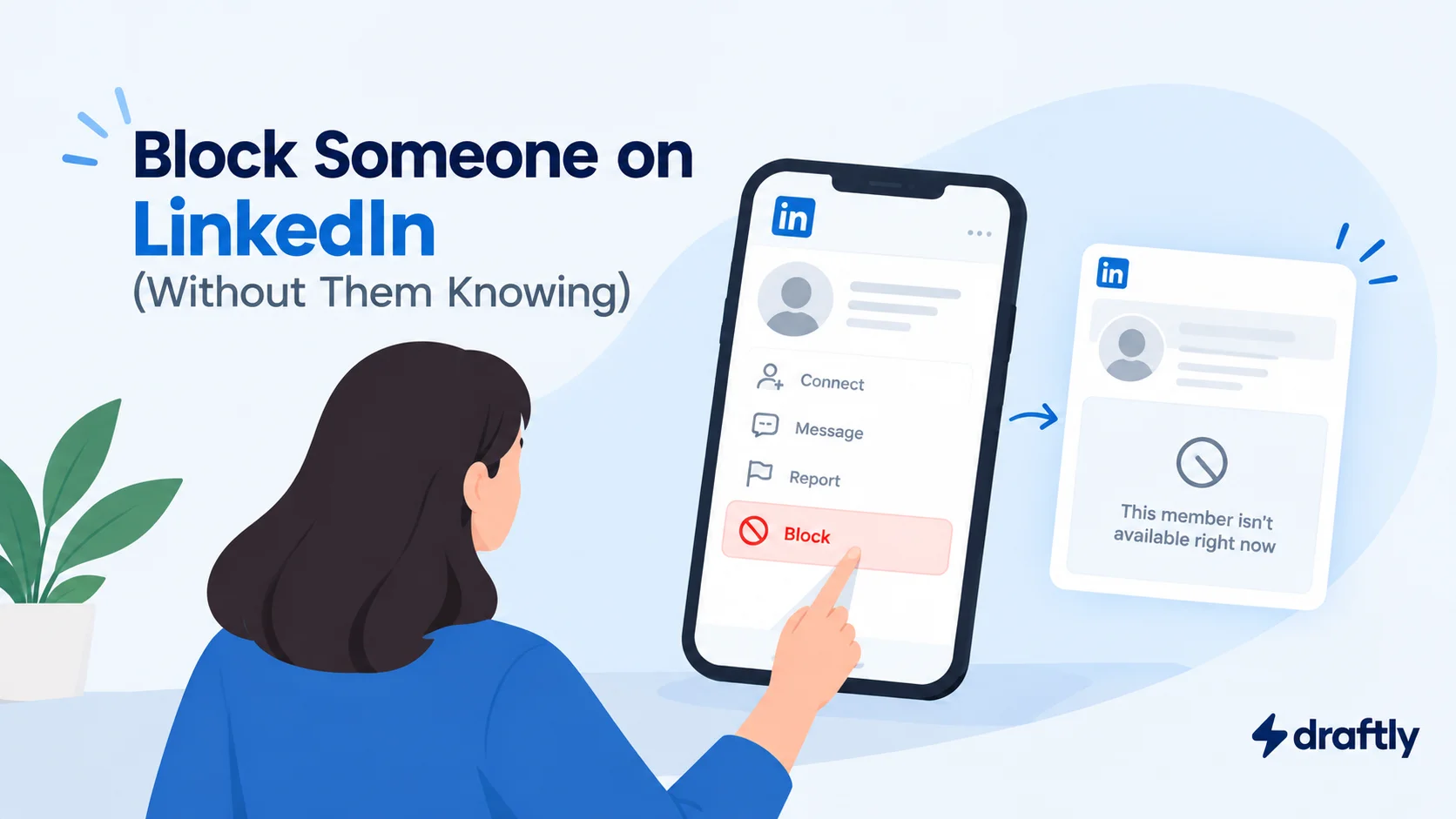
- Select Report / Block.
- Choose Block [name].
- Confirm by clicking Block.
That's it. The block takes effect immediately.
How to Block Someone on the LinkedIn App (iPhone and Android)
The mobile flow is almost identical:
- Open the person's profile in the app.
- Tap the three-dot (More) icon next to the Message or Connect button.
- Tap Report or block.
- Tap Block [name], then tap Block again to confirm.
If you don't see the option, update the app first. Old versions sometimes bury or rename the menu.
Takeaway: desktop or mobile, it's under the More menu, and it takes about 20 seconds.
Can You Block Someone Without Visiting Their Profile?
Partly. If the person has messaged you, you can often reach the block option straight from the conversation: open the thread, click the three-dot menu at the top, and look for the report or block option there. That skips the profile visit entirely.
What you can't do is block someone from a post, a comment, or a search result. Those menus only give you options like unfollowing or reporting the content. For anyone who hasn't messaged you, private mode plus a profile visit is still the cleanest route.
What Happens When You Block Someone on LinkedIn
Here's what changes the moment you hit Block:
- They can't view your profile while they're signed in to LinkedIn.
- They can't message you or send you InMail.
- You're no longer connected. If you were 1st-degree connections, that connection is removed.
- Endorsements and recommendations between you disappear, in both directions.
- You drop out of each other's "Who viewed your profile" lists.
- LinkedIn stops suggesting you to each other in "People you may know."
- They won't see your posts or activity in their feed.
A few things blocking doesn't fully cover:
- Shared spaces. In groups, events, or a group conversation you're both part of, you may still see each other's contributions.
- Your public profile. If your public profile is visible to people outside LinkedIn, they could still see a limited version while logged out or through a search engine. It's worth checking what your profile looks like to someone else, then tightening your public visibility settings if that matters to you.
- Your message history. Your past conversation won't be usable after the block. If you're blocking because of harassment, screenshot the messages before you block, because you may need them for a report.
Takeaway: blocking cuts almost every direct line between you, but it isn't a full disappearing act if your public profile is wide open.
What the Blocked Person Actually Sees
This is the part nobody explains properly, and it's usually what people really want to know.
If they search for your name while signed in, you simply won't show up. If they follow an old link to your profile, they'll hit a page telling them the profile isn't available. If they open an old message thread, they won't be able to reply.
There's no label that says "blocked." But if someone checks, sees you've vanished from their connections, and then finds your profile through a colleague's post, they can put two and two together. Blocking is silent, not undetectable. If staying completely off their radar matters, pair the block with a tighter public profile. Your visibility settings are one of the quieter parts of optimizing your LinkedIn profile, and they matter most in moments like this.
Block, Remove, Unfollow, or Report: Which One Do You Actually Need?
Blocking is the strongest option LinkedIn gives you, and it's not always the right one. Here's how they compare:
| Action | They're notified? | Still connected? | Can they message you? | Best for |
|---|---|---|---|---|
| Unfollow | No | Yes | Yes | Someone whose posts clog your feed |
| Remove connection | No | No | Only via InMail | Quietly shrinking your network |
| Block | No | No | No | Harassment, stalkers, persistent spam |
| Report | No (they're not told who reported) | Depends | Depends | Fake profiles, scams, abusive behavior |
If you're just tired of someone's content, unfollow is the gentle fix. You stay connected, and they never know. Removing a connection is a step further, and it helps to understand the difference between followers and connections before you choose, since someone you remove can still follow your public posts.
Save blocking for when you want someone out, not just quieter.
Takeaway: match the tool to the problem. Unfollow for noise, remove for distance, block for safety.
Blocking Isn't Enough? Report Them Too
If someone is harassing you, impersonating someone, or running a scam, report them before or alongside the block. The Report / Block menu gives you both options, and LinkedIn doesn't tell the person who reported them.
When you report, be specific. Something like this gives LinkedIn's team what it needs:
"This member has sent me repeated unwanted messages after I asked them to stop (screenshots attached). The messages include [describe briefly]. I've blocked them and would like the account reviewed."
Short, factual, and backed by the screenshots you saved earlier.
How to Unblock Someone on LinkedIn
Changed your mind? You can undo a block any time:
- Click Me, then Settings & Privacy.
- Go to Visibility, then Blocking.
- Find the person and click Unblock.
- Re-enter your password if LinkedIn asks, then confirm.
Two things to know before you do this:
- Unblocking doesn't reconnect you. You'll need to send a new connection request, and endorsements or recommendations won't come back.
- There's a 48-hour wait to block them again. If you unblock someone and regret it, you can't re-block them straight away.
Takeaway: treat unblocking as a fresh start, not an undo button.
LinkedIn Blocking Limits and Quirks
- You can block up to 1,400 members. Most people will never get close.
- You can't block a Company Page as an individual. If you manage a Page, you can restrict specific members from interacting with it.
- The Block option can seem to be missing. This usually means the app needs an update, the account has been deactivated, or the other person has already blocked you. Try desktop if the app won't cooperate.
Conclusion
Blocking someone on LinkedIn is silent, quick, and reversible. The only real giveaway is the profile visit beforehand, so switch on private mode, block, and screenshot anything you might need to report. If the person is just noise rather than a problem, unfollowing or removing them gets you most of the peace with none of the finality.
Once the unwanted noise is gone, your feed and inbox can go back to being useful. If you want to spend that time posting instead of managing people, Draftly helps you write and schedule LinkedIn content that attracts the right audience in the first place.