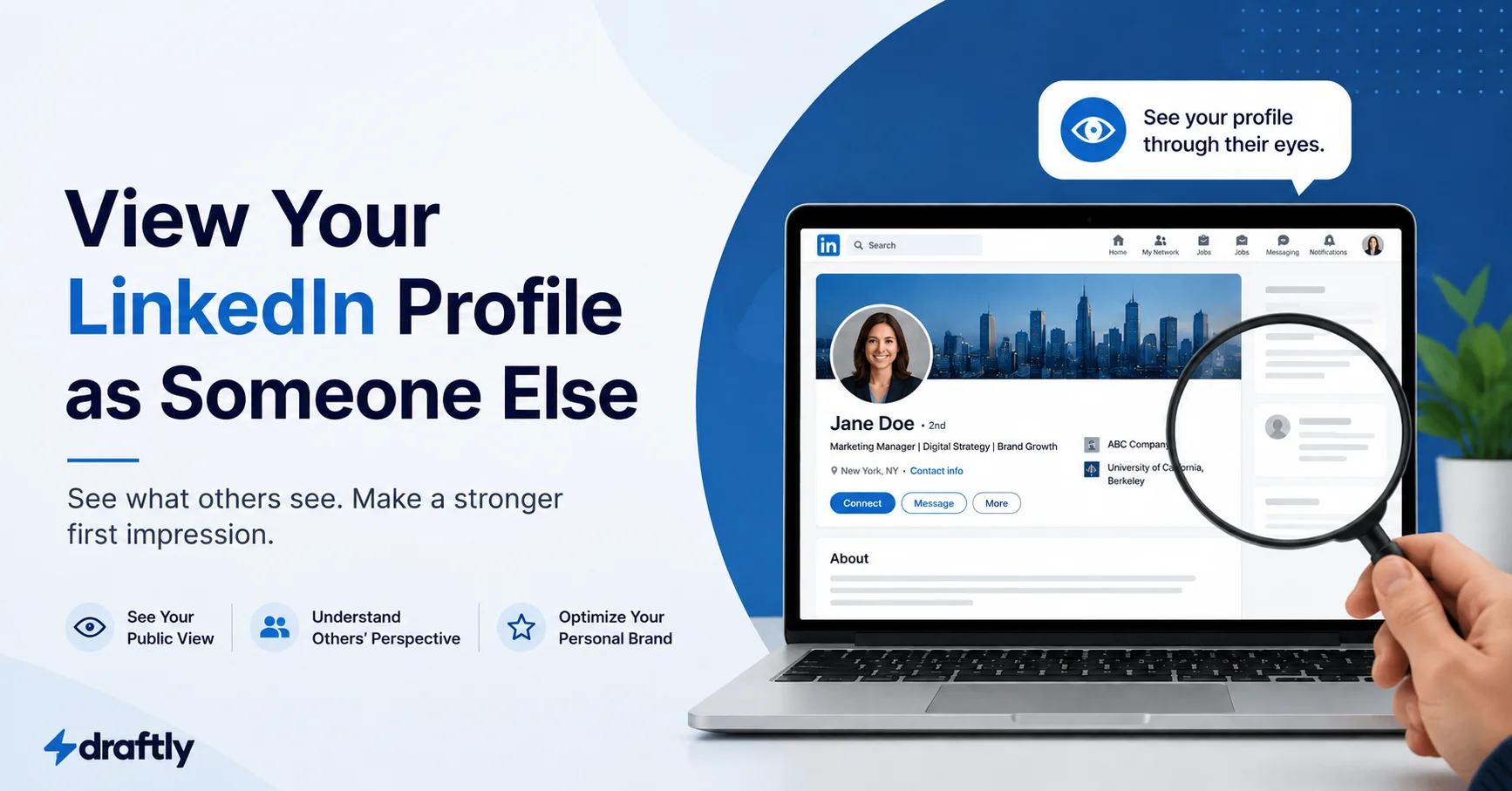
If you're hunting for a way to preview your profile as a specific person by name, that feature isn't hidden somewhere, it's gone. Here's what's actually available instead.
Wanting to know how to view your LinkedIn profile as someone else is a completely reasonable thing to want. Recruiters, clients, and potential connections are looking at a version of your profile that isn't identical to what you see when you're logged in and editing it, and it's worth knowing what that version actually looks like before someone important sees something you didn't mean to leave visible.
Where this gets confusing is that LinkedIn used to let you preview your profile from the specific perspective of one named connection, and that feature doesn't exist anymore. What's available now is different: three general categories of view, not a per-person simulator. Once that's clear, the rest is straightforward, and it connects to the broader work of keeping a profile in good shape, since previewing it is really just step one of noticing what needs fixing.
What LinkedIn Removed
Years ago, LinkedIn let you see your own profile the way one specific person, say, a particular 2nd-degree connection, would see it. That capability was removed, and there's no current setting or menu that brings it back. If a guide or tool claims to show you your profile exactly as "John from Acme Corp" sees it, treat that claim skeptically; it's very likely simulating a general visibility tier rather than anything person-specific.
The Three Views That Actually Exist
Instead of one person-specific view, there are three broader categories worth knowing, and they genuinely show different things.
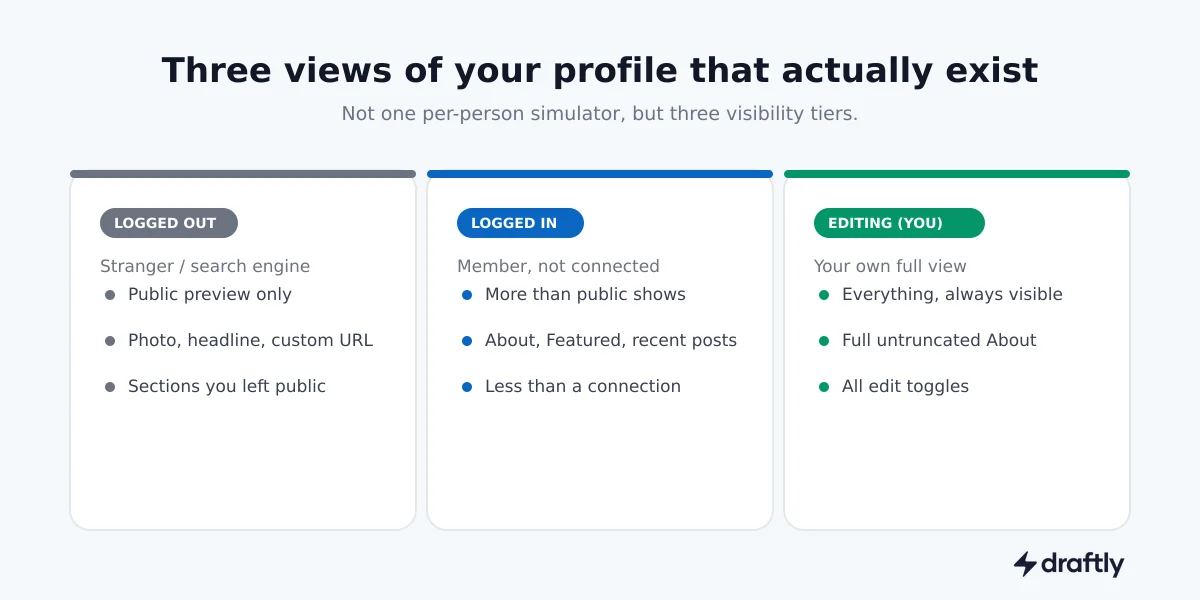
What Your Profile Looks Like When You're Logged Out
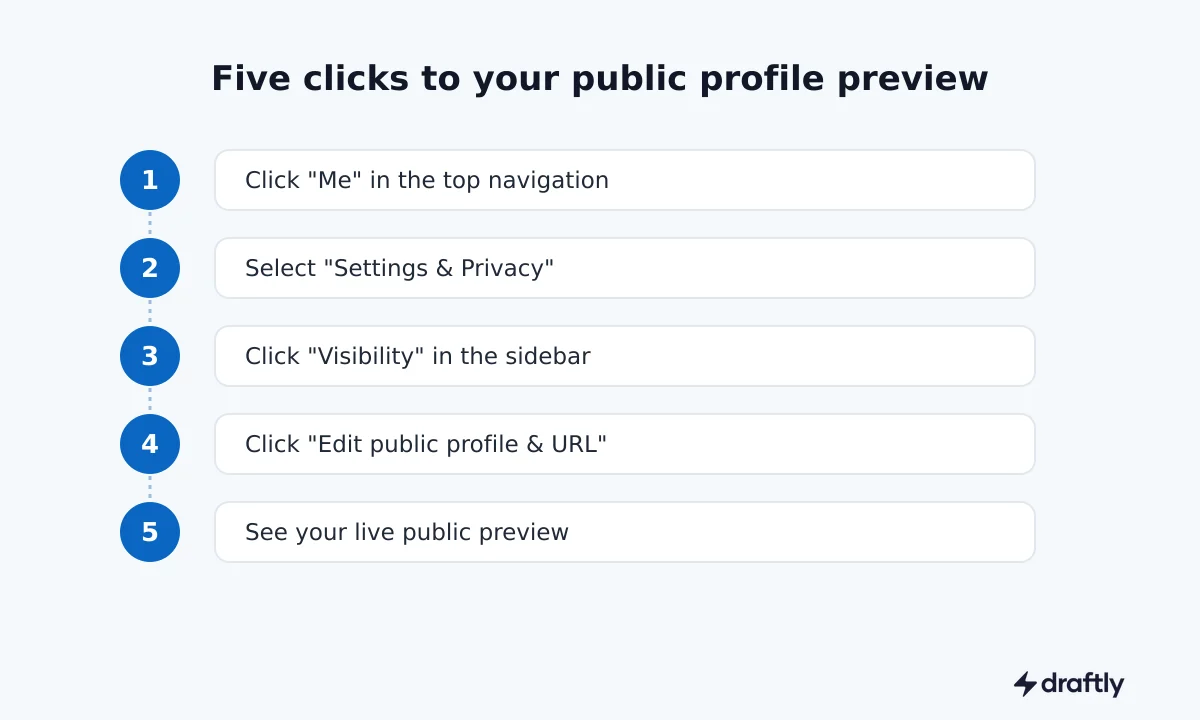
This is what shows up in a Google search of your name, or what anyone sees if they open your profile link without being logged into LinkedIn at all. Here's the exact path, five clicks from your feed:
1. Click your profile photo or "Me" in the top navigation bar.
2. Select "Settings & Privacy" from the dropdown.
3. In the left sidebar, click "Visibility."
4. Click "Edit your public profile" (sometimes shown as "Edit public profile & URL").
5. A new page opens showing exactly what's visible to someone with no LinkedIn account and no connection to you. This is the actual preview.
On mobile, the path is slightly different: tap your profile photo, tap "View Profile," then look for "Edit public profile & URL" under "Contact info & personal details." It's buried a layer deeper than on desktop, but it opens the same preview.
A second, faster way to get roughly the same result: open your profile link in an incognito or private browser window. That shows the live public version immediately, without navigating any settings at all, though it won't show you the toggles for controlling what appears there.
What Your Profile Looks Like When You're Logged In but Not Connected
This is closer to what most 2nd or 3rd-degree connections see: more than the public preview shows, but less than a direct connection gets. LinkedIn doesn't provide a dedicated toggle for this one specifically, the most reliable way is asking a colleague who isn't directly connected to you to open your profile and describe or screenshot what they see, particularly your About section, Featured content, and whether your recent posts are showing up.
What to Actually Check Once You're Looking
Once you can see a version of your profile close to what an outsider sees, the useful part is knowing what to actually look at. Your headline and photo are the first things anyone sees regardless of which view they're in, so start there. After that, check whether your about section reads clearly in the truncated preview state, since that's genuinely different from how it looks while you're editing the full thing. If you've built out a featured section, confirm the links inside it still work and the previews haven't gone stale, that's an easy thing to let slip once it's been sitting there a while.
A Few Related Settings Worth Knowing
The same Visibility settings page has a few other controls worth knowing about while you're in there. You can generate a public profile badge to embed on a personal website or resume, useful if you want a one-click link to your LinkedIn presence somewhere outside the platform. You can also set or change your custom profile URL, which makes the link itself easier to remember and share, rather than the long default string LinkedIn assigns automatically.
There's also a separate toggle worth checking, LinkedIn's version of Amazon's "customers who bought this also viewed": a strip showing similar profiles to visitors on yours. Some people like the extra visibility it creates; others would rather a visitor's attention stay on their profile instead of wandering to someone else's. Both are personal calls, not a right or wrong setting, but it's easy to forget either exists until you go looking.
Controlling What Shows Up in Each View
The same Edit public profile & URL screen where you preview the public version also has toggles for exactly which sections appear in it: photo, headline, About, experience, recommendations, and more. Turning a section off there only affects the logged-out public view, it stays fully visible to anyone logged into LinkedIn regardless of that setting. If your goal is closer to browsing invisibly rather than checking your own visibility, that's a related but different feature, LinkedIn's private browsing mode covers that side of things specifically.
Conclusion
There's no button that shows your profile through one specific person's eyes anymore, but there are three real, checkable views: what a stranger or search engine sees, what a logged-in non-connection sees, and what only you see while editing. Checking the first two occasionally, especially after updating your headline, About section, or Featured content, catches the small gaps between what you think is visible and what actually is.