Your resume tells people what you've done. Your LinkedIn portfolio shows them.
If you're a designer, writer, developer, marketer, or freelancer of any kind, a static list of job titles isn't enough anymore. Recruiters skim. Clients skim even faster. What actually stops the scroll is proof: a real project, a real result, something they can look at and immediately understand. That's exactly what a well-built LinkedIn portfolio gives them, and most people never get around to setting one up simply because they assume it requires a separate website.
It doesn't. LinkedIn already has the tools built in. You just need to know where they're hiding and how to use them properly, because "featuring" one random post is not the same thing as building an actual portfolio.
In this guide, you'll walk through exactly how to build a LinkedIn portfolio that gets noticed, using the Featured section, media uploads inside your other profile sections, and a handful of small formatting choices that make the whole thing look intentional instead of thrown together the night before a job interview.
What Is a LinkedIn Portfolio, Really?
There's no single "portfolio" button on LinkedIn, which is part of why so few people build one properly. Instead, a LinkedIn portfolio is really a combination of a few sections working together, so it ends up functioning like a small, scrollable website. It usually includes:
- The Featured section, where you pin projects, articles, documents, or links right near the top of your profile
- Media attachments tucked inside your About summary and individual Experience entries
- External links out to case studies, a personal site, a GitHub repo, or wherever your fuller body of work actually lives
Used well, these pieces turn your profile from a static resume into something a hiring manager can actually browse, which matters most if you're job hunting, freelancing, or working through the rest of your LinkedIn profile optimization checklist anyway. Think of it less as decorating your profile and more as removing the extra step between "this person looks qualified" and "here's the proof."
Takeaway: A LinkedIn portfolio isn't one feature you switch on. It's a handful of sections you deliberately fill with evidence of your work, and most profiles are only using one of them.
Step 1: Set Up Your Featured Section
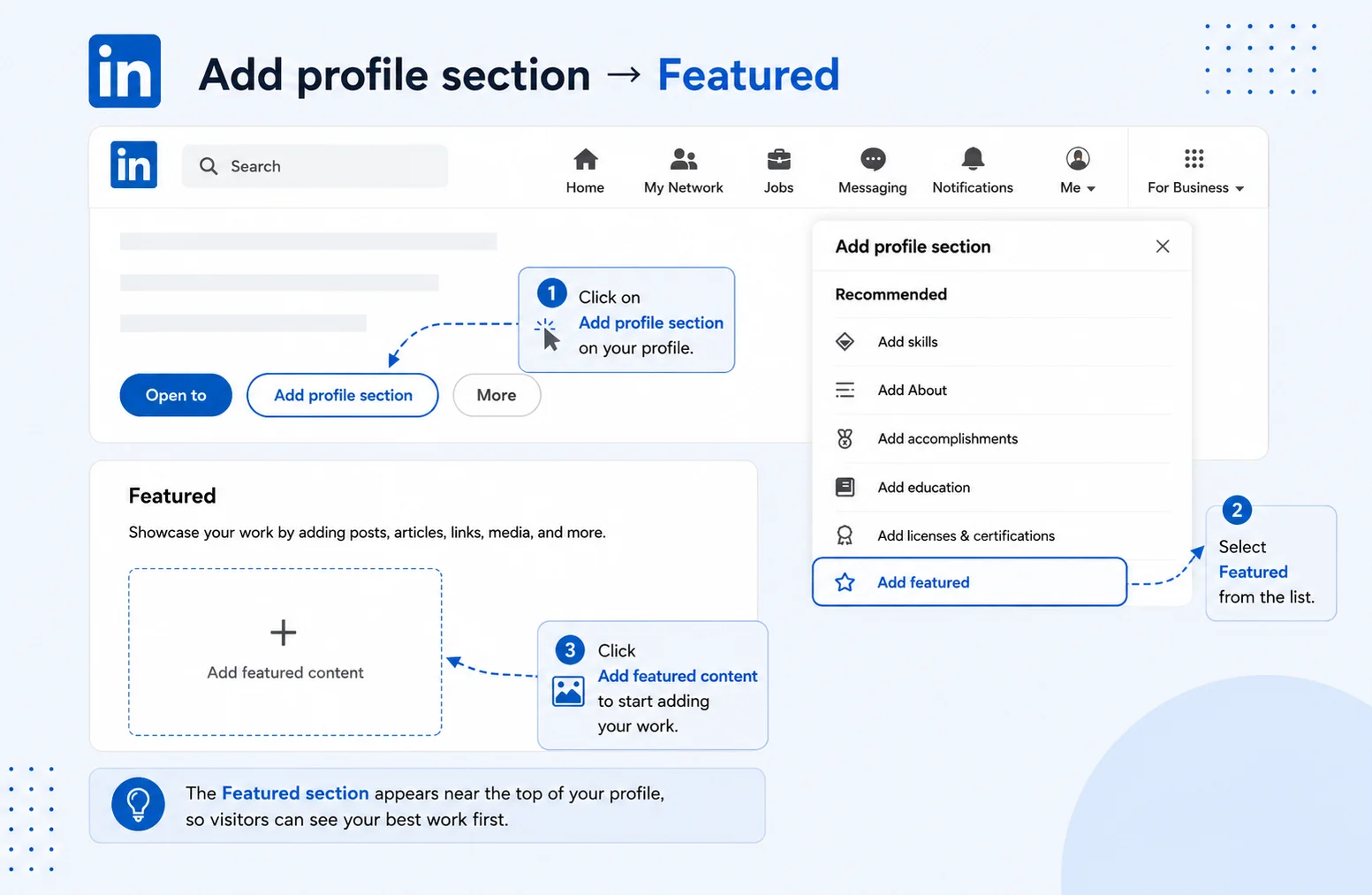
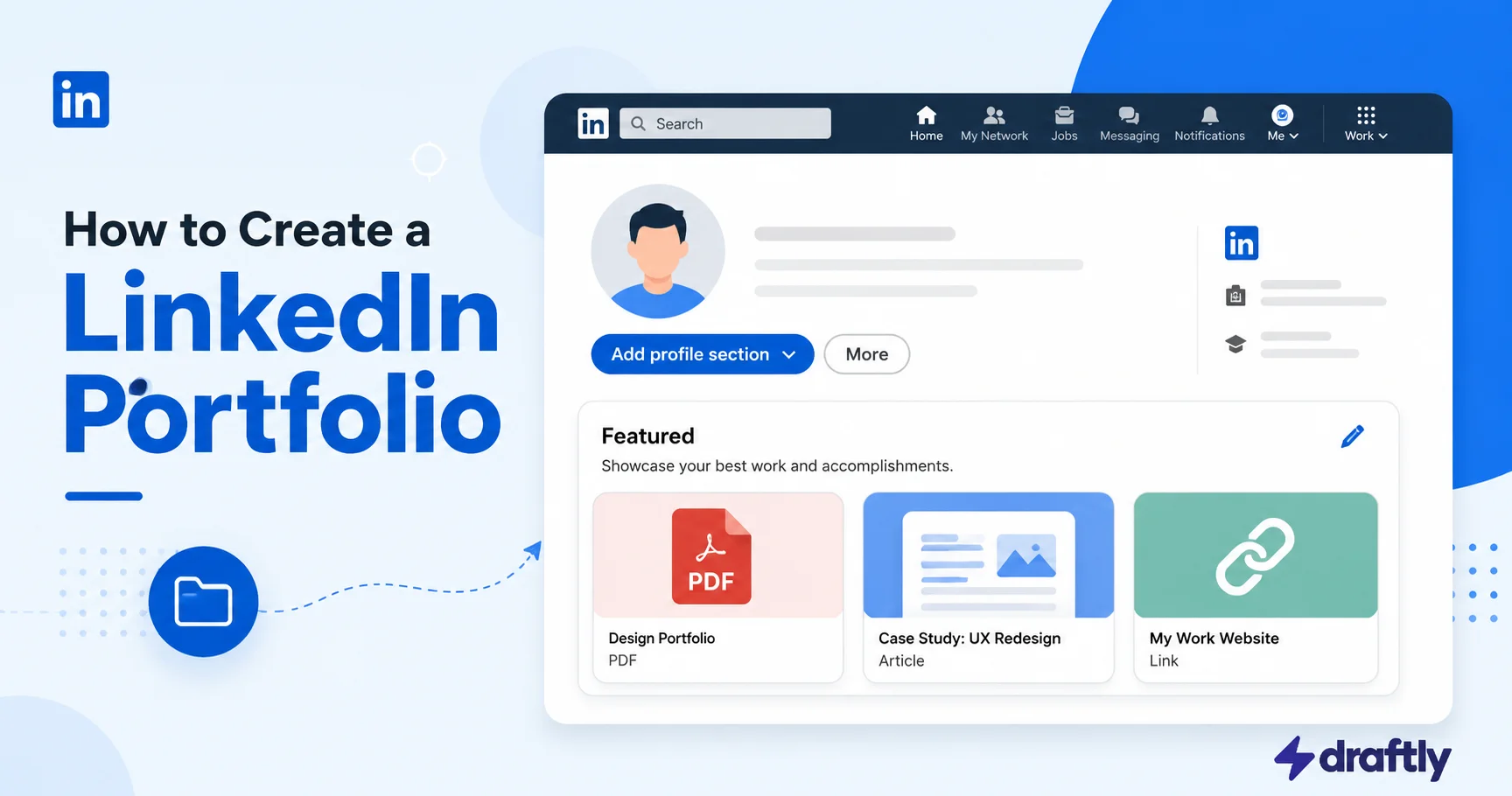
The Featured section sits right below your About summary, and it's the single most powerful tool you have for building a portfolio on LinkedIn. It's also the most underused, since a lot of people either skip it entirely or dump a single old post into it and forget it exists.
Here's how to add it:
- Go to your profile and click Add profile section.
- Under Recommended, select Featured.
- Choose what you want to add: a post, an article, a media file, or a link.
- Upload your file or paste your URL, give it a clear title, and save.
Once it's set up, you can feature things like:
- Case studies or PDFs, such as project breakdowns, design decks, or writing samples
- Links to live work, like a published article, a website you built, or a campaign you ran
- Your best-performing LinkedIn posts, which works especially well if you've been building a presence with a scheduling tool like Draftly and already have a few posts that clearly landed
A quick gut check before you move on: if a recruiter clicked into your Featured section right now, would they understand what you actually do within about five seconds? If the honest answer is no, that's the signal to keep refining this step before touching anything else.
Takeaway: If you only do one thing from this guide, set up your Featured section properly. It's the first place a visitor's eye goes after they finish reading your headline.
Step 2: Add Media to Your About and Experience Sections
Most people don't realize you can attach files directly inside the About and Experience sections too, not just Featured, which is honestly the part of this process most profiles are missing entirely. It's also a natural extension of getting your LinkedIn summary right in the first place, since the summary is where you're already telling people what you do.
Here's how to do it:
- Open the section you want to edit, whether that's About or a specific role under Experience.
- Look for the small media icon that appears while you're editing (it usually looks like an image or link symbol).
- Upload a file, or paste a link that's relevant to that specific role or story.
This matters more than it sounds like it should, because context changes everything about how a piece of work reads. A portfolio piece dropped into Featured on its own basically says "here's some of my work." The same piece attached to the exact Experience entry where you did that work says something closer to "here's proof of the thing I just claimed above." It's the same underlying logic that makes adding certifications to LinkedIn worthwhile: both turn a claim into something a recruiter can actually verify instead of just taking your word for it.
Example: Say you're a freelance copywriter. Don't just feature a PDF of ad copy sitting on its own with no explanation. Attach it to the specific client engagement in your Experience section, with a short caption like: "Ad copy that increased click-through rate by 34% for a mid-size ecommerce client." Suddenly it's not just a writing sample, it's evidence tied to a result.
Takeaway: Media attached inside Experience carries more weight than media floating in Featured by itself. Use both together rather than picking one.
Step 3: Link to an External Portfolio (If You Have One)
If you already have a personal website, a Behance page, a GitHub profile, or a Notion doc set up as a portfolio, don't make people go hunting for it. A surprising number of talented people bury this link somewhere in their About paragraph, three sentences deep, where nobody scrolls to find it.
A few things worth doing:
- Add the link to your Contact Info section, since that's the first place some people check.
- Also feature it directly using Step 1, so it's visible without anyone needing to click into your profile settings.
- Write a specific description instead of a bare URL. "Full case studies with before and after results" earns a click far more often than a raw link would.
If you don't have an external site yet, don't stress about it. LinkedIn's Featured section and Experience media are genuinely enough to build a credible LinkedIn portfolio on their own. An external site is a nice extra layer, not a requirement to get started.
Takeaway: An external portfolio adds depth if you have one, but LinkedIn's native tools can carry the whole job by themselves if that's all you've got right now.
Step 4: Keep It Curated, Not Comprehensive
One of the most common mistakes here is featuring everything you've ever made. A portfolio isn't meant to be an archive. It's meant to be a highlight reel, and the difference matters more than it seems.
A few guidelines that tend to work well:
- Aim for 3 to 5 Featured items, not fifteen scattered across every project you've ever touched.
- Lead with your most recent and most relevant work, not necessarily your favorite piece from years ago.
- Mix formats where it fits your field, so maybe one case study PDF, one live link, and one strong post rather than three of the same thing.
Rotate items out as you produce better work. This is also a good moment to fold in a broader pass on how to update your LinkedIn profile, so nothing else on the page feels stale sitting next to your newest portfolio piece. A profile where the featured work is four years old, but the headline claims something current, sends a confusing signal to anyone paying attention.
Takeaway: Curate like you're hanging a small gallery show, not organizing a filing cabinet. Fewer, stronger pieces will always beat a wall of everything you've ever made.
Step 5: Match Your Portfolio to Your Headline and Summary
Your Featured section needs to back up the claims you're making everywhere else on your profile, or the whole thing starts to feel disconnected. If your LinkedIn headline says "B2B SaaS copywriter," the work you're featuring should actually be B2B SaaS copy, not a random mix of unrelated projects that happen to be sitting in your files.
Before you consider your portfolio finished, run through a quick consistency check:
- Does your headline actually match the work you're featuring?
- Does your About summary reference the kind of work shown in Featured, or does it read like it belongs to a different person?
- Would a total stranger scrolling your profile understand what you do within about ten seconds?
If any of those answers feel shaky, it's worth going back and adjusting either the featured work or the surrounding copy until they line up.
Takeaway: A portfolio only really works if it's telling the same story as the rest of your profile. Treat consistency as part of the build itself, not something you check at the very end.
Common Mistakes to Avoid
- Low-resolution images or screenshots. Always upload the highest quality version of a file you have, since a blurry thumbnail undercuts even great work.
- No context. A file sitting there with no caption forces the viewer to guess why it's even there, and most people won't bother guessing.
- Outdated work. An old portfolio piece can quietly undercut a strong, current headline if nobody's checking whether the two still match.
- Broken links. Check external links every so often. A dead link looks worse to a visitor than having no link there at all.
Conclusion
A strong LinkedIn portfolio really comes down to three things: a curated Featured section, media attached in the places it has the most context, and a story that matches the rest of your profile. Get those right, and your profile stops reading like a resume and starts working more like an actual portfolio.
Once your portfolio is in place, the next challenge is getting the right people to actually see it, which usually starts with consistent, well-timed posting. Draftly can help you plan and schedule the LinkedIn content that drives traffic back to the profile you just spent this guide building.