You open LinkedIn, scroll for ten seconds, and think: why am I seeing this? A post from someone you barely know. A "congratulate them" prompt. A hot take from three days ago, somehow sitting above the thing your actual connection posted an hour ago.
Nothing's broken. LinkedIn just never really explains what's happening behind the scenes, so most people end up scrolling past a feed they don't understand and definitely don't control.
So let's fix that. Below is what's actually in your feed, why it's arranged the way it is, and the handful of settings that'll make it feel like yours again.
What's Actually Inside Your LinkedIn Feed
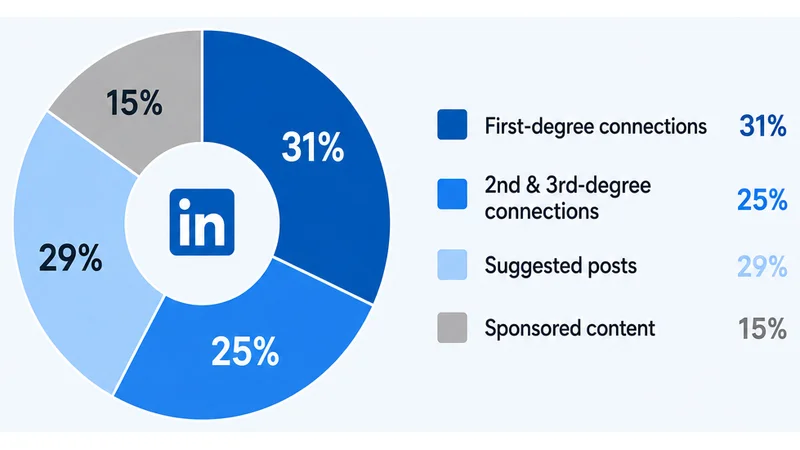
Your feed isn't just "posts from people you follow." It's several different content streams, blended together in real time:
- First-degree connections: people you're directly connected to
- Second- and third-degree connections: people LinkedIn thinks are relevant, even without a direct connection
- Suggested posts: content from accounts you've never interacted with, surfaced because it matches your interests
- Sponsored content: paid posts from advertisers
- Network activity: likes, comments, and shares your connections made on posts you don't actually follow the author for
By most recent estimates, first-degree connections make up around 31% of a 2026 feed, second- and third-degree connections about 25%, and suggested posts roughly 10%, with the remainder split between company and sponsored content. That's a real shift from the old model, where following someone basically guaranteed you'd see their stuff in order. Now it doesn't. Relevance decides what you see, not the connection itself.
Which is honestly the part most people miss. If you're picturing your feed as "posts from my network," you're mentally skipping past close to two-thirds of what's actually on the page. The suggested-posts slice is the sneaky one: it's how a total stranger with zero mutual connections ends up above your actual coworkers, purely because LinkedIn matched their post to something you've engaged with before.
If your feed feels random, that's why: it's pulling from five-plus sources at once, not just the people you know.
Feed vs. My Network vs. Notifications: What's the Difference
People mix these three up constantly, so here's the short version:
- Feed (your homepage): the ranked, personalized mix above
- My Network: connection requests and "people you may know." No posts live here.
- Notifications: a plain, chronological list of who liked, commented, or mentioned you
Trying to catch up on what one specific person posted? Skip the feed entirely and just visit their profile. It's faster, and you avoid the ranking altogether.
Top Posts vs. Recent Posts: What They Actually Mean
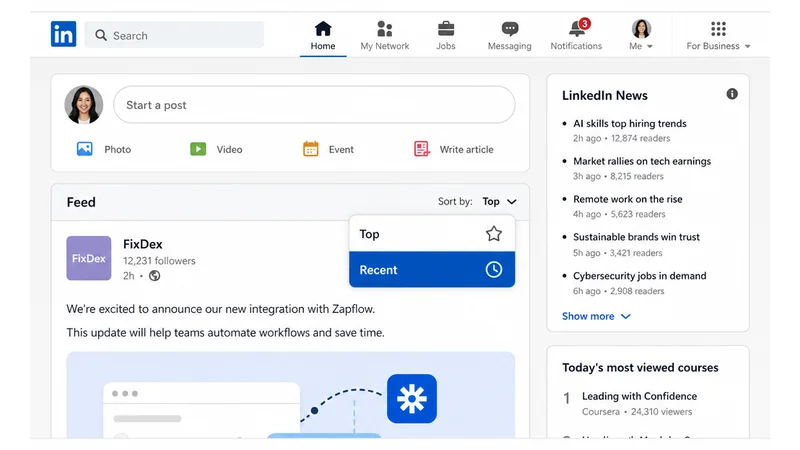
By default, your feed sorts by Top, meaning LinkedIn ranks posts by predicted relevance instead of by time. You can switch to Recent, which just shows posts from people you follow in plain reverse-chronological order, with no personalization involved.
How to Switch Your Sort Preference
- From your LinkedIn homepage, find the Sort by dropdown above your feed.
- Select Recent instead of Top.
- Want it to actually stick instead of quietly resetting? Head to Settings & Privacy → Preferred feed view and choose Most recent posts.
Why the "Recent" Option Might Be Missing
Browsing on desktop from outside the EU, EEA, or UK? Don't be alarmed if the sort dropdown just isn't there. LinkedIn's been pulling the manual sort filter for members outside those regions while EU-based users keep it. If that's you, the permanent feed-view setting above is your best (and currently only) workaround, worth revisiting every so often since this rollback still seems to be a moving target.
How to Train Your Feed to Show You Better Content
You have more say over your feed than the default settings let on. Here's where to actually put that effort:
"I don't want to see this" is your strongest tool. Click the three dots on any post and select it. It's a stronger signal than just scrolling past. LinkedIn treats it as an active vote, not a shrug.
Mute when it's the person, not the relationship. Say a colleague posts constantly and you'd rather not see all of it, but you still want to stay connected. Muting keeps the connection and quietly drops their posts from your feed.
Unfollow when the content itself is the issue. You'll stay connected on paper, but LinkedIn stops counting their posts toward what shows up for you.
Turn off political content if it's cluttering things up: Settings & Privacy → Content preferences → Political content, then flip it off.
Follow topics on purpose, not by accident. A handful of specific hashtags or creators in your actual field shapes your feed more than reacting to a hundred random posts ever will, because it gives LinkedIn a cleaner read on what "relevant" means for you. Not sure which tags are worth it? We've rounded up the best-performing LinkedIn hashtags if you want a starting point.
Comment like you mean it. Every comment tells the algorithm "more like this, please," including the reflexive "great post!" ones you leave without thinking. If you want that signal working for you instead of just filling space, it's worth learning how to comment on LinkedIn like a pro.
What's Behind the Ranking: a Quick Primer
Every "Top" post you see has already passed through a scoring system that cares a lot more about how long you actually read a post, whether you left a real comment, and whether you saved it, than it does about a quick like. LinkedIn also tests a post with a small audience in its first hour or so before deciding how far to push it, which is why two posts published minutes apart can land wildly different reach for no obvious reason.
As a viewer, you don't touch any of this directly. It's just the machinery running behind every "Top" sort. But it does explain a lot of those "why am I seeing this" moments from earlier: a post shows up because it earned attention from people like you, not because it's new or because you happen to follow whoever wrote it. That's the same scoring system we unpack in how the LinkedIn algorithm actually works, if you want the full mechanics behind what you just customized above.
Fixing a Feed That's Stuck, Empty, or Not Updating
If your feed genuinely won't refresh (not "showing stuff I don't like" but actually failing to update), try these before assuming your account's the problem:
- Update the app. An outdated mobile app version is a surprisingly common reason feeds freeze or miss recent posts.
- Clear the cache or try a different browser on desktop. A stale cache can trap an old version of your feed in place.
- Give it a minute. New posts, yours or anyone else's, sometimes need a short beat to fully propagate before they show up everywhere.
- Rule out a connectivity issue first. If nothing on LinkedIn is loading right, the feed isn't the problem. Your connection is.
- Log out and back in if none of that helps. It resets your session and clears most minor sync glitches.
A Few Feed Quirks Worth Knowing
A few smaller things trip people up:
- Liked and commented activity from your connections can clutter your feed. There's no single toggle to hide "so-and-so commented on this" updates from people outside your interests. Muting the noisiest accounts is your closest fix.
- Events show up late sometimes. Seeing an event post several days after it happened isn't a glitch, exactly. Event content just doesn't get the same distribution priority as regular posts.
- The feed is constantly being tested. LinkedIn's tried several feed layouts over the past couple years, including separate "All" vs. connections-only tabs in some markets. If a control you read about isn't showing up for you, it may just not have rolled out to your account yet.
None of that needs fixing. It's just how a feed that's always being tweaked tends to behave.
Why Understanding Your Feed Matters for Your Own Content
Here's the part that loops back to your own posting: everything above runs both directions. The same signals you're using to shape your feed are the exact signals LinkedIn uses to decide whether your posts make it into anyone else's.
So if your own content feels stuck, that's usually a distribution problem, not a quality one, and it's worth actually diagnosing instead of guessing. We've covered why LinkedIn reach gets stuck, plus the practical fixes for increasing LinkedIn impressions once you've found the bottleneck.
Conclusion
Your feed isn't something you just have to put up with. It's a mix of connections, suggestions, and ranking signals that actually responds to the small things you do to it. Spend five minutes on the settings above, and it'll look noticeably different by next week. And if you're also trying to make sure your posts land in other people's feeds instead of just consuming what lands in yours, Draftly can help you plan and schedule content built around exactly the signals covered here.