Scroll through ten LinkedIn profiles right now, and you'll probably find that seven of them have an empty Featured section, and two more have it filled with whatever they happened to post last. Almost nobody uses it on purpose. That's good news for you, because it's one of the few remaining spots on the platform where a little effort still makes you look dramatically more credible than everyone around you.
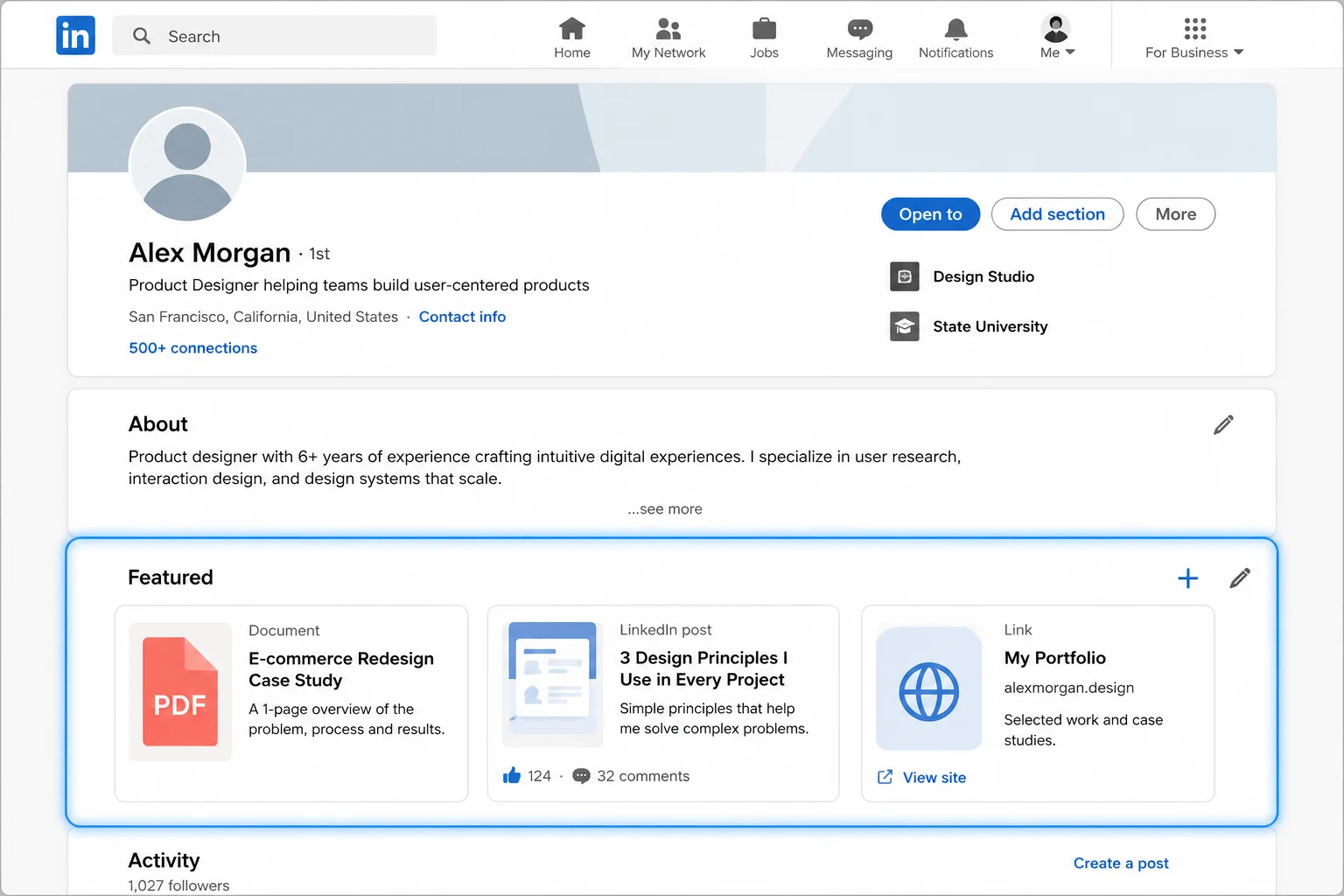
The Featured section sits just below your About summary, and it lets you pin specific posts, documents, or links to the top of your profile instead of hoping someone scrolls down to your activity feed. Here's what it actually does, how to set it up properly, and what to put in it depending on what you're trying to get out of LinkedIn.
What the Featured Section Actually Is
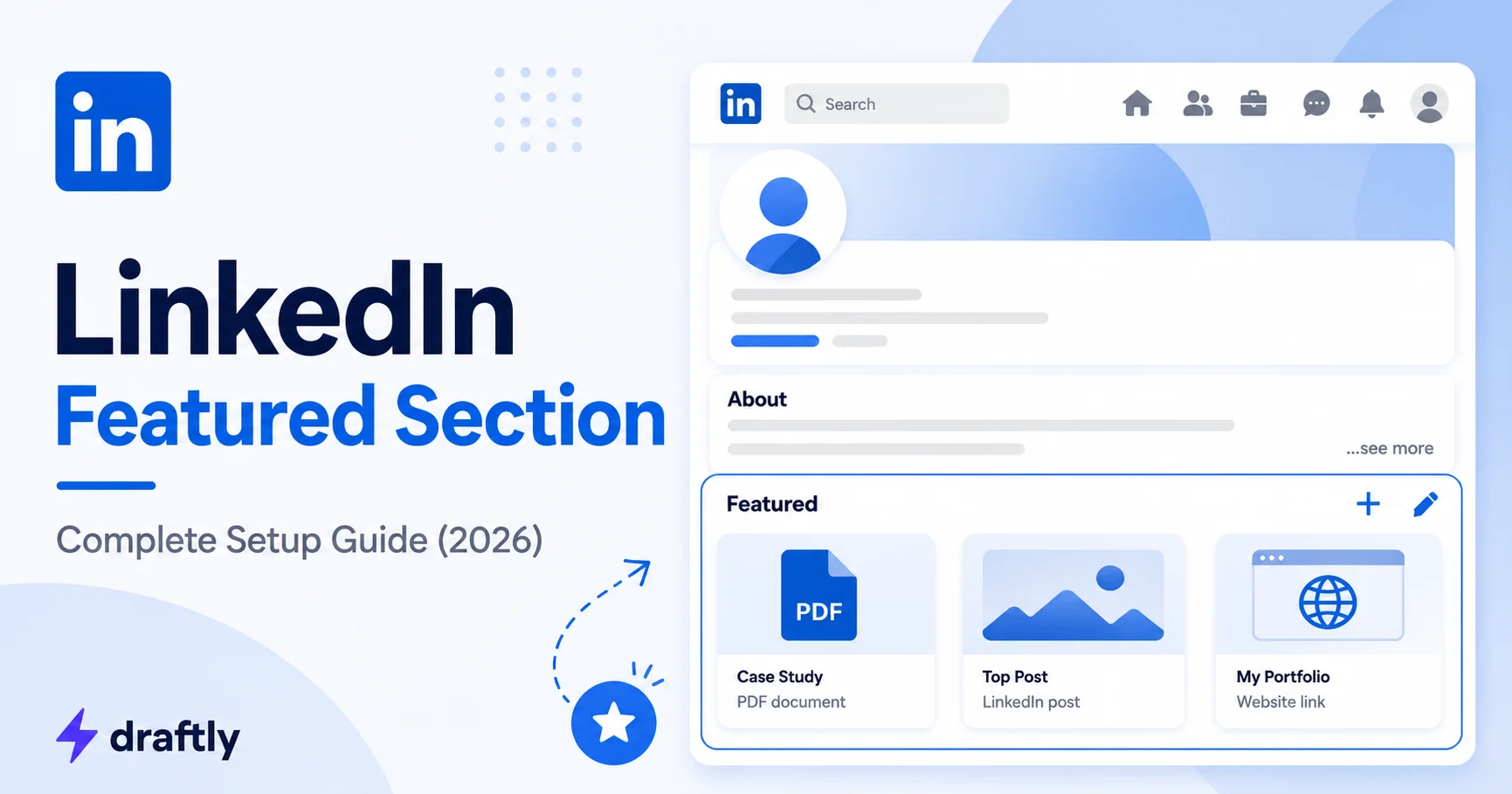
Think of your activity feed as a diary, everything you post gets logged in order, and the good stuff gets buried the second you post something new. The Featured section doesn't work like that. It's a fixed, horizontal row of cards near the top of your profile that stays exactly the way you left it until you change it yourself.
You can pin four kinds of things to it:
- Posts you've already published on LinkedIn
- Articles written natively on LinkedIn (the long-form kind, not regular posts)
- Uploaded media: PDFs, slide decks, images, or short videos
- External links: a portfolio site, a press writeup, a Calendly page, whatever you want someone to click
The practical effect is that a recruiter or prospective client doesn't have to take your word for anything. Your headline says you're a product designer; your Featured section shows the actual case study.
Setting It Up
This part takes about two minutes, and there's no real trick to it:
- On your profile, scroll to just under your About section.
- Click the + next to "Featured." If there's no Featured section at all yet, go to Add profile section → Recommended → Add featured.
- Pick a type, Posts, Articles, Media, or Links.
- For posts and articles, LinkedIn shows you a list of everything you've published so you can choose. For media, you upload the file directly. For links, paste the URL and LinkedIn pulls a preview card automatically.
- Give media and links an actual title and description, don't leave the auto-generated one in place.
- Drag items into order. They display left to right, and the leftmost item is the one people see first, even on mobile.
Everything saves and goes live instantly. There's no review process, no delay, if you make a mistake, you can fix it in the same two minutes it took to add it.
What's Actually Worth Featuring
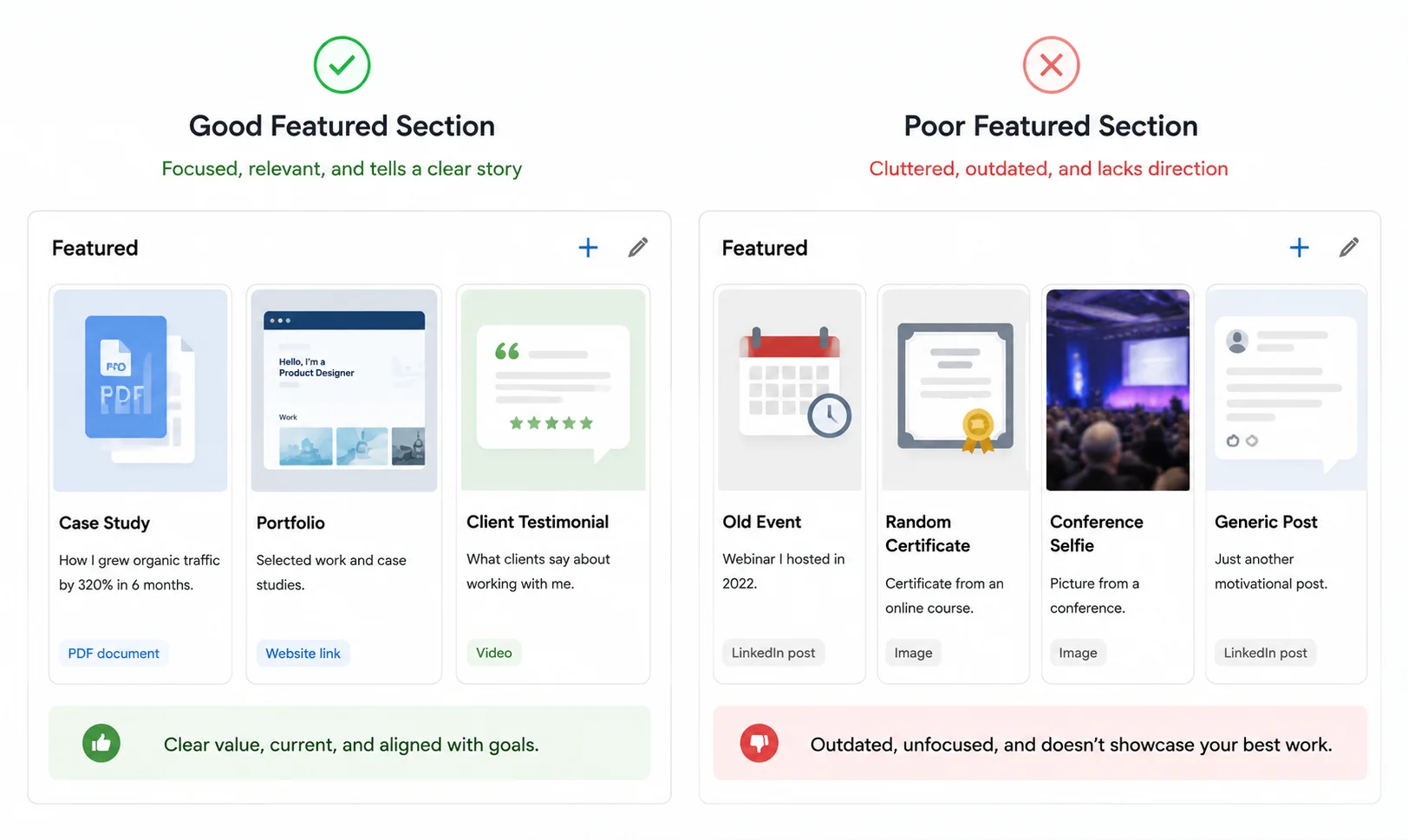
Here's where most people get it wrong: they treat the Featured section as a highlight reel of "things I posted that did okay" instead of asking what a stranger needs to see to believe they're good at their job. Three or four sharp pieces beat eight mediocre ones, every time, a cluttered Featured section reads the same as a messy desk.
What belongs there depends a lot on why you're on LinkedIn in the first place:
If you're job hunting, feature a post or document that shows a specific, measurable result from your last role. A one-page PDF summarizing a project (what the problem was, what you did, what changed) does more work than your entire Experience section combined. If you've got a portfolio site, link it directly rather than making someone go find it.
If you're freelancing or consulting, a case study is your best asset here. Structure it like a before/after, not a diary entry. Something like:
Title: "How I Took a SaaS Newsletter from 200 to 12,000 Subscribers in Eight Months" Description: "The three channels that actually moved the needle, the subject-line tests that didn't, and what I'd do differently starting from zero."
That's a specific number, a specific timeframe, and an honest admission that not everything worked, which reads as far more credible than a generic "results-driven marketer" pitch.
If you're building a personal brand or thought leadership presence, feature the post that got real engagement, not just your most recent one. A post with genuine discussion in the comments (not just likes) tells a visitor you're someone worth following, not just someone who posts often.
If you run a business page or lead a team, press mentions, speaking clips, or a client testimonial video tend to outperform anything self-written, because the credibility is coming from somewhere other than you.
Whatever you pick, skip anything time-sensitive (an event that already happened, an offer that's expired) and anything that doesn't reflect what you want to be known for right now, a post that did great a year ago but doesn't match your current direction is just noise.
If you're rebuilding your whole profile at the same time, your LinkedIn summary and headline should tell the same story as your Featured section, not a different one. And if the portfolio piece itself still needs building, our LinkedIn portfolio guide walks through how to package it properly.
The Mistakes That Undercut It
The most common one isn't leaving it empty, it's filling it with content that doesn't add anything new. Featuring your About section again, or a post that just repeats your job title, wastes the one part of your profile designed to show proof instead of claims.
Second most common: no context. A bare link with no title or description forces someone to click blind, and most people won't. Write the title like you'd write a headline for someone who's never heard of the project.
Third: never touching it again after setup. A Featured section that still has a 2023 event announcement pinned at the top tells visitors the rest of your profile might be just as stale, even if it isn't. Check it every few months, it takes less time than writing this article.
And one worth calling out specifically: don't use it as a dumping ground for every certificate and award. A recommendation letter screenshot next to a random conference selfie next to a slide deck from three jobs ago doesn't build a narrative, it just looks unedited.
Optimizing What You Feature for Search
Titles and descriptions in the Featured section are indexed the same way your headline and About section are, which means the words you choose affect whether you show up in recruiter and prospect searches at all. If you're not sure which terms actually matter for your role, our guide on best keywords for a LinkedIn profile breaks down how to find and use them without it reading like a list of buzzwords.
Reordering, Editing, or Removing Items
Click the pencil icon on the Featured section to enter edit mode. From there you can drag items into a new order, click into a media or link item to update its title and description, or hit the remove icon on anything you want gone. Posts and articles pull their text from the original content, so you can't edit that copy directly, if the wording's wrong, you'd need to edit the original post itself.
Nothing here requires LinkedIn's approval. Change it, save it, and it's live.
Conclusion
The Featured section is one of the highest-leverage, most-overlooked parts of a LinkedIn profile, it turns passive visitors into people who've actually seen your best work. Set it up once, keep it current, and make sure it's pointing toward whatever you want to happen next, whether that's a job offer, a client inquiry, or a bigger network.
If you're refreshing your whole profile, not just the Featured section, our LinkedIn profile optimization guide walks through every section end to end. And if writing the posts and articles worth featuring in the first place is the part you're stuck on, Draftly can help you plan, write, and schedule content that's actually worth pinning.