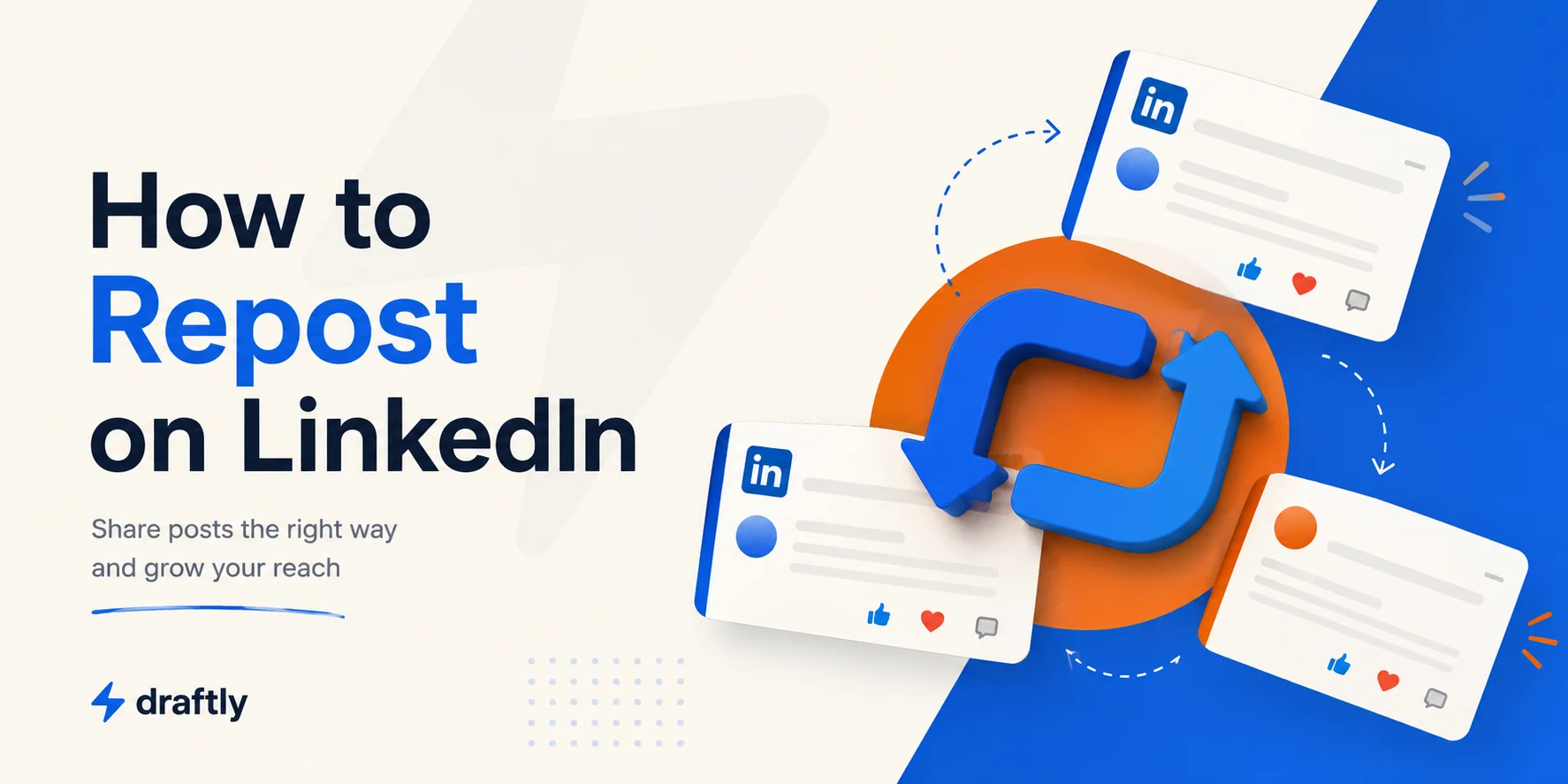
Reposting takes about ten seconds. Knowing when to add your own take, what to do when the button won't show up, and how to undo it if you change your mind is the part worth actually reading.
You know the feeling: something shows up in your feed, a sharp take on an industry shift, a client win worth celebrating, a comment from a colleague that stuck with you, and your first thought is, more people should see this. That's really what the Repost button is for. It saves you from opening a blank compose box and staring at it, which, let's be honest, is where most LinkedIn posts go to die.
The mechanics take seconds, on either desktop or mobile. The parts people actually get stuck on are more interesting: should you reshare something as-is, or add your own commentary? What's going on when the Repost icon just isn't clickable? And if you repost something and immediately regret it (wrong post, typo in your comment, whatever), can you take it back? This guide walks through all of it, including a couple of things most write-ups on this skip entirely.
How to Repost on LinkedIn on Desktop
Here's the quick version:
1. Find the post you want to repost in your feed, or search for it directly.
2. Click the Repost icon (two curved arrows) beneath the post, next to Like and Comment.
3. Pick one of two options from the dropdown: Repost, which shares it instantly with no comment box, or Repost with your thoughts, which opens a compose window.
4. If you chose "Repost with your thoughts," write your note, tag anyone relevant with @, set who can see it, and click Post.
5. You'll get a confirmation message in the lower-left corner with a View post link to what you just shared.
That dropdown choice, plain repost or one with your thoughts attached, is the one decision that actually matters here, and it's worth slowing down on. More on that in a minute.
How to Repost on LinkedIn on the Mobile App (iOS & Android)
If you're doing this from your phone, nothing really changes:
1. Open the LinkedIn app and find the post in your feed.
2. Tap the Repost icon under the post.
3. Tap Repost with your thoughts to add commentary, or Repost to share it instantly without one.
4. If you're adding thoughts, type your comment, tag anyone relevant, choose your audience, and tap Post.
One thing worth knowing on mobile specifically: tapping the three dots on any repost you've made, on either iOS or Android, is how you delete it later. Keep that in your back pocket; we'll come back to it.
Repost vs. "Repost with Your Thoughts": What's Actually Different
LinkedIn's feed ranking doesn't treat these two the same, so the choice matters more than the UI makes it look.
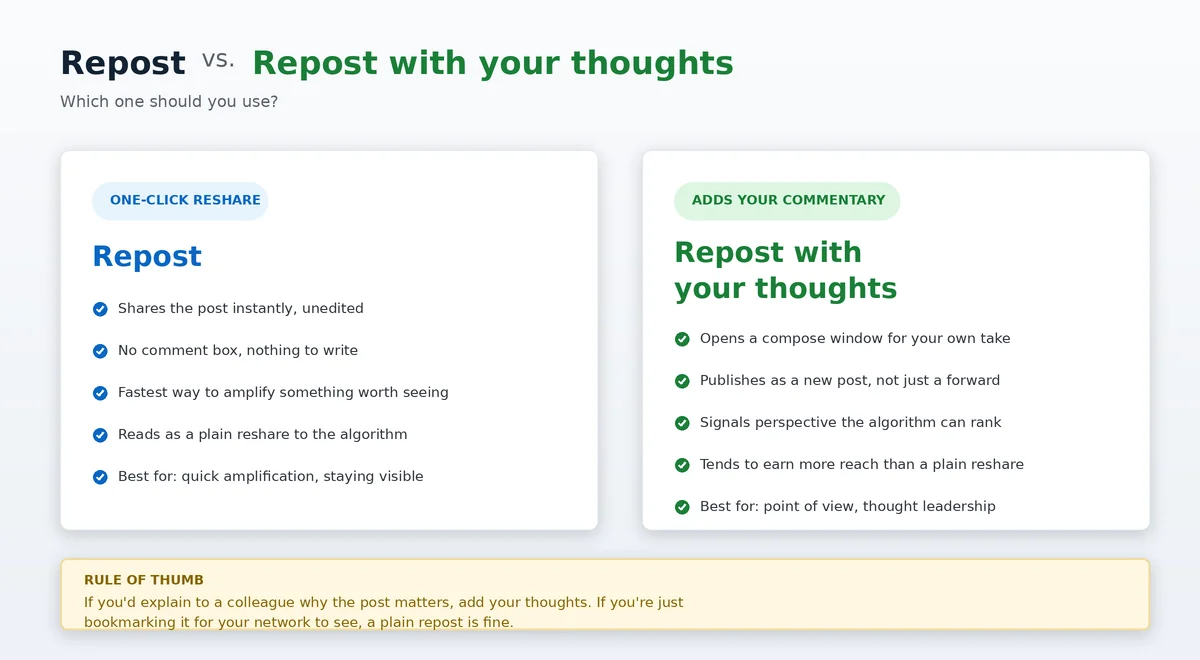
A plain repost is a one-click reshare. It's fast, but it's also the least interesting thing you can do with someone else's post. There's no new commentary attached, so the algorithm has nothing fresh to weigh, and reach tends to reflect that.
"Repost with your thoughts" is a different animal. You're technically still resharing the original, but you're also publishing a new post built around it, which reads to your network (and to LinkedIn) as you adding a perspective, not just forwarding a link. Picture the difference between silently resharing a post about a hiring trend, versus adding two lines like: "We're seeing the same pattern on our team. Worth watching if you're planning next quarter's headcount." One is a nudge. The other starts a conversation, and it's usually the version that actually gets read.
A rough rule of thumb: if you'd stop and explain to a colleague why the post is worth their time, write those two lines and use "Repost with your thoughts." If you're genuinely just bookmarking something interesting for your network, a plain repost is fine, since not everything needs your commentary. If you find yourself doing this often enough that you're building an actual point of view rather than just staying visible, it's worth putting a bit more thought into that commentary, since a rushed one-liner tends to read exactly like what it is. If you're short on time, Draftly's free LinkedIn Post Generator is a quick way to turn a rough reaction into a couple of solid lines you can personalize before you hit post.
It's also worth being a little selective about what you repost in the first place. A feed that's all curated content and no original thinking starts to feel like a bot account, so most people who repost well are drawing from a mix: industry news, a client story, something from their own running list of post ideas they didn't get to yet, rather than reposting everything that crosses their feed.
Why the Repost Button Sometimes Isn't There
If the Repost icon is greyed out or missing, that's not a glitch. LinkedIn blocks reposting in a handful of specific situations:
The post was shared with "Connections only" visibility, so only the original poster's direct connections can see it. LinkedIn won't let anyone outside that circle reshare it further.
It's inside a LinkedIn Group. Group content is meant to stay in the group, not spread to the wider feed.
It's a job listing or certain sponsored content, both of which LinkedIn excludes from reposting by design.
The original poster turned off resharing for that specific post.
None of these are things you can work around from your side. If the content is genuinely worth sharing, your best move is to reference it manually instead: copy a link if one exists, or write your own post and credit the original author by name or @mention, rather than trying to force a repost that isn't going to happen.
Checking Whether Your Repost Actually Landed
This is the part most guides skip entirely: once you've reposted something, how do you know if it did anything? Go to your profile and open Posts & activity. Your repost shows up there just like a regular post, with its own reactions, comments, and repost counts underneath it. If you used "Repost with your thoughts," pay attention to whether people are responding to your commentary specifically or just the original content; that's usually a decent signal of whether your added perspective actually landed, or whether the post would have done just as well without it.
How to Undo or Delete a Repost
Reposts can be removed, though a comment-based repost can't be edited in place once it's live; you'll need to delete it and redo it if you spot a typo or change your mind about the wording.
1. Go to your profile and open Posts & activity, or find the repost directly in your feed.
2. Click the three dots in the top-right corner of your repost.
3. Select Delete post (Delete on mobile).
4. Confirm. It disappears from your profile and your network's feeds; the original post is completely unaffected.
How Often Should You Repost?
There's no official limit, but there's a practical one: reposting works because it signals you're paying attention to your industry, not because it fills your feed. If every third thing on your profile is someone else's post, it starts to read as low-effort, and people notice that faster than you'd think. A reasonable pattern most active LinkedIn users land on is a handful of thoughtful reposts a week, mixed in with original posts and genuine comments on other people's content, since reposting is one tool in the rotation, not the whole strategy.
If you're trying to be more consistent about the original side of that mix, it's worth having a rough plan for what you're posting and when, rather than deciding it fresh every morning, since a content plan for LinkedIn makes the repost-vs-original decision a lot easier, because you're not reaching for a repost purely because you have nothing else ready to go.
Conclusion
Reposting is one of the easiest ways to stay visible on LinkedIn without publishing something new every single day, but which version you choose changes how far it actually travels. Use a plain repost when you're amplifying something worth seeing. Add your own thoughts when you want your network, and the algorithm, to actually notice you did.