You saved a post three weeks ago because you knew you'd need it later. Now you're scrolling through menus that don't look like you remember, and it's nowhere in sight.
You didn't lose it. LinkedIn just doesn't make this feature easy to find, and it's moved around enough in the past year that even people who've bookmarked dozens of posts get stuck looking for them. Here's exactly where your saved posts live right now, how to get there on desktop and mobile, and what to do if one still won't show up.
Why People Save Posts on LinkedIn
Saving isn't just a “read later” button. A lot of people use it as a lightweight way to track trending topics worth writing about, hold onto a script or template someone else nailed, or keep career-relevant posts (job openings, industry news) without cluttering their feed reactions. If you're building out a content creation habit, your saved posts folder is basically a running swipe file. That's exactly why it's so annoying when you can't get back into it.
Takeaway: saved posts are worth the two minutes it takes to relocate them, but only if you actually know where LinkedIn put them.
How to Save a Post on LinkedIn (Desktop)
Before you go hunting for a saved post, it helps to know how saving works in the first place, especially if you're not sure whether you actually saved it or just meant to.
- Find the post in your feed.
- Click the three dots (•••) in the top-right corner of the post.
- Select Save. The icon changes to a filled bookmark to confirm it worked.
How to Save a Post on LinkedIn (Mobile App)
- Open the LinkedIn app and find the post in your feed.
- Tap the three dots (•••) in the top-right corner of the post.
- Tap Save. You'll see a brief confirmation at the bottom of the screen.
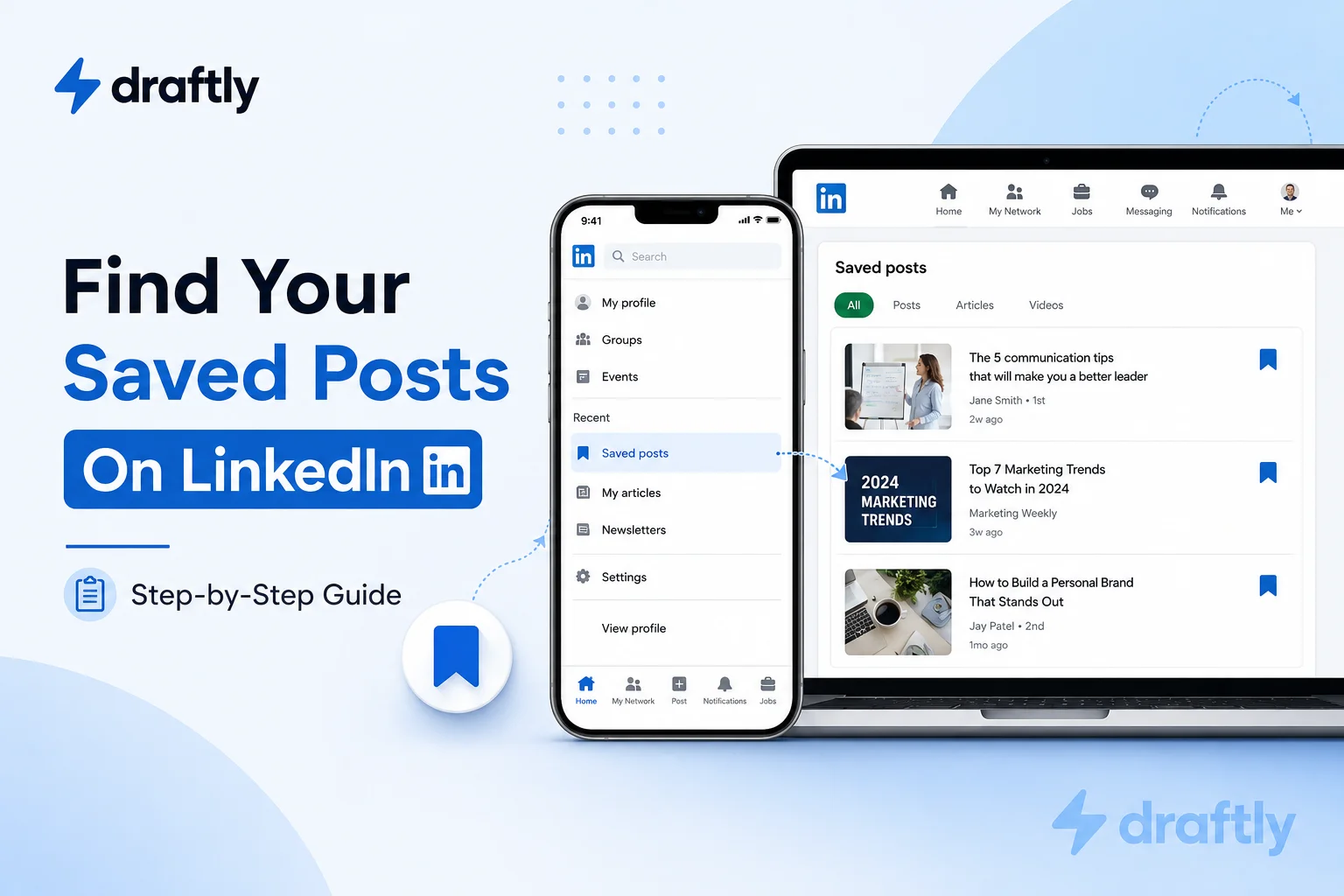
How to Find Your Saved Posts on LinkedIn (Desktop)
- Click your profile photo, or the Me icon in the top navigation bar.
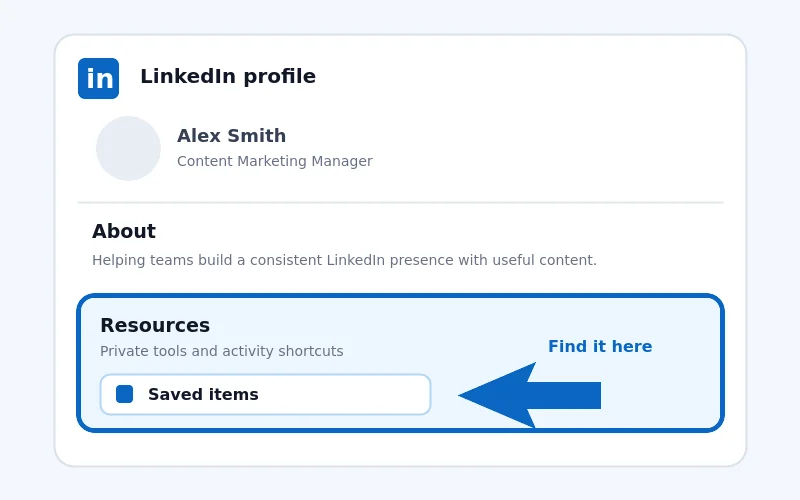
- On your profile page, scroll down to the Resources section, just below your About section.
- Click Saved items. If the section is collapsed, click See all resources first, then choose Saved items from the list.
- You'll land on your My Items page with “Saved posts and articles” selected. Every post, article, and job listing you've bookmarked shows up here in one combined list, newest first.
How to Find Your Saved Posts on LinkedIn (Mobile App)
- Open the LinkedIn app and tap your profile photo in the top-left corner.
- Scroll to the Resources section on your profile.
- Tap Saved items. Tap See all resources first if you don't see it right away.
- Your saved posts, articles, and jobs load in the same combined list you'd see on desktop.
Takeaway: the destination is always the same “My Items” page. It's just the path to get there that LinkedIn keeps rearranging, which is why the next section exists.
Why You Can't Find a Saved Post (and How to Fix It)
If you've followed the steps above and something's still missing, it's usually one of these:
- The menu moved again. LinkedIn has changed this navigation more than once in the past year. If Resources isn't where you remember it, try your profile icon in the top-right navigation bar instead. Some versions of the interface put a “Saved Items” shortcut right there in that dropdown.
- The original poster deleted the post, or deactivated their account. A saved post only sticks around as long as the source does.
- It was posted in a group you've since left, or the poster changed who can see it after you saved it.
- You're checking the wrong account. Easy to do if you also manage a Company Page. Saved items are tied to whichever account you saved from.
- You're looking for a post but scrolling past job listings. Saved jobs and saved posts share the same list, sorted by save date, not by type.
Takeaway: if a saved post is genuinely gone, it's almost always because the source disappeared, not because LinkedIn lost your save.
Can Others See Your Saved Posts on LinkedIn?
No. Your saved items are private to you. They don't appear on your public profile, they don't show up in your connections' feeds, and saving a post doesn't notify the person who wrote it. Think of it as a personal bookmark, not a public action like a like or a repost.
Managing Your Saved Posts
Here's the part that trips people up: LinkedIn's saved items list has no folders, no tags, and no way to search within it. Posts, articles, and job listings all pile into the same list, newest first. Save more than a handful of things and finding a specific one again means scrolling, not searching.
A few ways around that limitation, depending on why you saved the post in the first place:
- Saved it for content inspiration? Don't leave it sitting in a list you'll have to scroll through later. Pull it into an actual running list of post ideas instead, somewhere it's actually searchable.
- Saved it to repost later? Don't let it age out of relevance. Once you're ready, our guide on how to repost on LinkedIn covers reposting with or without your own commentary.
- Saved it because it had a video you want to keep? Saving isn't the same as downloading. The video only sticks around as long as the original post does, so if you want a permanent local copy, see our LinkedIn video downloader guide.
Takeaway: treat LinkedIn's saved list as a temporary holding pen, not permanent storage. Anything you actually need long-term should move somewhere searchable.
Conclusion
Your saved posts on LinkedIn aren't lost. They're on your My Items page, reachable through your profile's Resources section on both desktop and mobile, even though LinkedIn keeps shuffling the exact path to get there. The real limitation isn't finding the list, it's that once you're in it, there's no way to search or organize what's inside.
If you're using saved posts as a running source of content ideas, you'll outgrow that list fast. Draftly's free plan can help you turn what you save into an actual scheduled posting rhythm, instead of a list you have to scroll through every time you need an idea.