To contact LinkedIn customer service, sign in, open the LinkedIn Help Center, scroll to the bottom of any help article or the Help Center homepage, and click Contact us, then Chat with support. The help assistant that opens can answer your question or create a support case, and Premium members can ask it for a live agent.
There's no customer service phone number to call and no email address for opening a new case. Replies come by email and show up in your list of support cases, usually within days rather than hours.
This guide covers every route on desktop and mobile, which team handles ads, Recruiter and Sales Navigator, what to do when you can't sign in, how to get a refund, and how to write a case that gets solved on the first reply.
How to Contact LinkedIn Customer Service on Desktop
LinkedIn only takes support requests from members who are signed in, so log in first, even if your question is about billing.
- Go to linkedin.com/help in your browser. You can also click Me at the top of LinkedIn and choose Help.
- Type your problem into the search bar and open the closest article. Many articles carry the fix, or a form for that exact issue.
- If the article doesn't solve it, scroll to the bottom of the page and click Contact us.
- Click Chat with support to open the help assistant.
- Describe the problem in one or two plain sentences, including any error message word for word.
- If the assistant can't fix it, ask it to open a support case. On Premium, you can ask for a live agent instead.
When a case opens, LinkedIn sends an automated confirmation email. If it doesn't arrive, check your spam folder and the other email addresses on your account, because replies go to the address LinkedIn has on file.
Takeaway: Search first, then Contact us and Chat with support; it's the only door to a person at LinkedIn.
How to Contact LinkedIn Support in the Mobile App
The route is the same on iPhone and Android, it just starts from Settings:
- Tap your profile photo in the top left corner.
- Tap Settings.
- Scroll down and tap Help Center.
- Search for your problem, then scroll to the bottom of the page and tap Contact us.
- Tap Chat with support and describe what's wrong.
The app moves its menus around more often than the website, and on some versions the Help Center opens in your phone's browser. If a label looks different, open linkedin.com/help in your mobile browser while signed in; the same Contact us link sits at the bottom of the page.
Takeaway: For a case that needs screenshots, start it on desktop, where attaching files is quicker.
Does LinkedIn Have a Customer Service Phone Number?
No. LinkedIn doesn't offer a phone number for customer support, and it has no email address for starting a new case. The numbers on directory sites lead to third parties, and some of them charge for "support" or ask for your login.
There's one narrow exception. LinkedIn is gradually adding phone support for Premium members. It isn't a number you dial. Where it's offered, you ask for a call from inside the support chat, and LinkedIn calls you.
LinkedIn's headquarters at 1000 W Maude Ave in Sunnyvale, California, is the address for legal notices, not account problems. A letter won't move a support case.
Takeaway: If a website or a message hands you a LinkedIn support number to call, treat it as a scam.
Every Way to Reach LinkedIn Support
Here's what each channel is for and who can use it:
| Channel | Who can use it | Best for |
|---|---|---|
| Help Center articles | Anyone | How-to questions and known fixes |
| Help assistant (Chat with support) | Signed-in members | Quick answers and opening a support case |
| Live chat with an agent | Premium members, from the help assistant | Billing and account problems that need a person |
| Phone callback | Some Premium members, where LinkedIn has rolled it out | Requested from the chat when it's offered |
| Support case by email | Signed-in members | Anything the assistant can't solve on the spot |
| @LinkedInHelp on X | Anyone | Outage questions and general pointers, never account details |
| Identity verification | Locked out or restricted members | Getting back into your account |
Live chat runs in seven languages: English, French, German, Portuguese, Spanish, Dutch and Italian.
Takeaway: Pick the channel by what you need: a fix you can read, a case someone will answer, or a way back into your account.
Which LinkedIn Support Route Fits Your Situation
Two things decide your route: whether you can sign in, and whether you pay for Premium. They don't count equally.
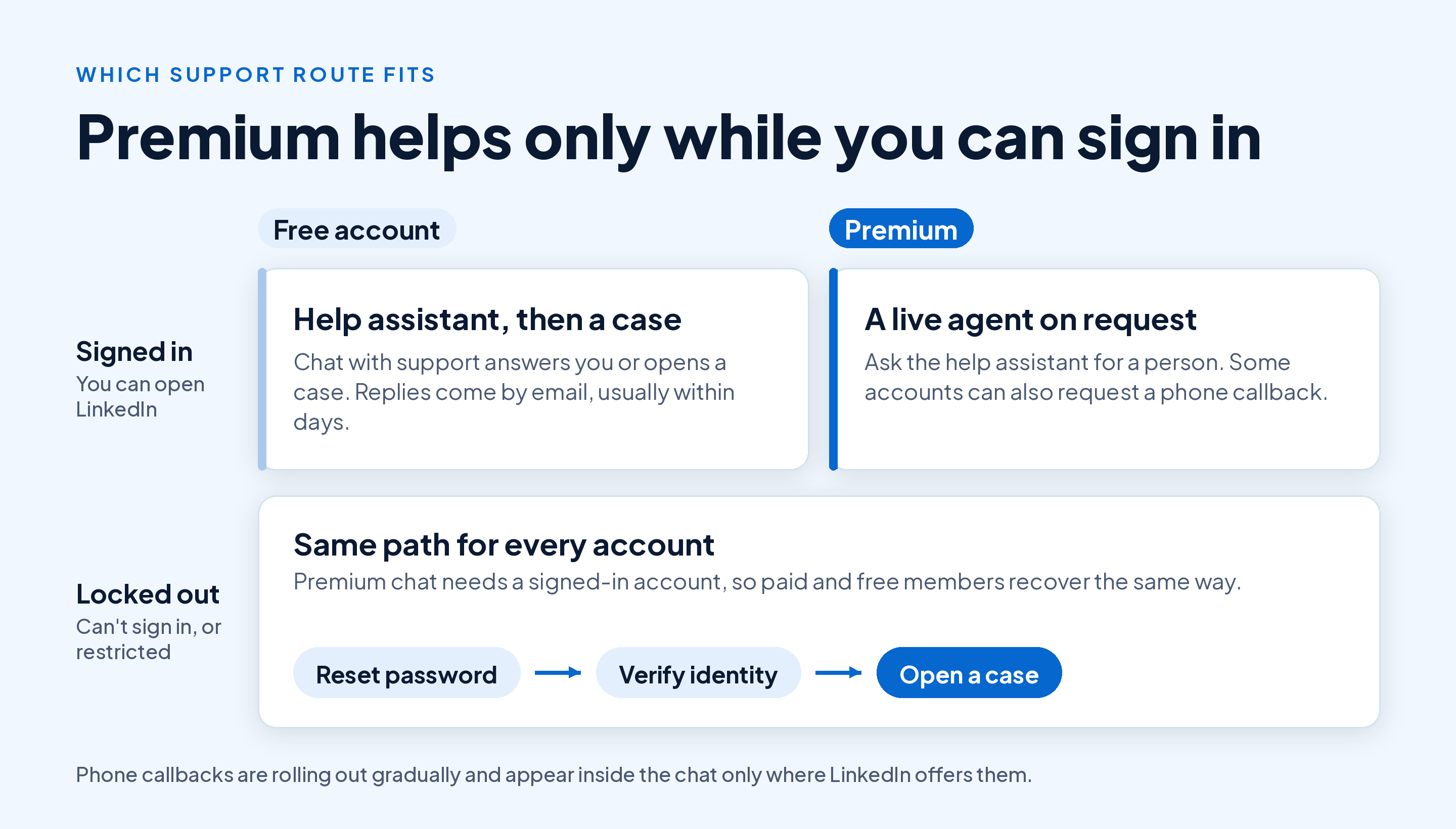
Premium only speeds things up while you can sign in. Once you're locked out, a paying member and a free member take the same path: reset the password, verify your identity, then contact support from inside the account if anything is still wrong.
If you're thinking of upgrading mainly for faster help, compare it with everything else you'd get. Our guide to whether a Premium plan earns its price for you walks through who benefits most, and this breakdown of what every Premium plan costs per month has the current prices.
Takeaway: If you can still sign in, open the case now, before a small problem turns into a lockout.
How to Check, Update or Reply to a LinkedIn Support Case
Every case you open sits in one list, and that's where you add details or answer a question from the support team.
On desktop
- Open the Help Center while signed in.
- Click your profile photo in the upper right corner and select View your support cases, the route LinkedIn gives in its help page on case updates.
- Click the subject line of your case, read the latest reply, and add an update if needed.
In the mobile app
- Tap your profile photo, then Settings, then Help Center.
- Tap the More icon and select View your support cases.
- Open the case and reply there.
LinkedIn doesn't publish a response time, so plan for a few business days on a normal case. Opening a second case for the same problem doesn't get you to the front, and sending reply after reply can push your case back in the queue. Add new information once, in the same case.
Takeaway: Keep one case per problem and write down its number, so every follow-up lands in the same thread.
What to Do If You Can't Log In or Your Account Was Hacked
Chat and cases need a signed-in account, so a lockout has its own path. Start with the step that matches what happened.
You forgot your password
Use Forgot password? on the sign-in page and enter your email or phone number. If the verification code never arrives, LinkedIn's password reset page points you to its support team; check your spam folder and any older email addresses first.
LinkedIn asks you to verify your identity
Follow the on-screen steps. On a computer, LinkedIn shows a QR code that you scan with your phone to finish verification, and you'll usually photograph a government ID such as a passport or driver's license. School and library cards aren't accepted.
Someone else got into your account
- If you can still sign in, change your password straight away and turn on two-step verification.
- In Settings & Privacy, sign out of every session you don't recognize.
- If you're locked out, use LinkedIn's compromised account reporting and verify your identity when asked.
- Once you're back in, check your sent messages and recent posts, and warn anyone who got a strange message from you.
After you regain access, LinkedIn may reverse some actions the intruder took, so mention them in your case.
Your account is restricted
A restriction isn't a support chat problem. Sign in and follow the verification steps LinkedIn shows you, then wait for the review. Our guide to why LinkedIn restricts accounts and how to get back in covers the common causes and the appeal.
Takeaway: Turn on two-step verification today; it's the simplest protection against ever needing this section.
Support for LinkedIn Ads, Recruiter, Sales Navigator and Learning
LinkedIn's business products each have their own help center and their own support team. Use the right one and your case skips a hand-off:
| Product | Where to ask | Worth knowing |
|---|---|---|
| LinkedIn Ads (Campaign Manager) | The Marketing Solutions Help Center, signed in | Managed ad accounts go to their LinkedIn Ads account team |
| Recruiter | The Recruiter Help Center, signed in to Recruiter | No Recruiter account yet? LinkedIn sends you to sales |
| Sales Navigator | The Sales Navigator Help Center | Has its own Chat with support link |
| LinkedIn Learning | The Learning Help Center | Starts with the help assistant, LinkedIn's AI chat |
| Company Pages | The main LinkedIn Help Center | Sign in as a Page admin before you contact support |
If your company has an enterprise contract for Recruiter, Sales Navigator or Learning, your account manager or internal admin is usually faster than a case.
Takeaway: Bookmark the help center for the product you pay for, not just the main one.
LinkedIn Billing Problems and Refunds
Before you contact anyone about a charge, find the receipt. If Apple or Google billed you, they handle the refund, not LinkedIn, and LinkedIn's own refund policy sends App Store subscribers to Apple's support.
For charges LinkedIn billed directly, open a case from the help assistant and include the charge date, the amount and the last four digits of the card. The rules vary by country; the policy page, for example, gives members in Denmark and the Netherlands a refund of the unused part of the subscription when they cancel. Premium Company Page refunds must be requested within seven days of the billing date.
The simplest way to avoid a refund fight is to cancel at least one day before your billing date. Here's how to stop a Premium plan before the next charge on desktop, iPhone and Android.
Takeaway: Check who billed you first; it decides whether LinkedIn, Apple or Google can give your money back.
How to Write a LinkedIn Support Case That Gets Solved Faster
Most slow cases are slow because the first message was vague and support had to ask follow-up questions. Give them everything in one go. Copy this and fill in the brackets:
Subject: [What's broken] on [desktop / iPhone / Android] since [date]
What happened: [One or two sentences, plus the exact error message]
What I expected: [What should have happened]
What I've tried: [Signed out and back in, another browser, the app]
Account email: [The email address on your LinkedIn account]
Attached: [Screenshots of the error, with personal details cropped out]
Keep it to one problem per case. A billing question and a profile bug in the same message often get split, and half of it goes unanswered. Never put your password in a case or a chat; LinkedIn support won't ask for it.
Takeaway: A case that answers "what, where, since when and what you tried" usually gets a fix instead of a question.
How to Spot Fake LinkedIn Support
Searching for a LinkedIn phone number is how many people end up talking to fake support. LinkedIn doesn't charge for support and doesn't ask for your password or remote access to your computer, so any "agent" who does is not from LinkedIn.
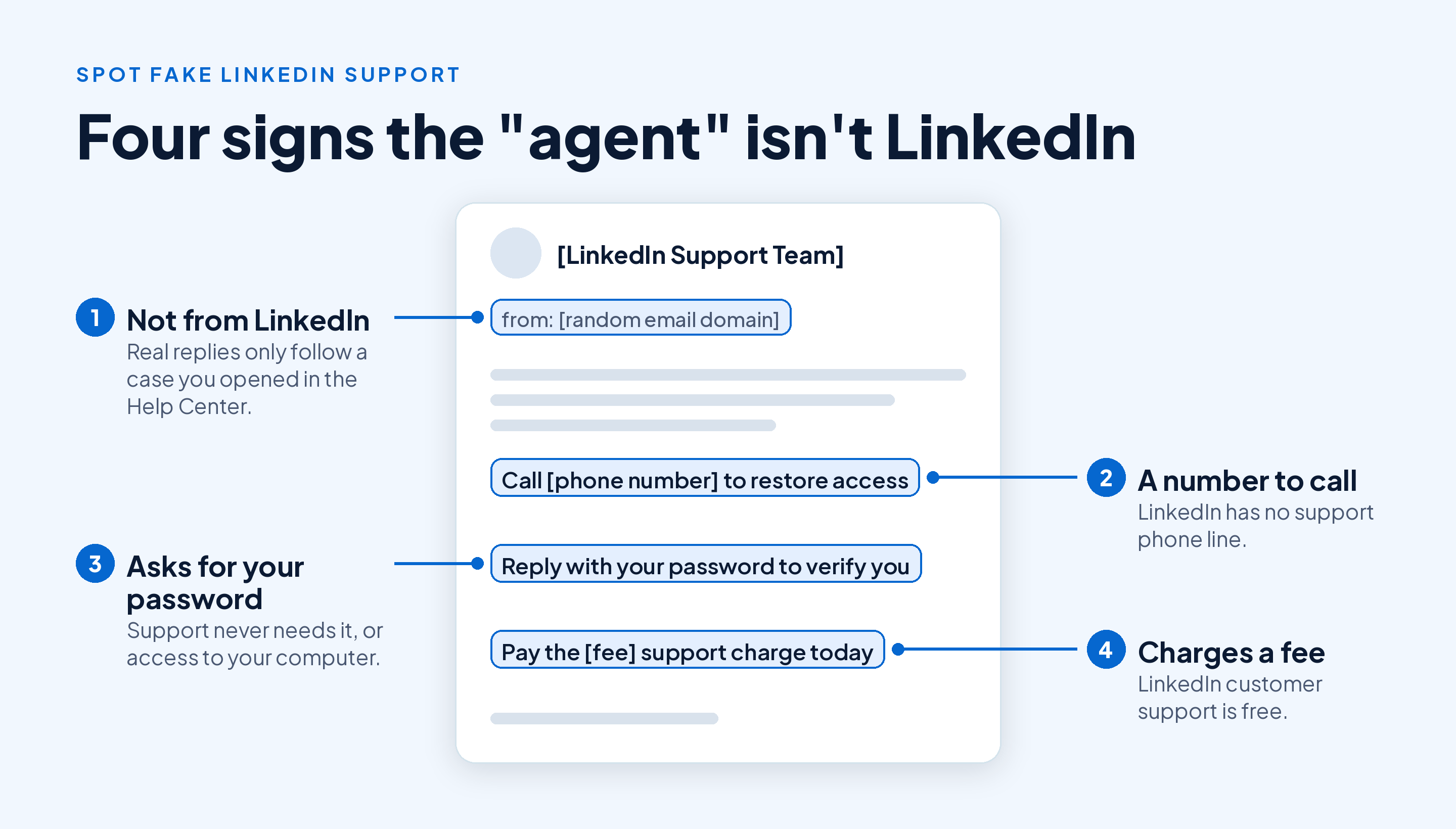
If a fake support profile keeps messaging you, report it from its profile, then block the account so it can't contact you again. If you already shared your password, change it, turn on two-step verification and sign out of other sessions.
Takeaway: Real LinkedIn support starts from the Help Center while you're signed in, so treat any "agent" who contacts you first as suspect.
What LinkedIn Support Can't Do for You
Support fixes billing errors, bugs, hacked accounts and access problems. It won't raise your weekly invitation limit, add InMail credits or reverse most final policy decisions, so a case asking for those usually ends with a polite no. Our guide to how LinkedIn's weekly invitation limit works explains what you can do instead.
LinkedIn lists automated tools among the reasons it restricts accounts, and support can't undo a restriction just because you ask. If you run outreach, Draftly's LinkedIn Outreach add-on works from your own browser, inside working hours and daily limits you set, and pauses when LinkedIn shows a warning. No tool can promise LinkedIn won't restrict an account, so keep your volumes modest.
Takeaway: Save support for things only LinkedIn can fix, and solve limit problems by changing how you work.
Conclusion
LinkedIn customer service runs through one door: sign in, open the Help Center, click Contact us, then Chat with support. Free members get the help assistant and a support case by email; Premium members can ask for a live agent, and some can request a callback. There's no phone line to dial and no email for new cases.
If you're locked out, reset your password and verify your identity first. Then write one clear case per problem, keep its number, and check who billed you before asking for a refund.
Once your account is sorted, put it to work. Start Draftly's free plan and write five LinkedIn posts a month, no card needed.