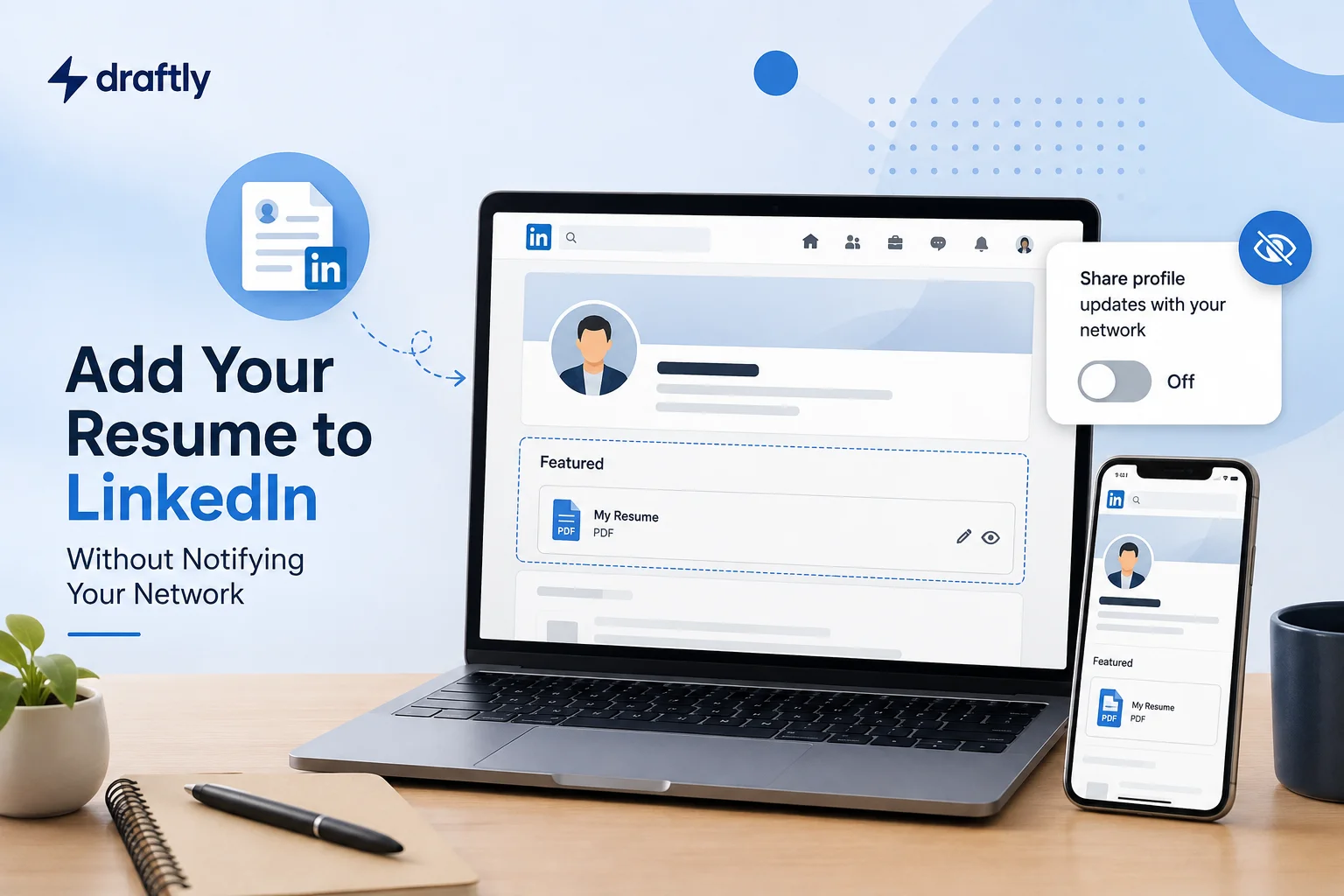
Here's the good news: that notification is controlled by a single setting, and you can switch it off before you upload anything. This guide walks you through that first, then covers every real way to add a resume to LinkedIn, on both desktop and mobile, plus when doing this actually helps you and when it quietly works against you.
Why LinkedIn Notifies Your Network When You Touch Your Profile
LinkedIn's default behavior is to treat profile edits as activity worth sharing, the same way it treats a new post or a job change. Add a Featured item, update your headline, tweak your experience section, and by default your connections can see "X updated their profile" show up in their feed.
Most of the time that's harmless. When you're actively job hunting while still employed, it's the opposite of what you want.
Takeaway: the notification isn't tied to resumes specifically, it's tied to profile activity in general, which means the fix is a one-time setting change, not something you have to remember every time you upload a new version. It's a small thing, but it's exactly the kind of detail that separates a genuinely optimized LinkedIn profile from one that just happens to have information on it.
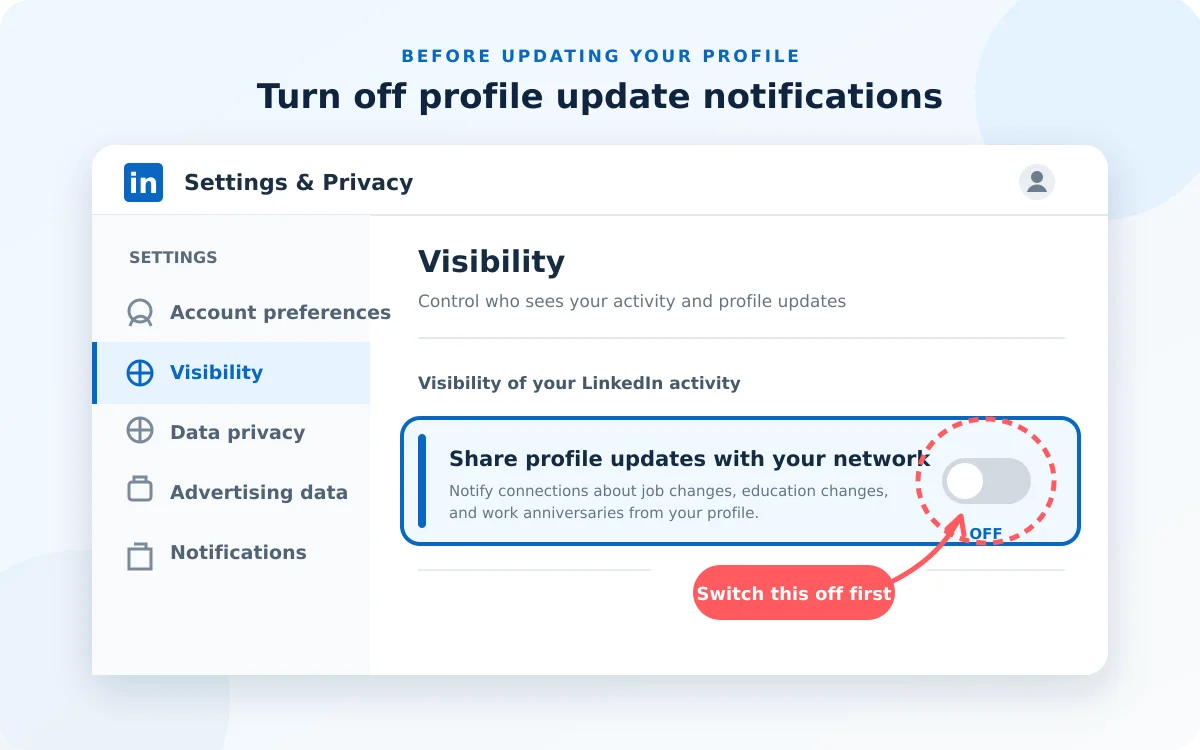
Step 1: Turn Off Activity Broadcasts Before You Upload Anything
Do this first, before you touch your Featured section or anything else on your profile:
- Open Settings & Privacy (click your profile photo, then "Settings & Privacy").
- Go to the Visibility tab.
- Find "Share profile updates with your network" (LinkedIn has relabeled this setting a few times over the years, so look for anything referencing sharing updates or notifying your network).
- Toggle it off.
With this off, you can edit your profile, add a Featured resume, rearrange your experience section, whatever you need, without a single notification going out. Just remember to turn it back on afterward if you generally like your network seeing your updates.
Takeaway: one toggle, flipped once, and everything below becomes safe to do quietly.
Method 1: Add Your Resume to Your Featured Section
This is the most visible option, your resume becomes part of your public profile, downloadable by anyone who visits it. It uses the same featured section that's also meant for pinning your best posts, case studies, or press mentions, so if you've never set that section up before, it's worth understanding how it works before you drop a resume into it as its first-ever item.
On desktop:
- Go to your profile and click Add profile section.
- Under Recommended, select Add featured.
- Click the + icon and choose Add media.
- Upload your resume file (PDF keeps your formatting intact, so it's the safer choice over a Word doc).
- Give it a clear title, something like "Resume, March 2026," not just the filename.
- Save, then view your own profile as a visitor would to confirm it looks right.
On mobile:
The flow mirrors desktop closely: tap your profile photo, open your profile, tap Add profile section, and follow the same Featured path. The exact icon placement shifts slightly between app versions, but the sequence, Add section → Featured → Add media, stays consistent.
Before you upload anything here, strip your contact information off the file itself. Anything in your Featured section is publicly visible, so a resume with your personal phone number and home address on it is now sitting in front of anyone who lands on your profile, not just people you've vetted.
Takeaway: Featured is the right call when you want your resume to actively work for you, like during an open job search, a career pivot, or as a freelancer, but it's a public document the moment you save it.
Method 2: Attach Your Resume Directly to a Job Application (Easy Apply)
This one is private by nature, it's tied to a specific application, not your public profile.
- Open the job listing and click Easy Apply.
- When prompted for your resume, either upload a new file or select one you've used before.
- Review the rest of the application and submit.
On mobile, the Easy Apply flow works the same way inside the LinkedIn app, you'll hit the same resume upload prompt partway through the application.
One thing worth knowing: LinkedIn tends to default to the last resume you used on your next Easy Apply application, which is convenient until you forget you're sending last year's version to a job that needs the updated one. Double-check the file name before you hit submit.
Takeaway: this is the option for actual applications, not for building a public presence, and it doesn't touch your profile or trigger any network notification regardless of your broadcast setting.
Method 3: Save Resumes in Job Application Settings, Even If You're Not Applying Yet
You don't have to wait until you're mid-application to get your resume into LinkedIn. You can preload it:
- Go to Settings & Privacy.
- Look for Application settings or a similar option under Job Application settings (the label has moved around across LinkedIn's redesigns).
- Upload and label your resume there directly.
LinkedIn keeps a handful of your most recent resumes here, so if you're maintaining a couple of tailored versions, an early-career resume and a leadership-track one, for example, label them clearly enough that you're never guessing which is which at 11pm before a deadline. A naming pattern like this works better than whatever your file manager defaulted to:
Resume_MarketingLead_2026.pdf Resume_GrowthMarketing_2026.pdf
Two seconds of renaming now saves you from sending the wrong version to the wrong recruiter later.
Takeaway: this method is entirely private and is the cleanest way to have your resume ready for one-click applications without publishing anything to your profile.
Should You Even Put Your Resume on LinkedIn?
This is worth pausing on before you upload anything, because the answer genuinely depends on your situation.
It helps when: you're actively and openly job hunting, you're a freelancer or consultant who wants prospects to grab your full background in one click, or you're pivoting industries and want a document that explains context your current headline can't.
It can work against you when: you're currently employed and not ready for that to be visible, or when your resume and your profile's about section tell noticeably different stories. Recruiters and hiring managers who land on your profile expect what they see there to line up with what you send them, so a Featured resume that lists outdated job titles or skills your profile doesn't mention creates more doubt than it resolves.
If you're not sure your Featured section should be public at all right now, it's worth checking who can actually see your profile activity before you decide how much to expose there.
A useful gut check before you upload: read your Featured resume and your profile back to back, as if you were a recruiter seeing both for the first time. If your resume lists "Senior Marketing Manager, TechCo" but your profile still shows your title from two roles ago, that gap is the first thing a hiring manager notices, and it reads as carelessness even when the real explanation is just that you forgot to update one of the two.
Takeaway: a resume on LinkedIn is a tool for a specific moment, not a permanent fixture every profile needs.
How to Update or Remove a Resume You've Already Uploaded
To update or remove a Featured resume: go back to the Featured section, click the pencil (edit) icon on the item, and either replace the file or delete it entirely.
To remove a resume saved in Job Application Settings: open that settings page, find the file in your list, click the three-dot menu next to it, and select delete.
Old versions sitting in your Featured section are an easy thing to forget about. If you haven't looked at what's Featured on your profile in the last six months, it's worth a quick check, since an outdated resume next to a stale job title does more harm than having no resume there at all.
Common Problems People Run Into
"LinkedIn won't let me upload my resume." This is almost always a file issue: check that you're using a PDF or Word doc under LinkedIn's size limit, and that the file isn't password-protected or corrupted.
"I can't find the resume I uploaded." Featured resumes live on your public profile under the Featured section. Resumes tied to job applications live in Job Application Settings instead, they're two separate storage locations, so you're likely looking in the wrong one.
"My old resume keeps attaching itself to new applications." That's the "last used" default mentioned earlier under Easy Apply. Swap it manually before submitting if you don't want it reused.
"I turned off the broadcast setting, but I'm still nervous about editing my profile." That's fair, the toggle stops the automatic notification, but it doesn't stop someone from noticing on their own if they happen to visit your profile directly while you're mid-edit. If you're in the middle of a sensitive job search, it's worth doing your profile edits in one sitting rather than leaving your Featured section half-updated for days.
Conclusion
Adding a resume to LinkedIn isn't complicated once you know where it actually lives, Featured for public visibility, Easy Apply for a single application, or Job Application Settings for something you're keeping in reserve. The part that trips most people up is the notification, and that's solved with one setting, flipped once, before you touch anything else.
If keeping the rest of your LinkedIn presence just as intentional feels like the harder part, Draftly's free plan can help you plan and schedule the content that keeps your profile active without you having to think about it every day.