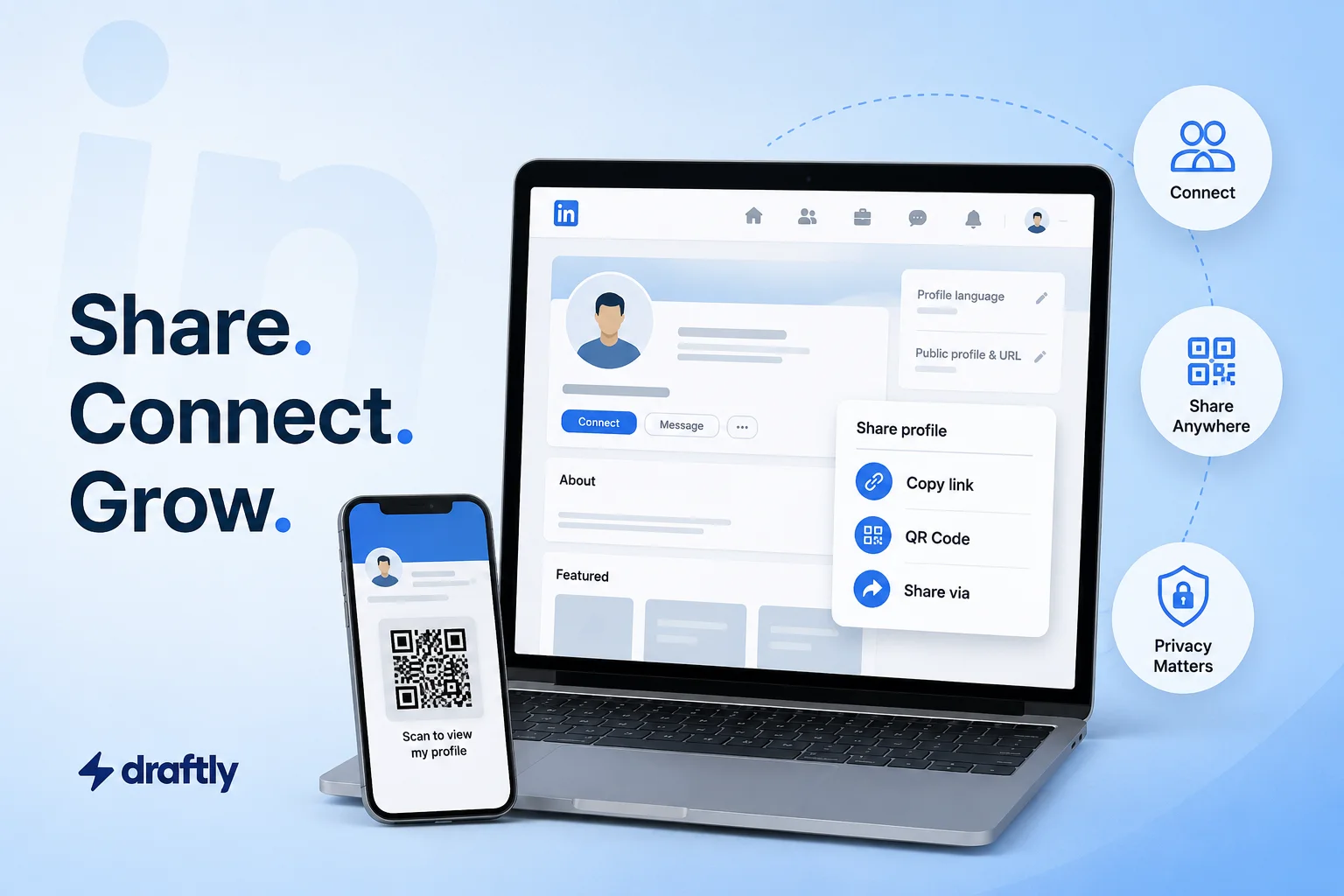
Most people share their LinkedIn profile the same way every time: copy the link, paste it somewhere, done. That works, but it's also the slowest option on the list, and it's not even the one LinkedIn built the feature for.
There's a faster way to send your profile straight from the app, a QR code you're probably not using, and one setting that can quietly make your shared link a lot less useful than you think. Once you've tracked down your actual profile URL, this is everything else worth knowing about getting it in front of the right person.
The Fastest Way: LinkedIn's Built-In Share Button
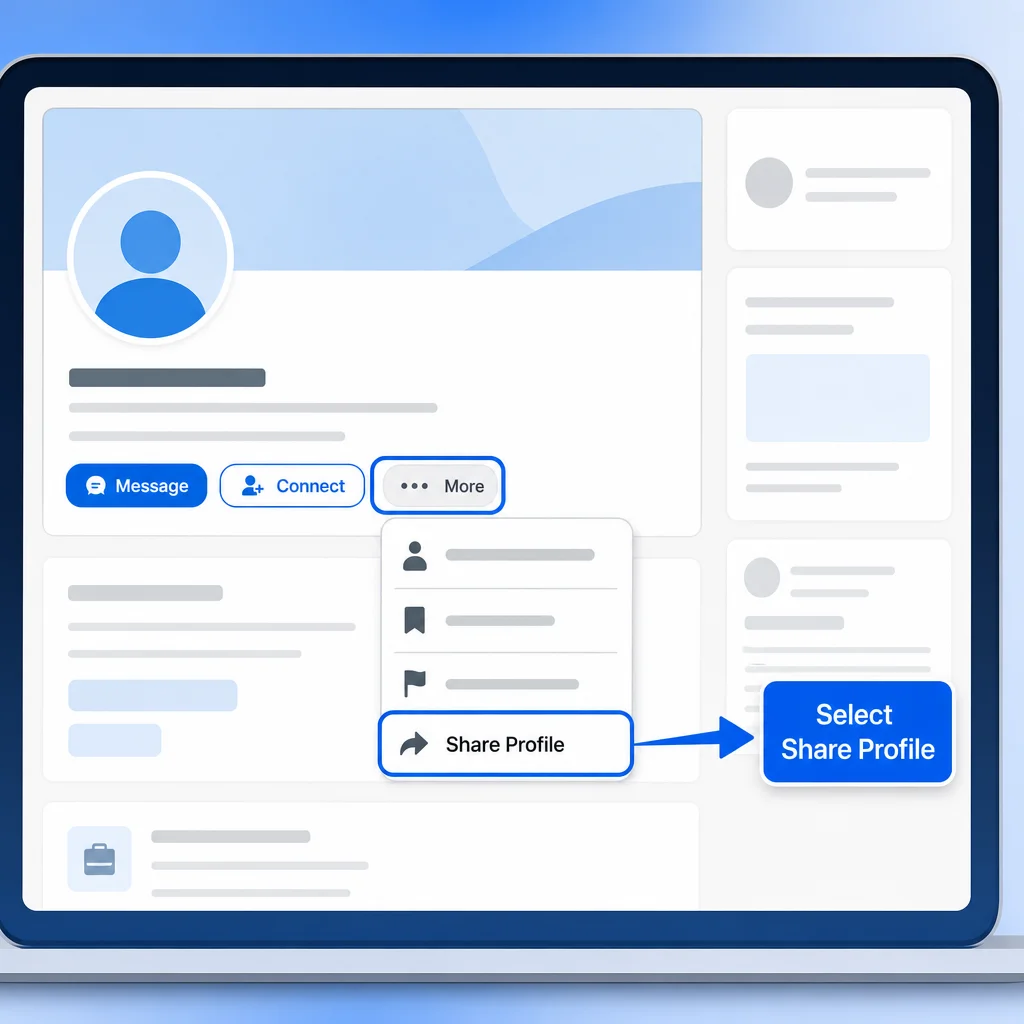
Most people never notice this exists because it's tucked under a menu instead of sitting out in the open.
On desktop:
- Open your own profile.
- Click More, just below your name and headline.
- Select the option to share your profile in a message.
- Search for the person you want to send it to.
- Add a line of context so it doesn't land as a cold, unexplained link.
- Send.
On mobile:
- Open your profile in the app.
- Tap the three-dot More menu.
- Select Share Profile.
- Choose LinkedIn messaging, or hand it off to another app entirely, texting, email, whatever the person actually checks.
- Pick the recipient and send.
The difference between this and pasting a raw link is small but real: the person receives your profile as a proper card, photo and headline included, instead of a plain blue hyperlink they have to click to make sense of.
Takeaway: if you're only ever copying and pasting your URL, you're doing the slower version of something LinkedIn already built a shortcut for.
Share Your Profile with a QR Code
This one's mobile-only, and most people don't know it's sitting right in the search bar.
- Open the LinkedIn app.
- Tap the QR icon on the right side of the search bar, on your Home or My Network screen.
- Land on the My Code tab, you'll see your personal code with your profile photo in the center.
- Save it to your camera roll, or share it directly through messaging or email.
Anyone who scans it gets dropped straight onto your profile, no typing, no searching your name and hoping you're the right result. It's a genuinely good fit for a business card, a conference badge, or the bottom of a slide when you're speaking somewhere.
One honest limitation: LinkedIn's built-in code is static. It points to your profile and nothing more, no data on who scanned it or when. If you're printing it somewhere you actually want to track, a dynamic QR code from a third-party generator will give you that, LinkedIn's own version won't.
Takeaway: the QR code beats retyping your name into someone's search bar, but don't expect scan analytics from LinkedIn's native version.
What Happens If Your Profile Is Set to Private
Here's the part that trips people up: you can send someone a perfectly good link and they still won't see much. If you're browsing LinkedIn in private mode, that setting affects what happens when you view other people, not what a stranger sees when they land on your link. But your public profile visibility settings are a separate switch entirely, and if that's dialed down, someone without an account, or a second- or third-degree connection, can hit your link and get a stripped-down version: name, headline, maybe a photo, and not much else.
That's fine if you genuinely only want connections seeing the full picture. It's a problem if you just handed someone your link expecting them to see your whole work history and they got a wall.
Takeaway: before you send your link somewhere it matters, know which version of your profile the recipient is actually going to land on.
Make Sure You're Sharing What You Think You're Sharing
There's a simple way to check this instead of guessing: preview your profile the way a stranger would see it. Do that before you send your link out somewhere permanent, like a resume header or a slide deck, not after.
It's a two-minute check that catches the stuff you'd otherwise only find out about from someone else: an outdated headline, a section you meant to hide, a photo that never got approved. Those are exactly the details that separate a genuinely optimized LinkedIn profile from one that just happens to exist.
A Few Other Places Your Profile Link Belongs
Sharing a link in the moment is one thing. Having it sitting somewhere permanent, your resume, your email signature, a business card, your personal site, is a different job with its own setup, and it's worth doing once and forgetting about rather than repeating every time. That groundwork is covered in the sharing tips inside the guide on finding and customizing your LinkedIn URL, so it's not worth repeating step by step here.
Common LinkedIn Profile Sharing Issues
“I don’t see a Share Profile option at all.” Double-check you're on your own profile page, not someone else's, and that you're looking under the More menu rather than the main action buttons. On some account types the wording is slightly different, but the option lives in the same place.
“I sent my profile, but they said it looked empty.” That's almost certainly the visibility issue from earlier in this piece. Check your public profile settings before assuming something's broken.
“My QR code won’t scan.” Make sure whoever's scanning is using their phone's camera or LinkedIn's own Scan tab, not a generic barcode reader, and that your screen brightness is actually up. It sounds obvious until you're standing in a dim conference hall.
“The link works for me but not for the person I sent it to.” Confirm you sent your public profile URL and not an internal LinkedIn link that only makes sense while you’re logged into your own account.
Conclusion
The copy-paste link still works, but it's the slowest option on the list. The built-in Share button sends a proper profile card in a couple of taps, the QR code skips typing entirely, and knowing your visibility settings means the person on the other end actually sees what you meant for them to see.
If keeping the rest of your LinkedIn presence just as deliberate feels like the bigger job, Draftly's free plan can help you plan and schedule the content that keeps your profile worth sharing in the first place.