You sent the message three days ago. No reply. No typing dots. Nothing. Did they read it and choose not to answer, or is it still sitting unopened in their inbox?
Short answer: yes, LinkedIn has read receipts, but they only work when both people have the feature turned on. If either person disables it, neither of you will see it. That one detail explains almost every confusing case of "why can't I tell if my message was read?" This guide covers how the feature works, how to check a specific message, and what to do when you're left guessing.
Does LinkedIn Have Read Receipts?
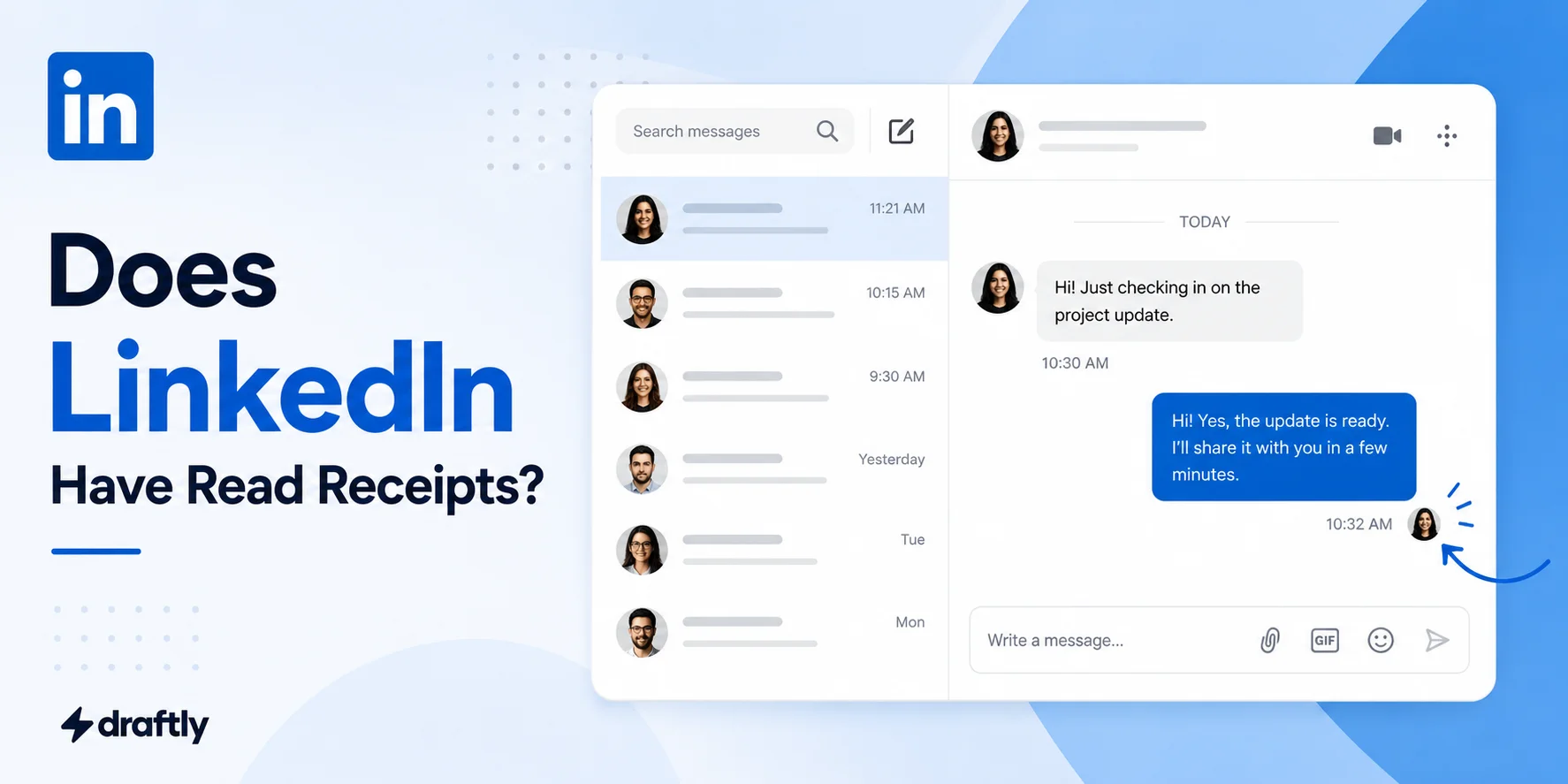
Yes. LinkedIn Messaging includes a built-in read receipt and typing indicator system, similar to what you'd find on WhatsApp or iMessage. When it's active, you'll see:
- "Seen" (sometimes with a timestamp) under the last message you sent, once the recipient opens the conversation
- A small typing indicator ("... is typing") when they're actively composing a reply
Here's the catch: this only works in one-to-one conversations where both people have read receipts turned on. It's a mutual setting. You can't see theirs unless yours is also enabled, and vice versa. Group messages don't show individual read status at all; you'll only see a general "Seen by" summary once enough people have opened the thread.
Takeaway: the presence or absence of a "Seen" tag doesn't always mean what you think. Check your own settings before assuming you've been left on read.
How to Know If Someone Read Your Message on LinkedIn
The "Seen" Indicator in LinkedIn Messaging
Open your conversation with the recipient. If read receipts are active for both of you, a small "Seen" label appears directly beneath your last sent message, usually within a few seconds of them opening the chat.
What It Looks Like on Desktop vs. Mobile
On desktop, the "Seen" label shows up in light gray text under the message bubble, left-aligned beneath your sent message. On the mobile app, it works the same way, though on smaller screens you may need to tap into the thread to refresh it before it displays.
If you don't see anything at all, no "Seen," no timestamp, that's your first clue that read receipts aren't active for this conversation. It doesn't necessarily mean the message is unread.
When Read Receipts Don't Show Up
The Recipient Has Turned Off Read Receipts
Because the feature is mutual, if the other person has disabled read receipts in their settings, you'll never see "Seen" on your side either, even though your own setting is on. There's no notification telling you this happened. The indicator simply won't appear.
InMail vs. Regular Connection Messages
Read receipts behave differently depending on the message type. Regular messages between first-degree connections follow the standard read receipt toggle described above. InMail messages (sent to non-connections, typically via Premium or Sales Navigator) don't reliably show the same "Seen" indicator. LinkedIn treats these more like outreach messages than casual chat, so visibility into opens is limited.
Free vs. Premium Account Differences
Read receipts themselves are a free tier feature available to every LinkedIn user. Premium doesn't unlock a hidden "read" indicator that free accounts lack. What Premium can add is broader messaging capacity, like InMail credits, and more visibility elsewhere on the platform, but it won't force a read receipt to appear if the recipient has the setting turned off.
How to Turn Read Receipts On or Off Yourself
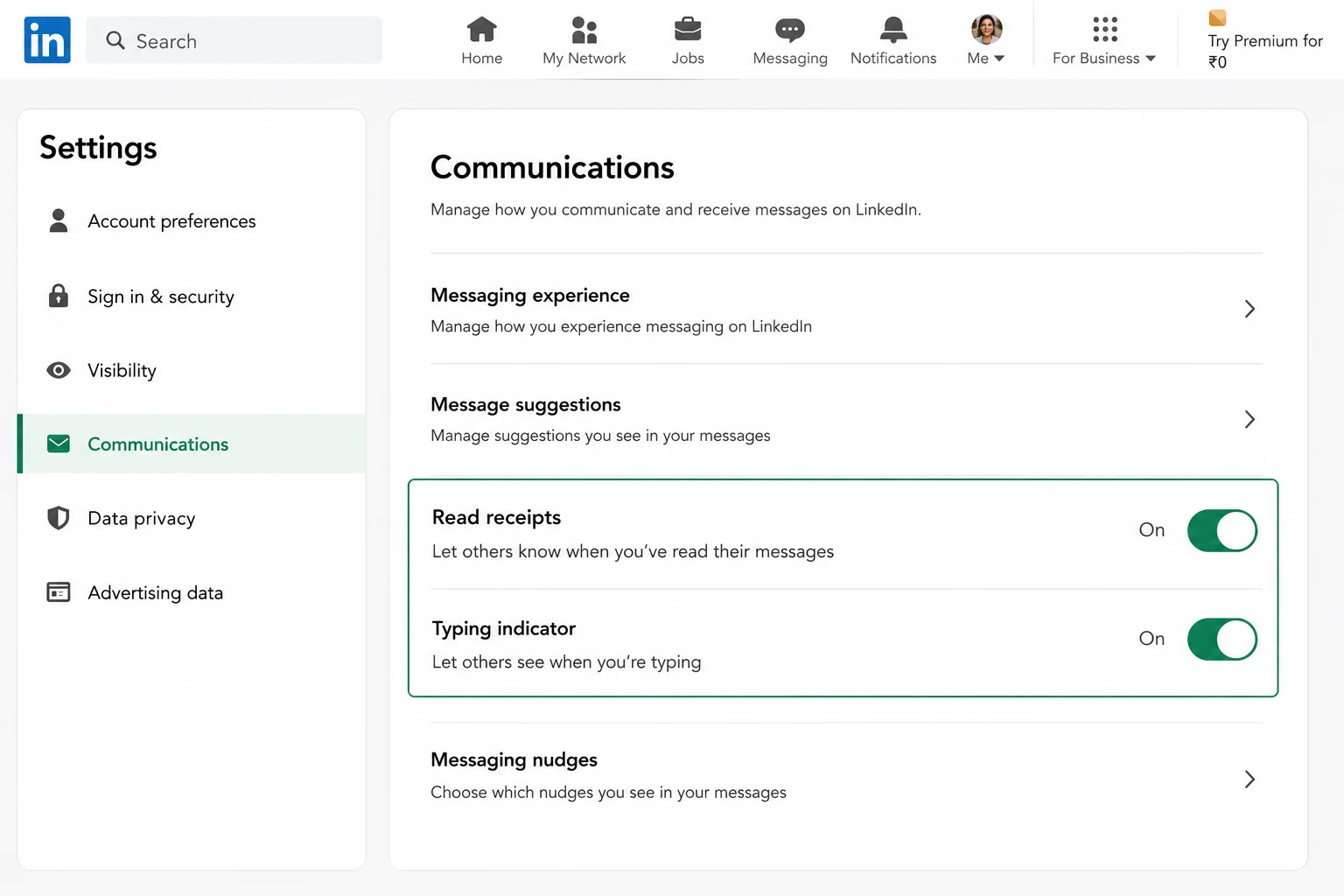
If you want to control whether people can see when you've read their messages, here's where to manage it:
- Click your profile photo in the top navigation bar.
- Select Settings & Privacy.
- Go to the Visibility tab.
- Scroll to Messaging experience and find Read receipts and typing indicators.
- Toggle it on or off.
Turning it off means you stop seeing when others read your messages too. It's a two-way switch, not a one-sided privacy setting.
This is just one of several messaging and visibility settings worth reviewing if you're serious about optimizing your LinkedIn profile end to end, from how you appear in search to who can see your activity.
Takeaway: If you'd rather message without the pressure of "Seen" timestamps, turning this off protects your own privacy the same way LinkedIn's private mode settings do for profile views. Both let you interact on your own terms without broadcasting your activity.
What If You Can't See Read Receipts? Other Ways to Gauge a Response
No read receipt doesn't mean no interest. A few other signals can help you gauge whether someone's engaging with you on LinkedIn, even without a "Seen" tag.
Profile activity is one signal worth watching. If they've recently liked or commented on posts, they're active on the platform, even if they haven't replied to your message yet. Profile views can also help. Checking who's viewed your profile sometimes shows whether the person visited your profile after receiving your message, a soft signal they at least noticed it.
When in doubt, a low-pressure follow-up beats guessing. Try something like this:
"Hey [Name], no worries if you're swamped, just wanted to bump this up in case it got buried. Happy to chat whenever works for you!"
This kind of message keeps things casual and gives the recipient an easy out, rather than putting them on the spot.
Conclusion
LinkedIn does have read receipts, but they only work when both people have the feature turned on, which means a missing "Seen" tag isn't proof your message went unread. Check your own settings first, look for indirect signals like profile activity, and when in doubt, a short, low-pressure follow-up usually works better than guessing. If you're managing outreach at scale and need more than a "Seen" tag to know what's landing, Draftly helps you plan, schedule, and track your LinkedIn messaging and content from one place, so you're not left refreshing a chat window wondering what happened.